Add or Edit Doctors
Overview:
The "Doctors Setup" module allows users to create and manage doctors seamlessly. From basic information to availability, services, tags, and maintenance schedules, this module provides a comprehensive setup for doctor profiles.
Access "Doctors Setup":
Navigate to the "Doctors Setup" module to create or manage doctor profiles.
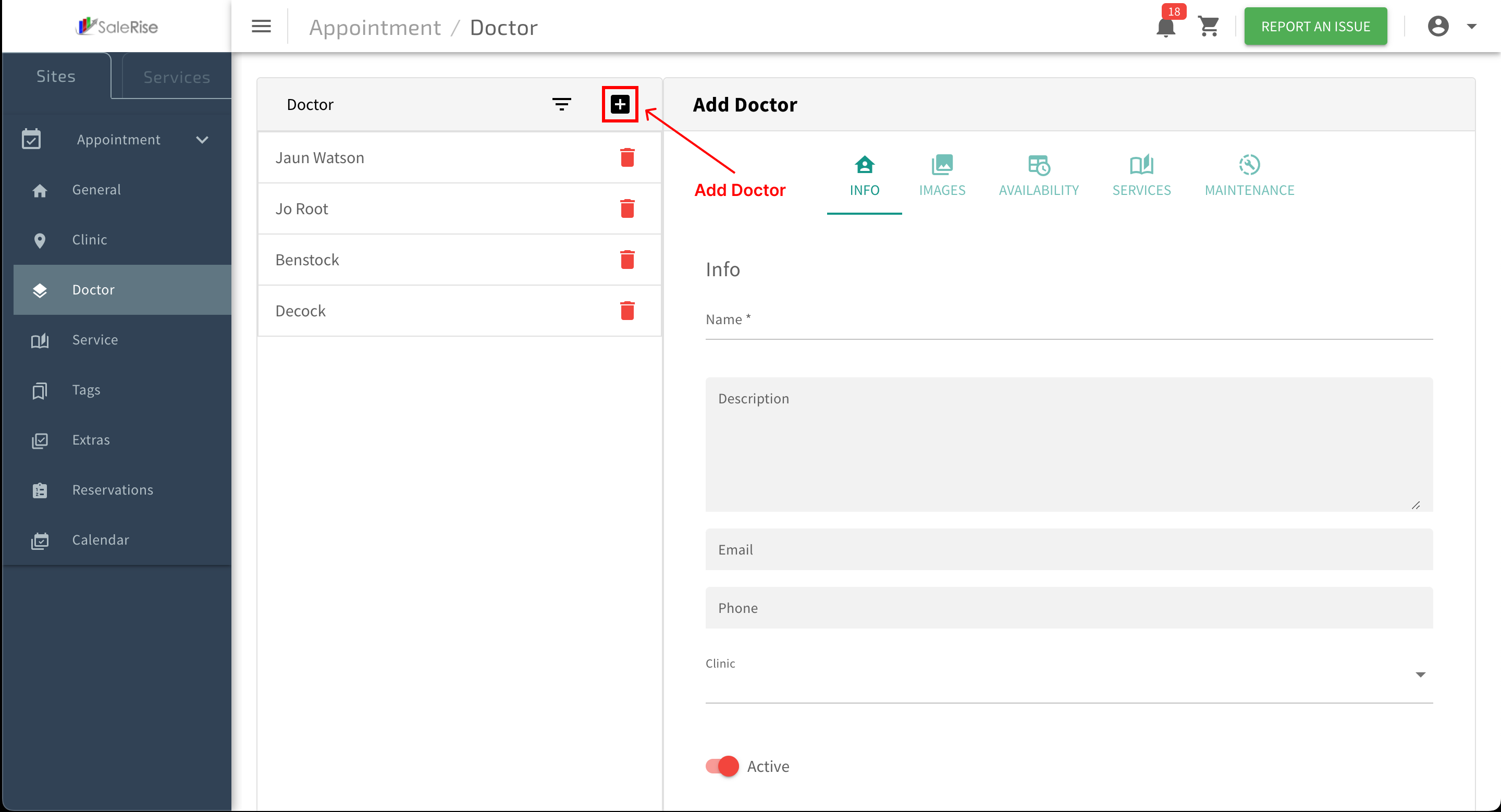
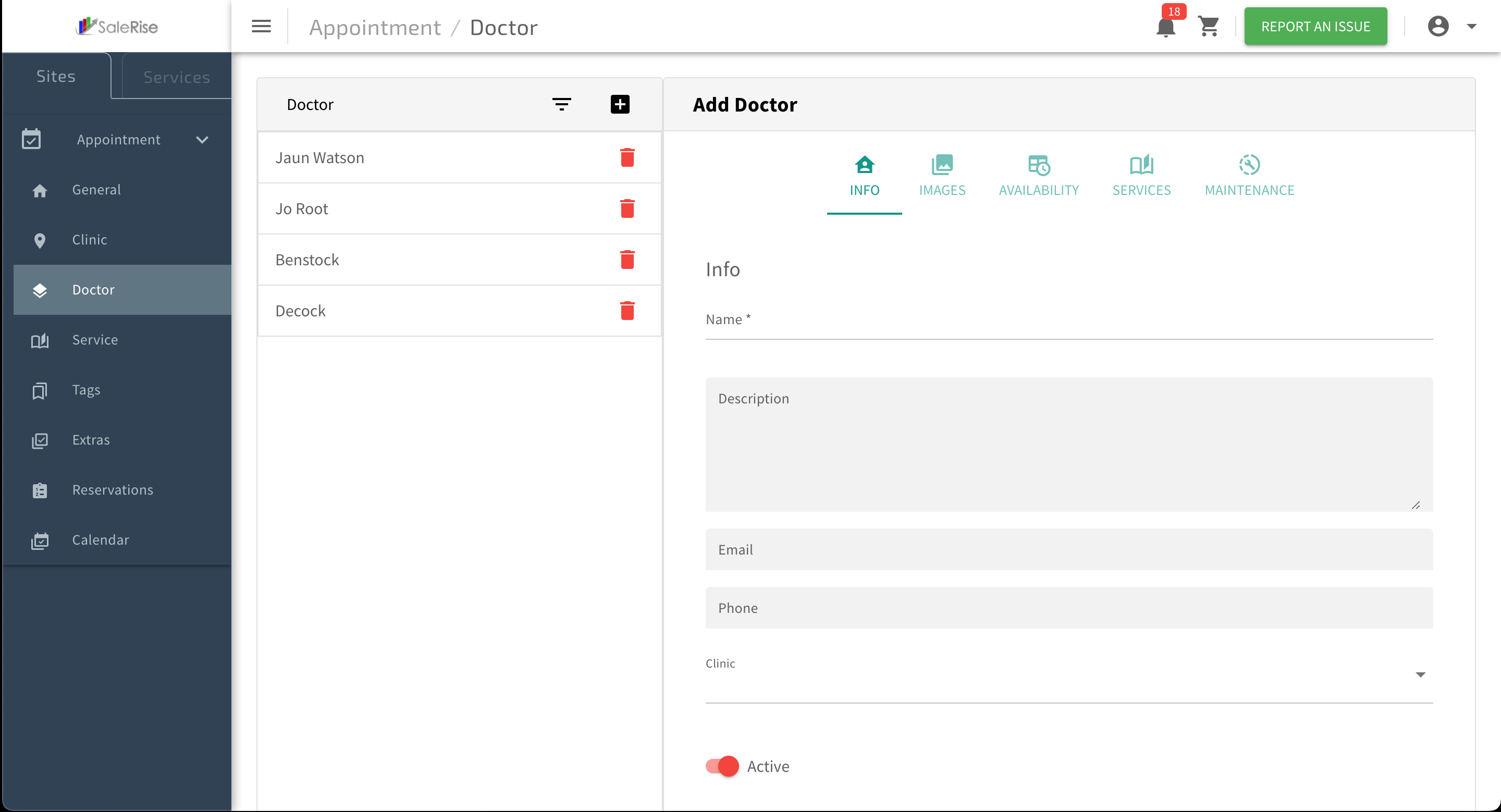
Add New Doctor:
Click on "Add New Doctor" to initiate the setup process.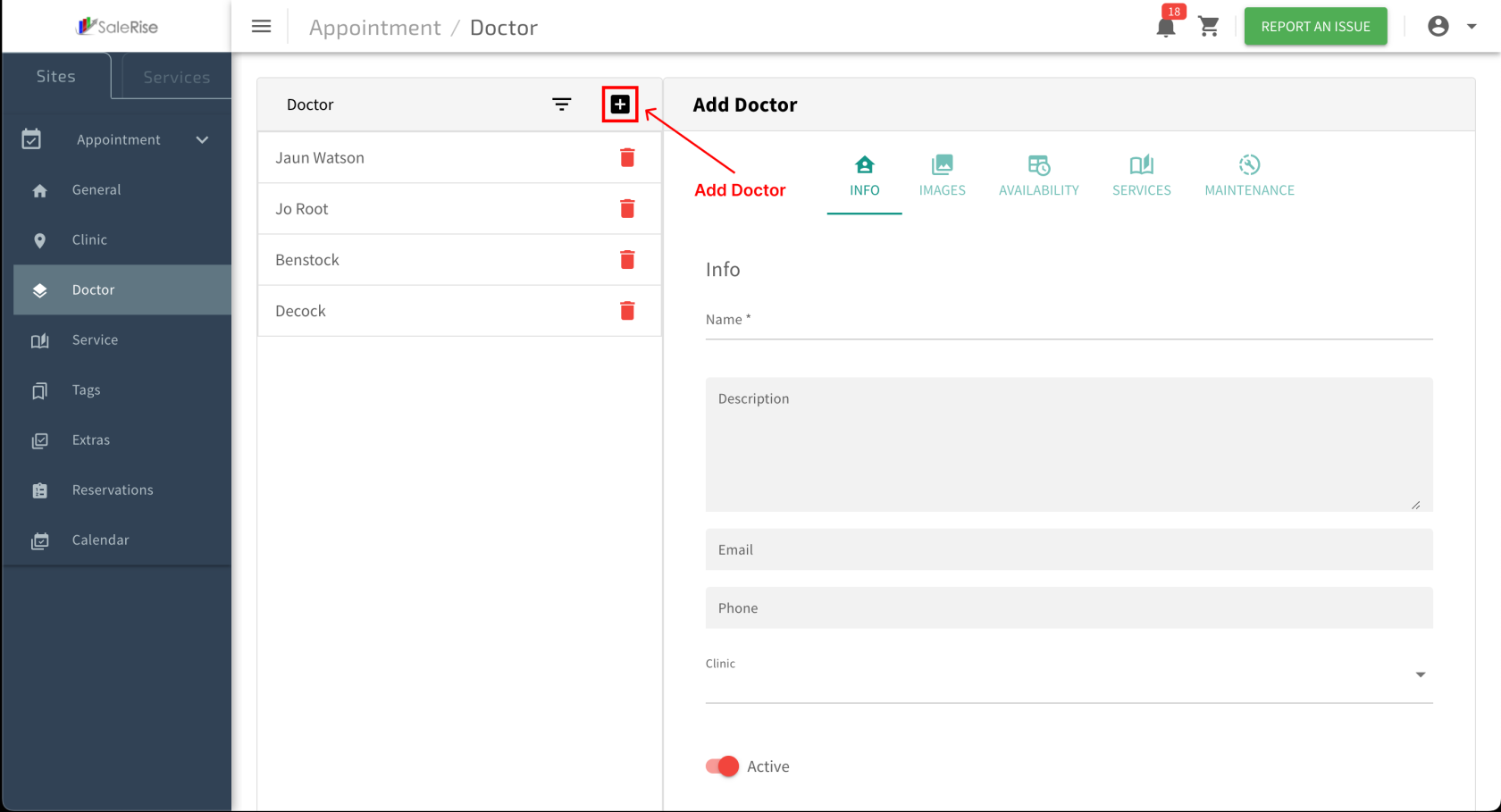
Basic Information:
Fill in essential details for the doctor.
Name: Full name of the doctor.
Description: A brief description of the doctor.
Email, Phone: Contact details for appointments.
Clinic: Select the clinic to which the doctor is associated.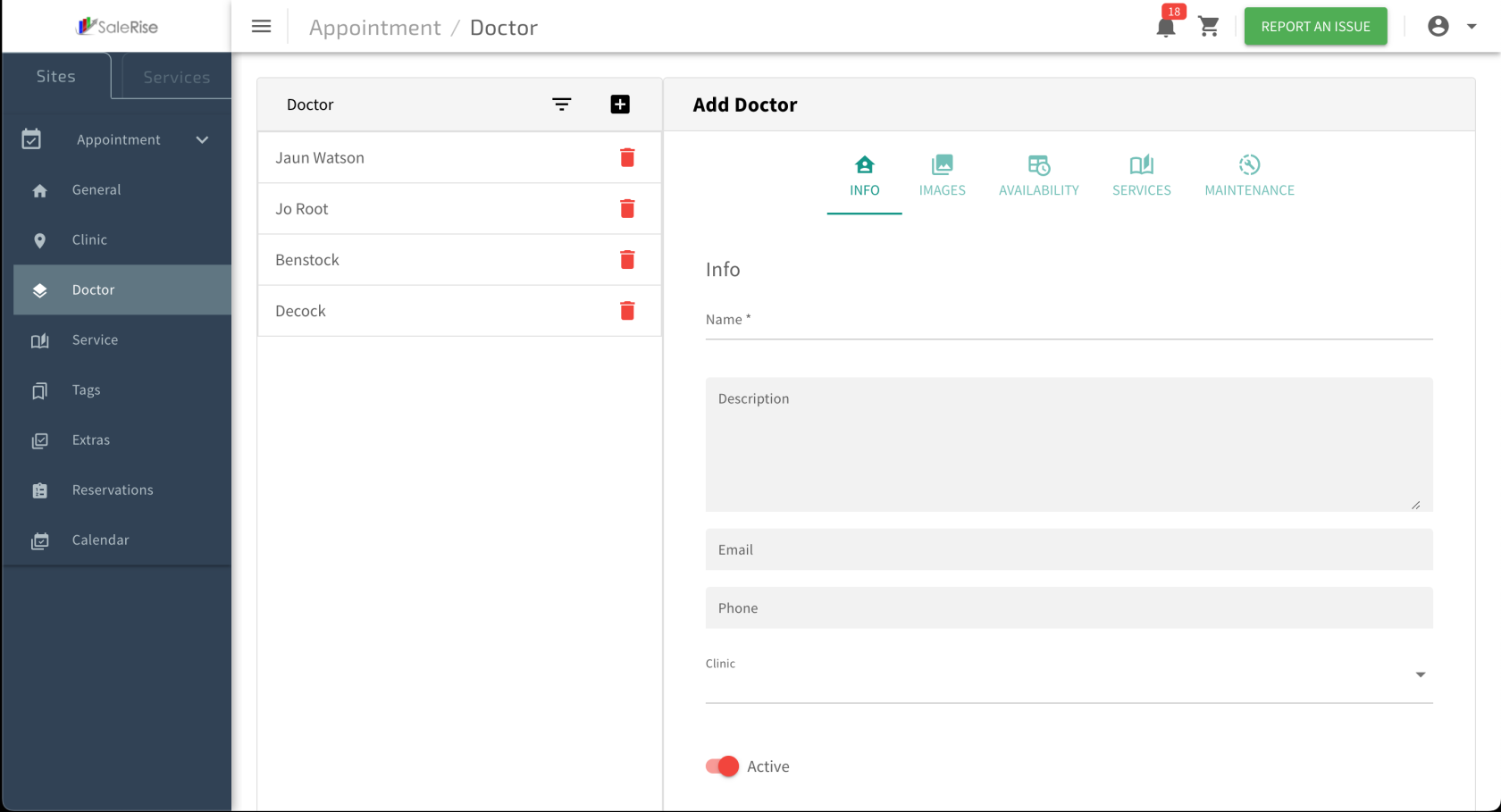
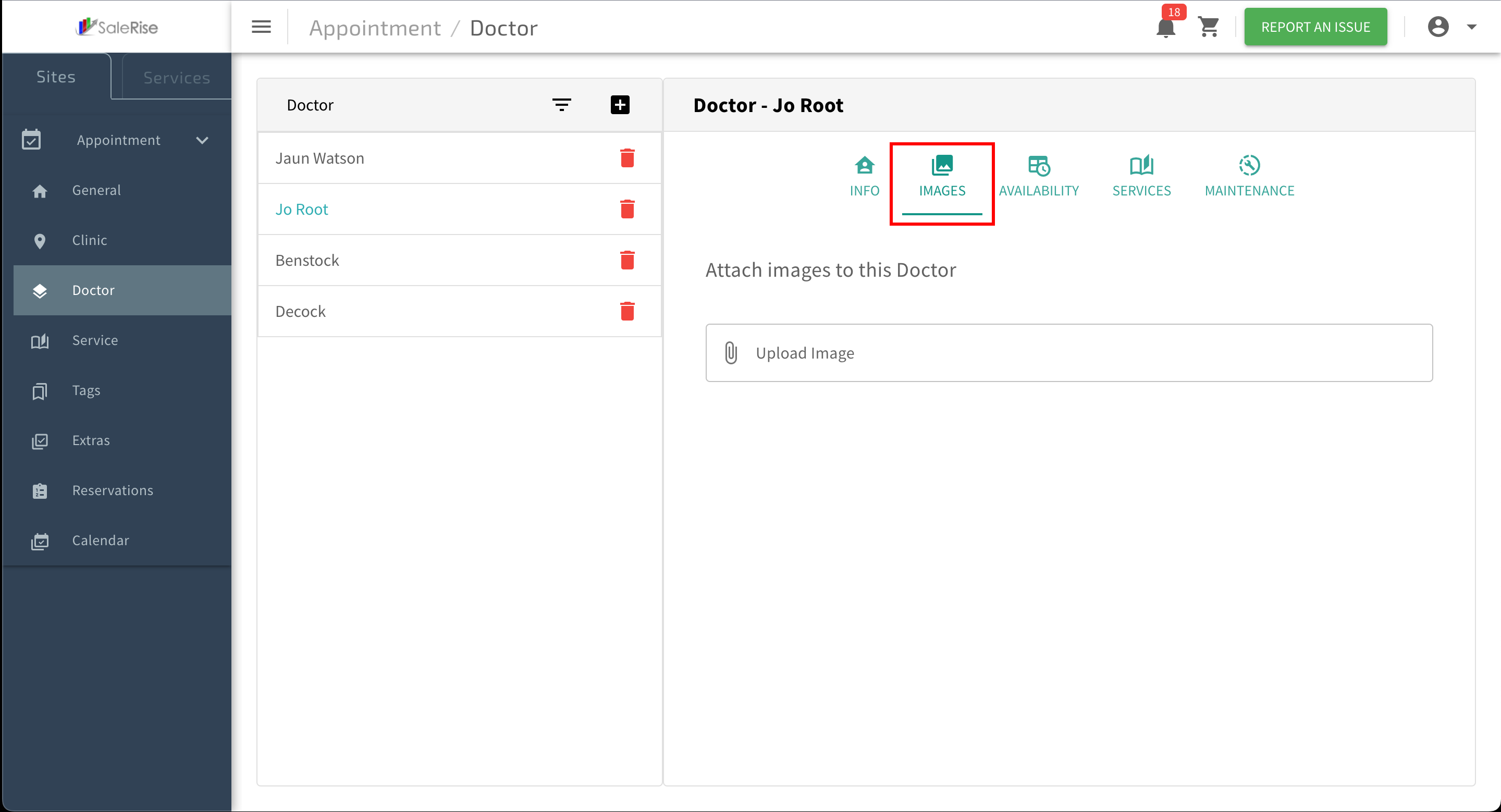
Upload Images:
Navigate to the "Images" tab to upload doctor images.
Multiple Images: Allow users to upload multiple images for the doctor.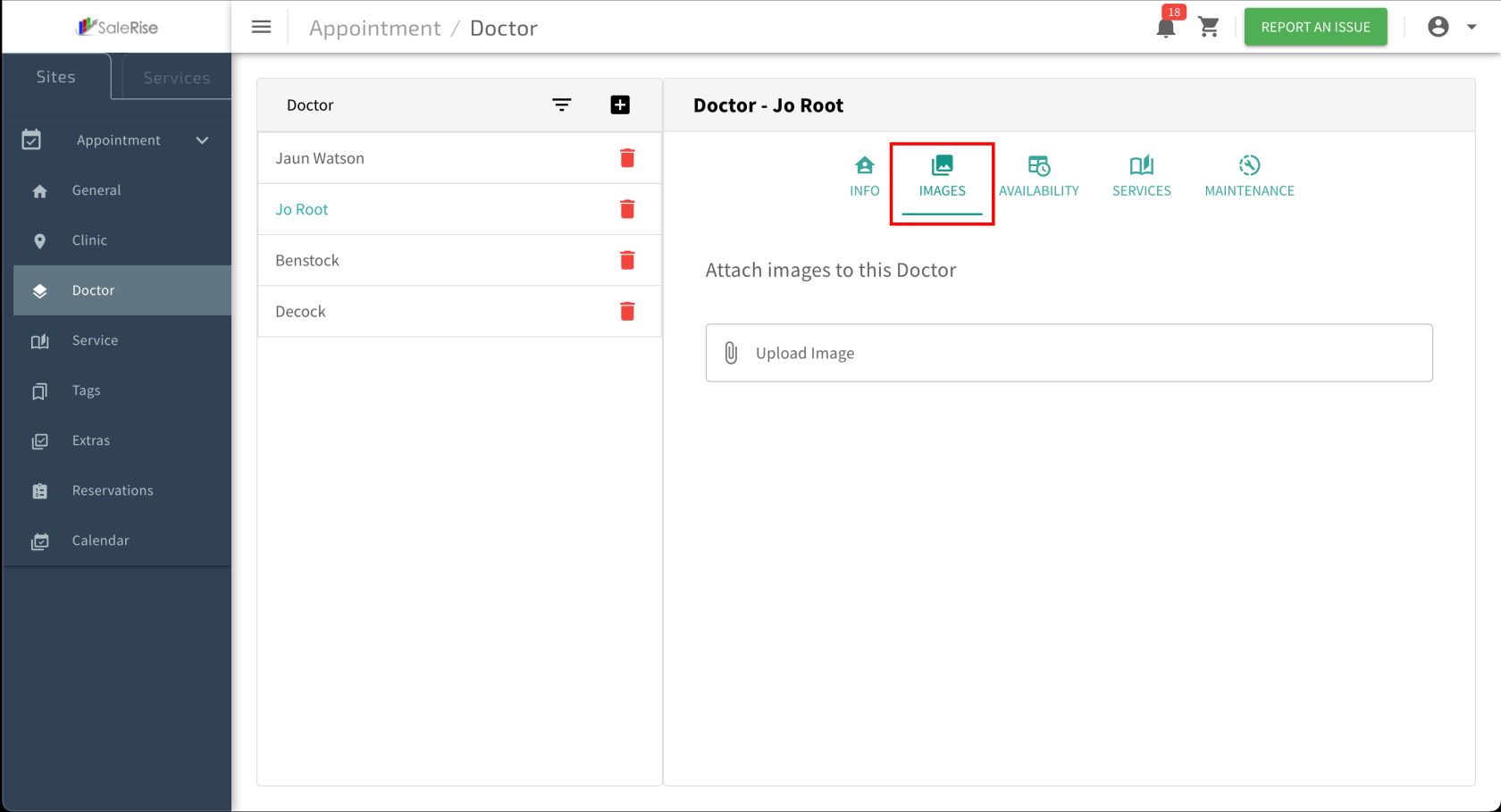
Access "Availability" Tab:
Navigate to the "Availability" tab within the doctor setup.
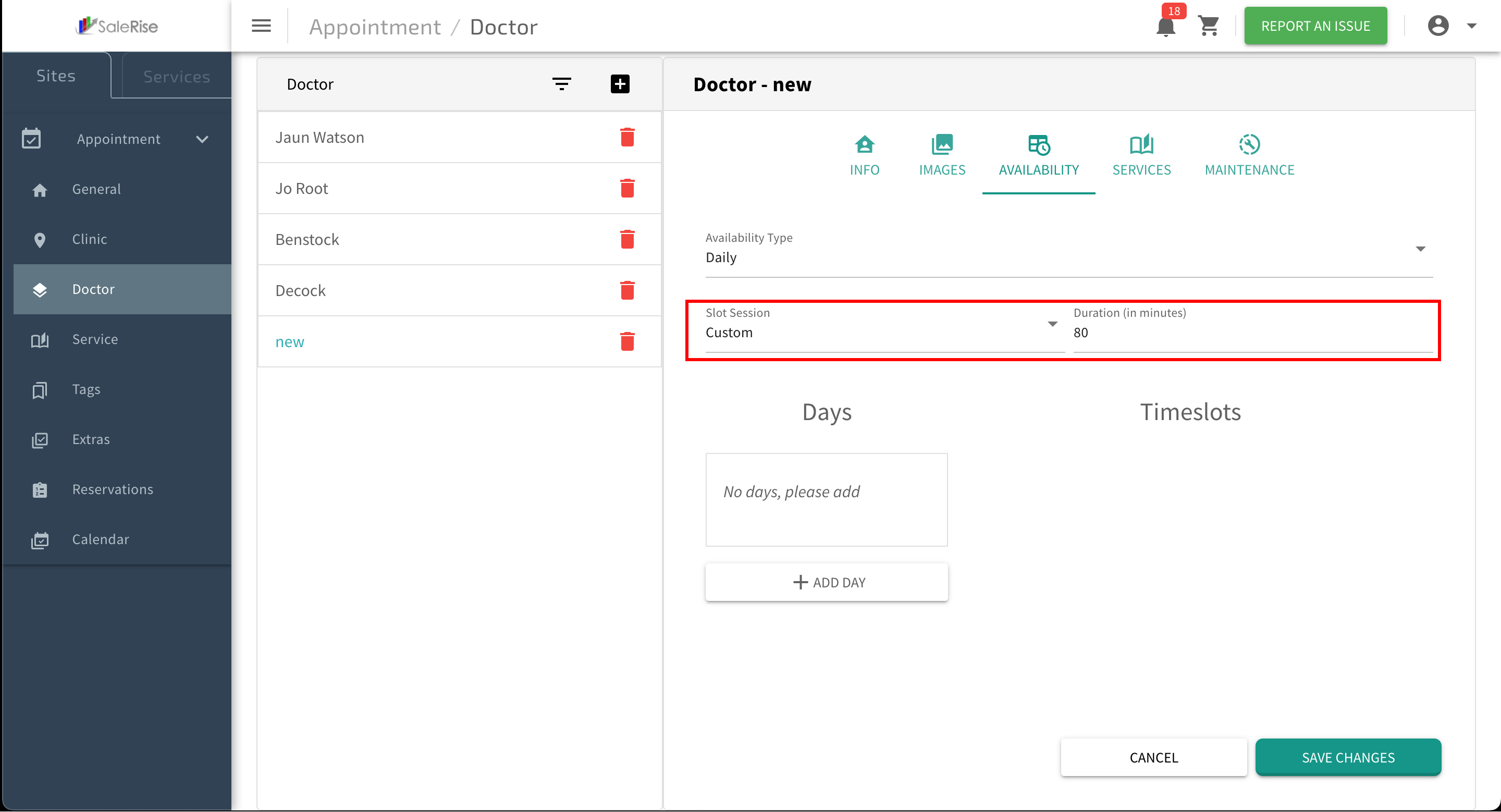
Slot Time Configuration:
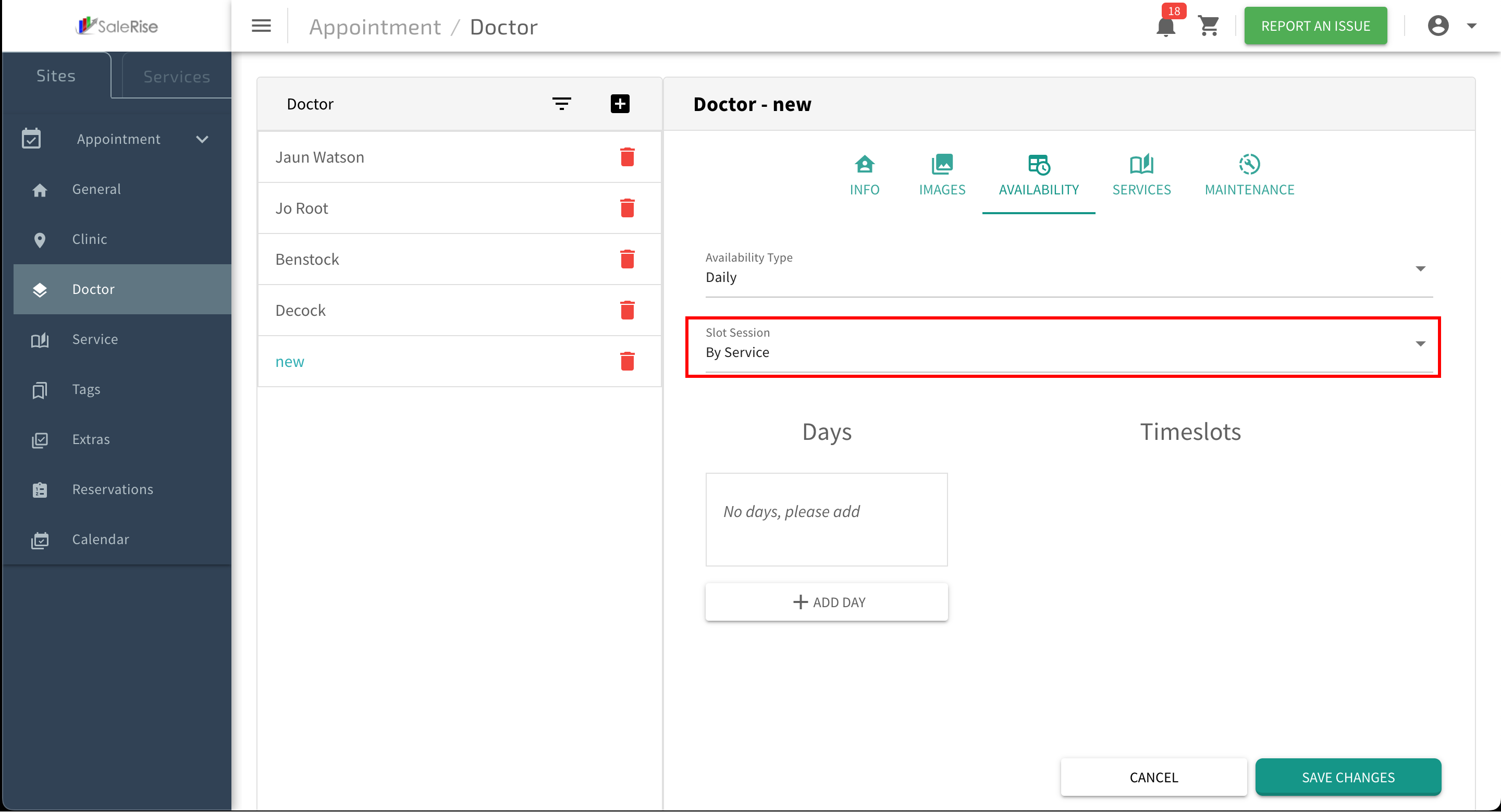
Choose between "Custom Slot Time" or "By Services."
Custom Slot Time:
Specify the duration of each appointment slot (e.g., 60 minutes for a 1-hour slot).
Example: If a custom slot time is set to 60 minutes, each slot represents a one-hour appointment.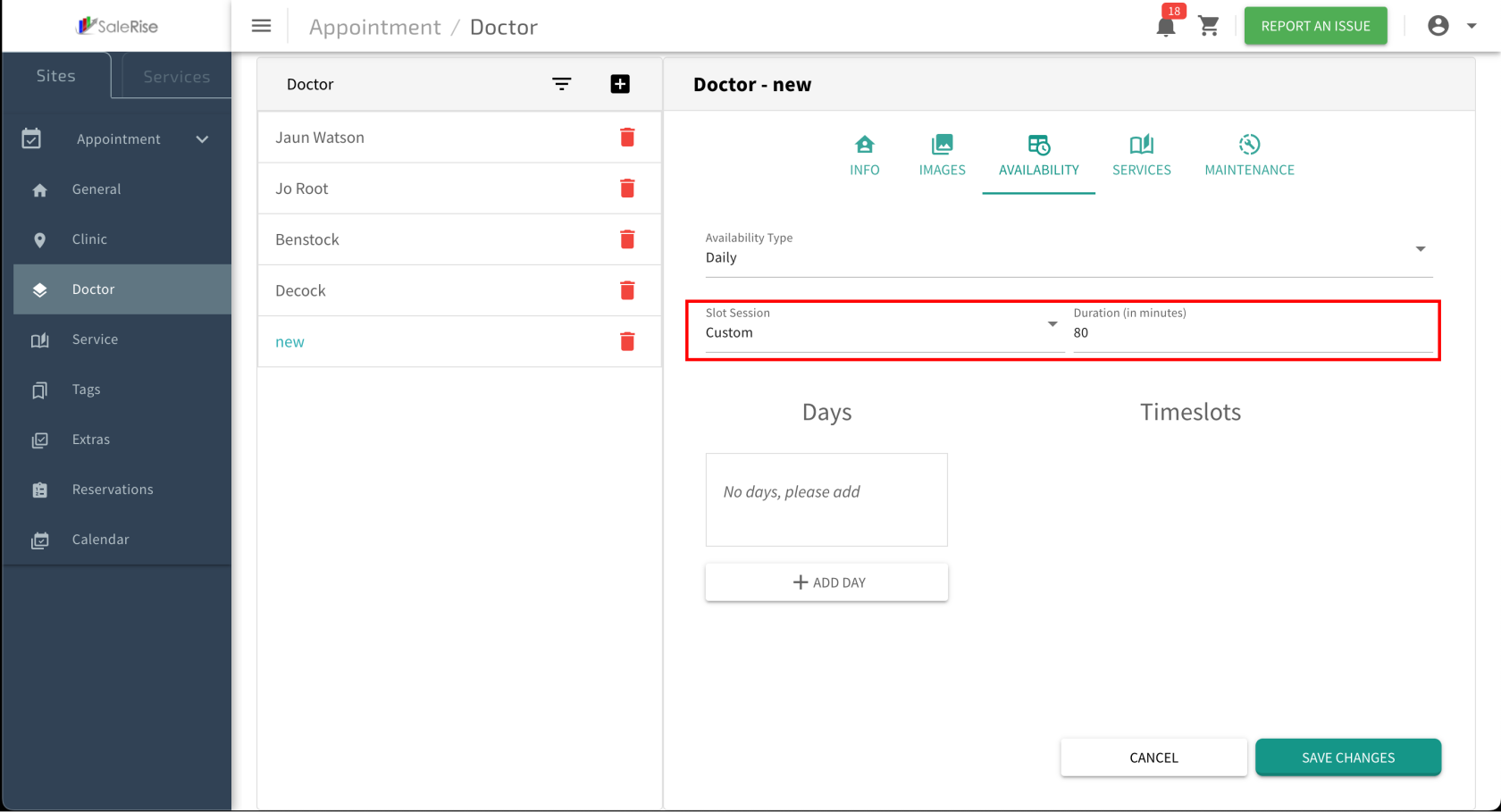 By Services:
Create slots based on the time associated with each service.
Example: If a service takes 30 minutes, slots will be generated accordingly.
By Services:
Create slots based on the time associated with each service.
Example: If a service takes 30 minutes, slots will be generated accordingly.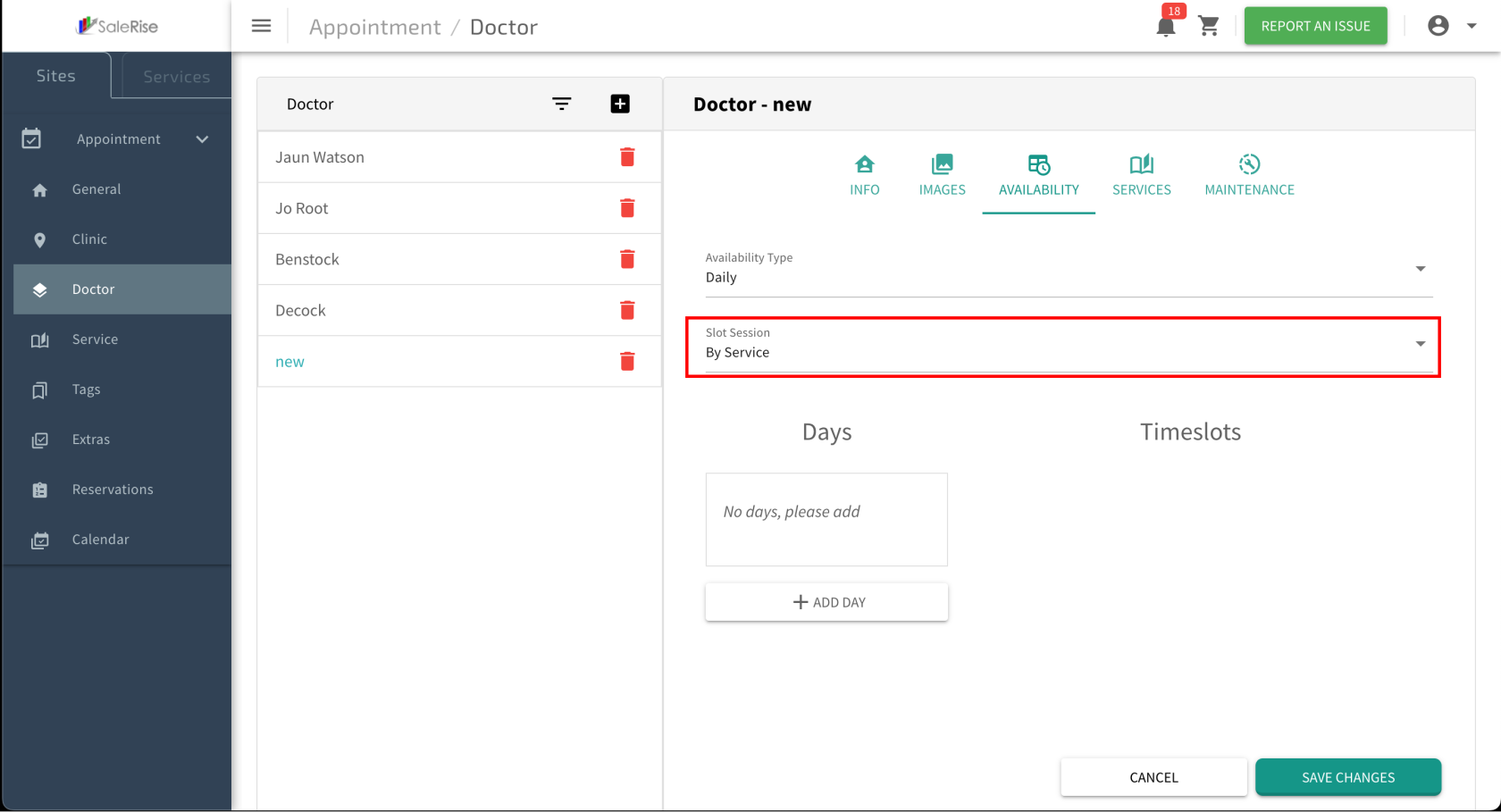
Add Days of Availability:
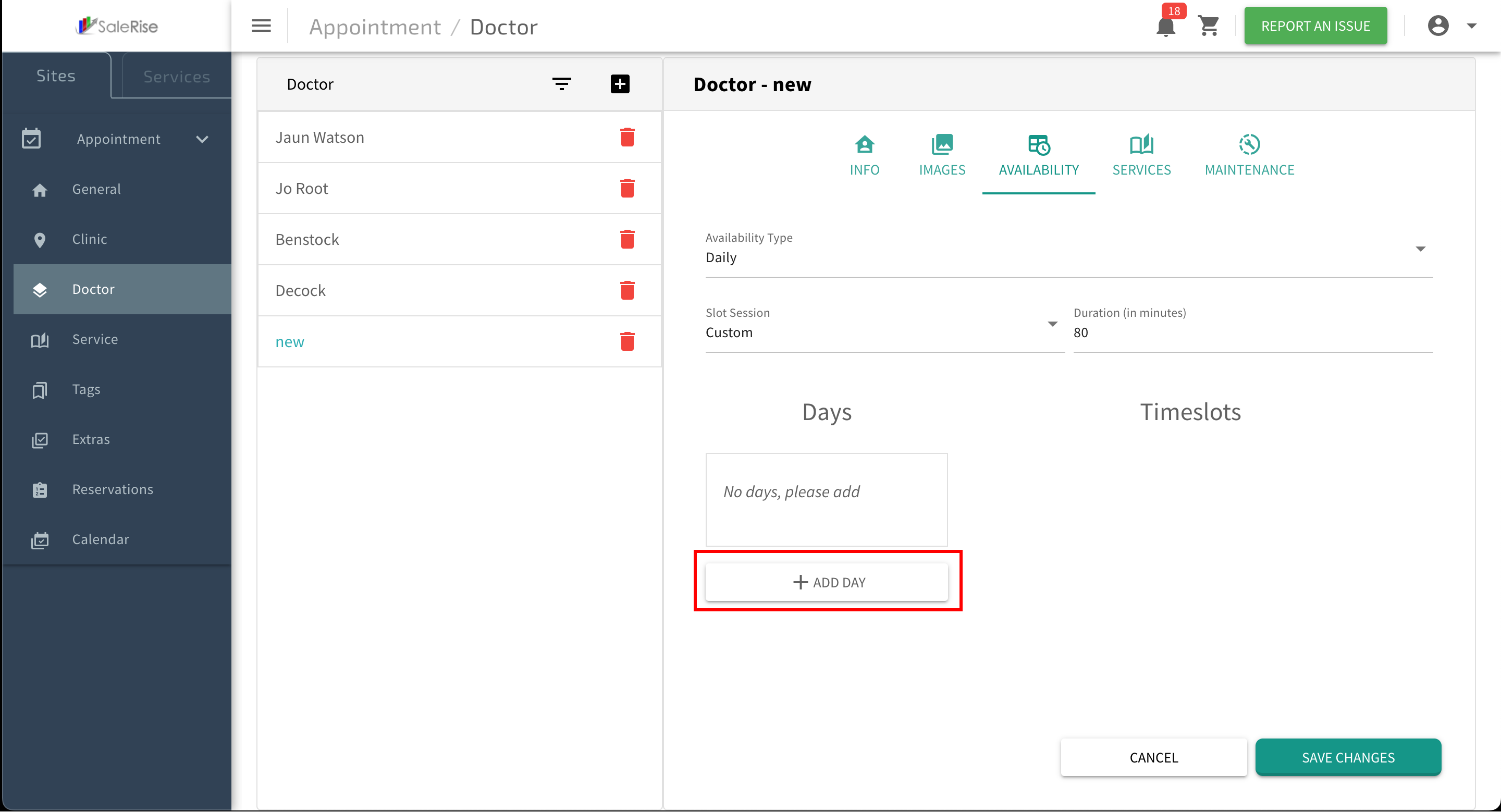
Click on "Add Days" to specify the days the doctor is available.
Select Days: Choose the days the doctor will be available for appointments.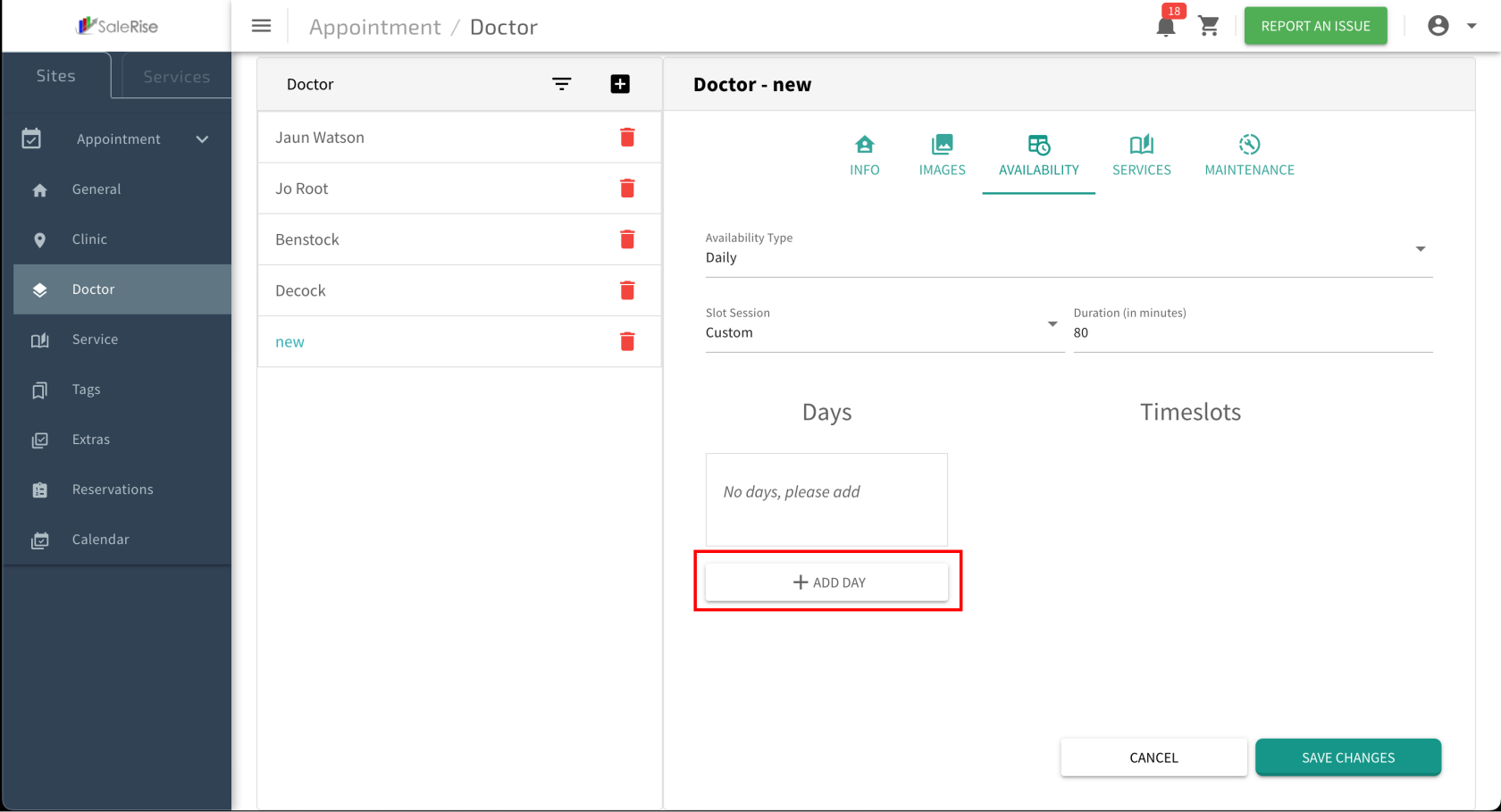 Example: Select these days if a doctor is available on Mondays and Wednesdays.
Time Slot Configuration:
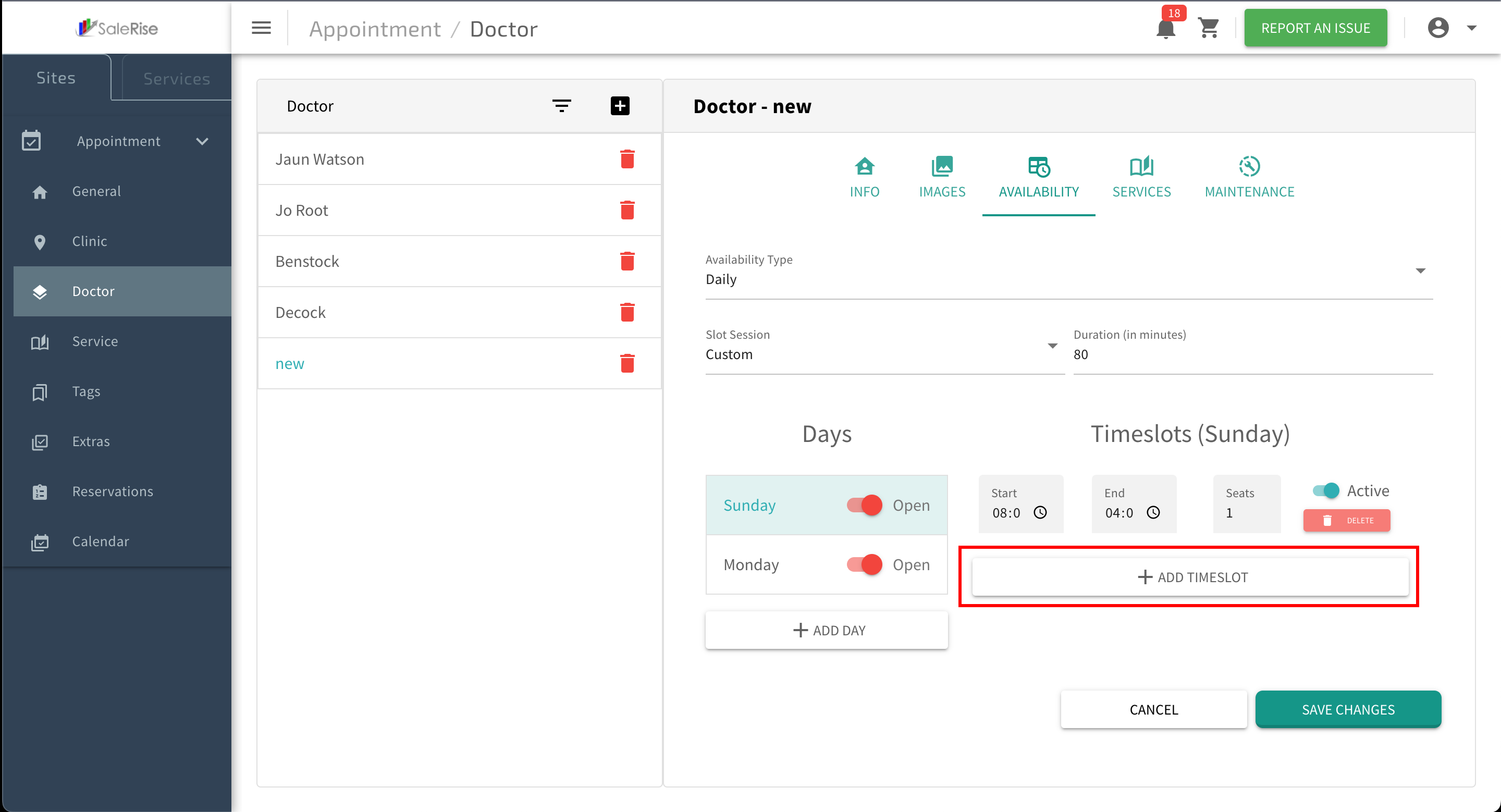
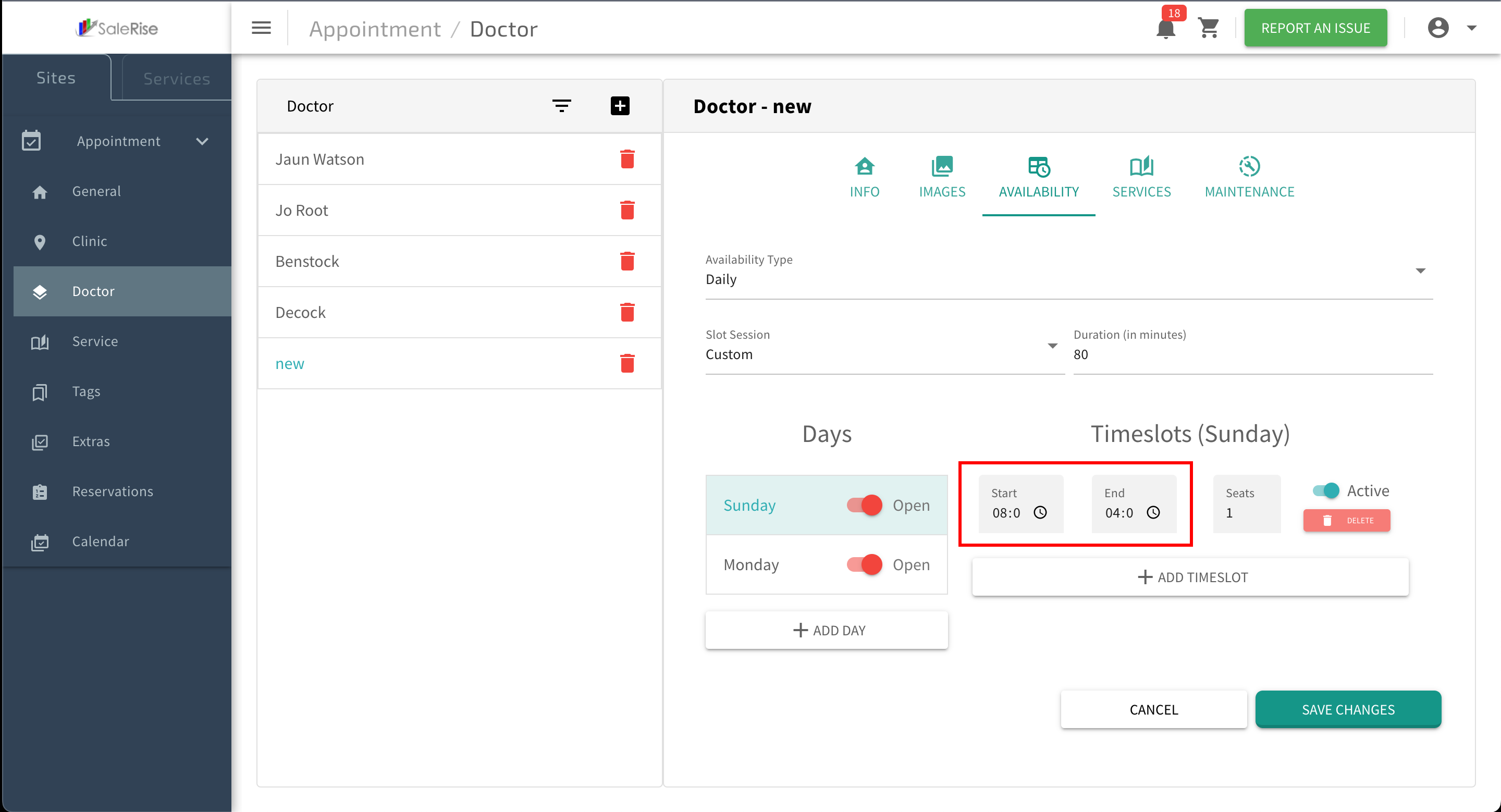
For each selected day, add multiple time slots: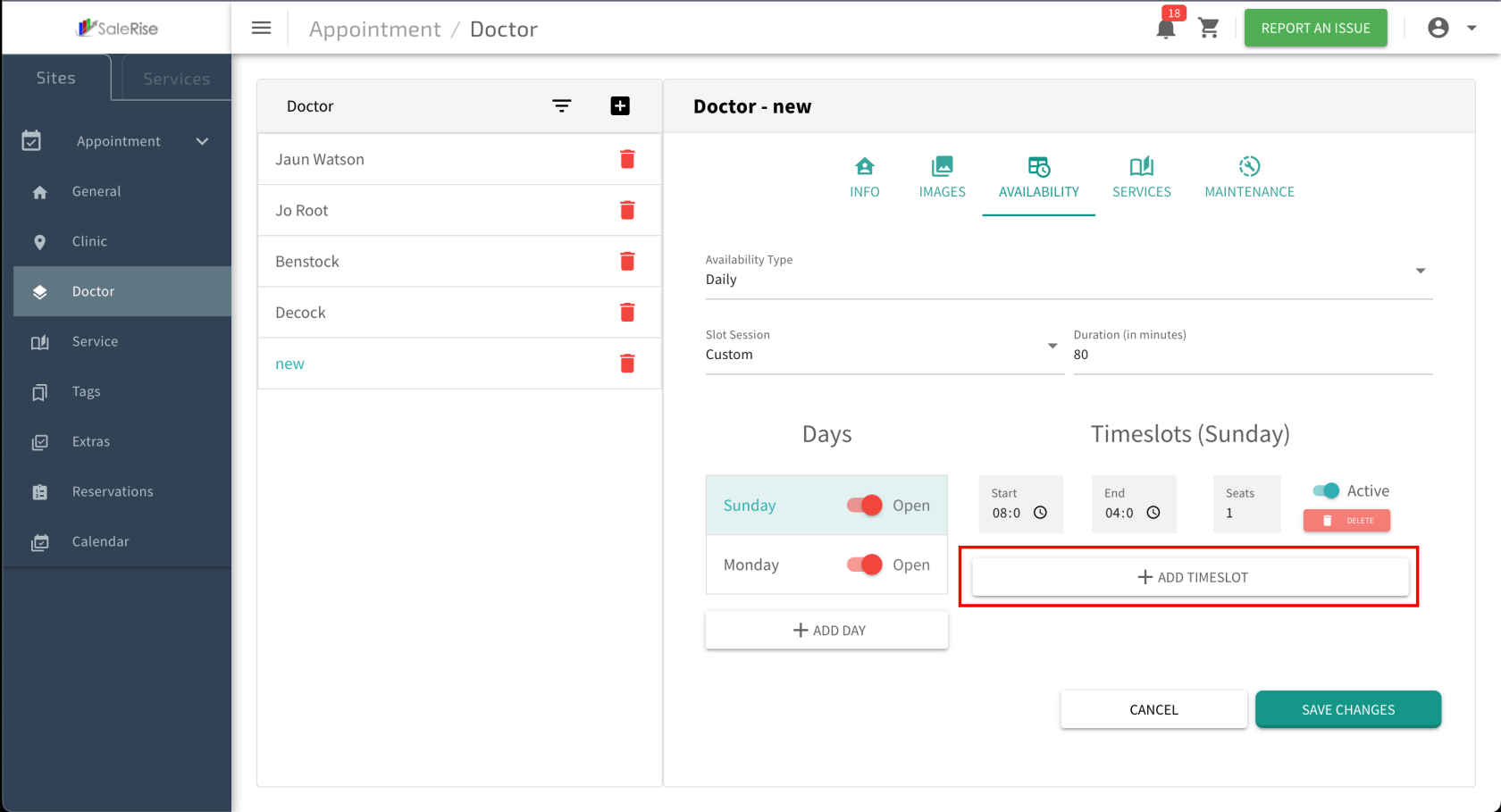 Start Time and End Time: Define the beginning and end of the working hours.
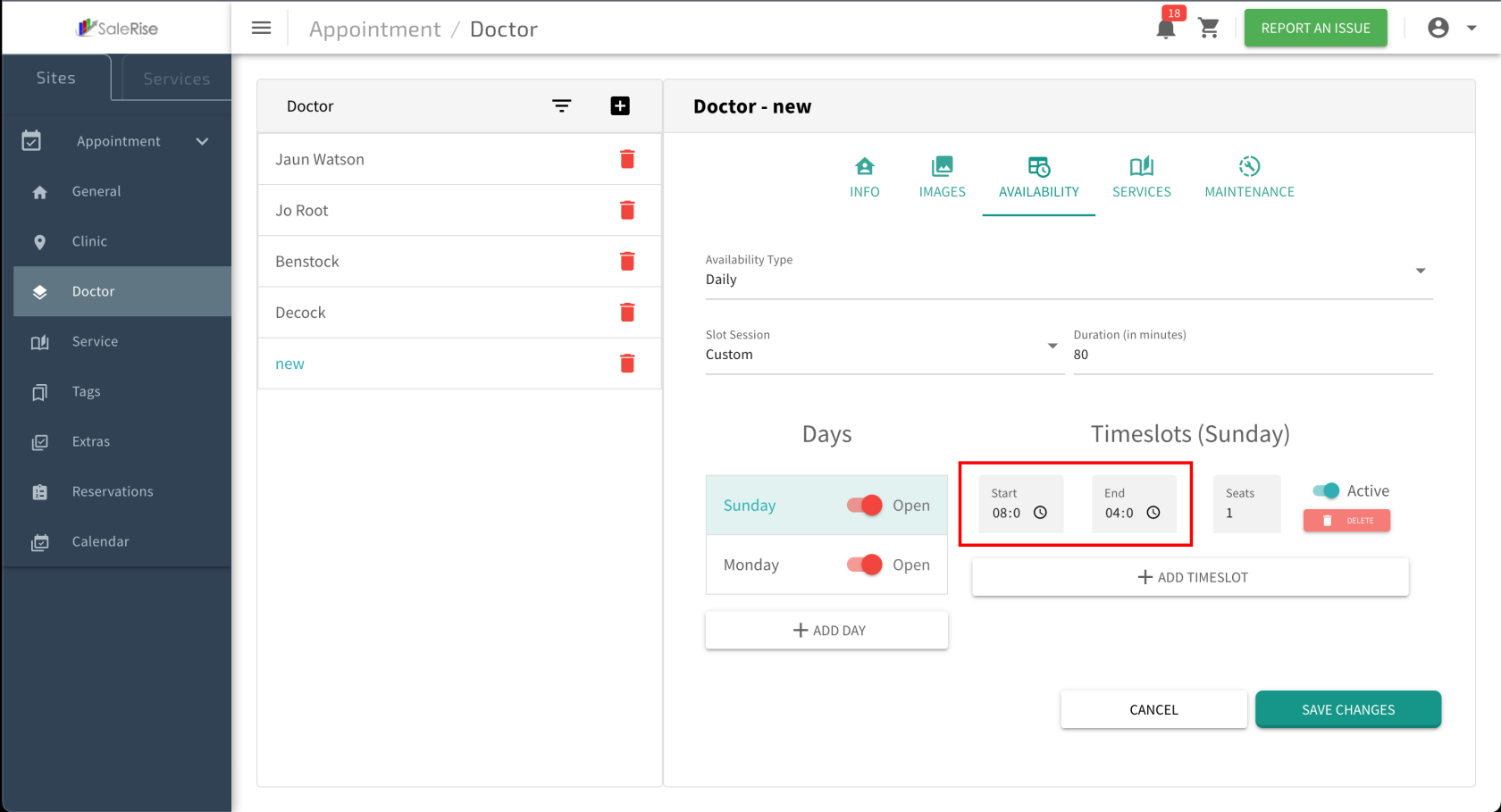 Example: If working hours are from 9:00 AM to 5:00 PM, set the start and end times accordingly.
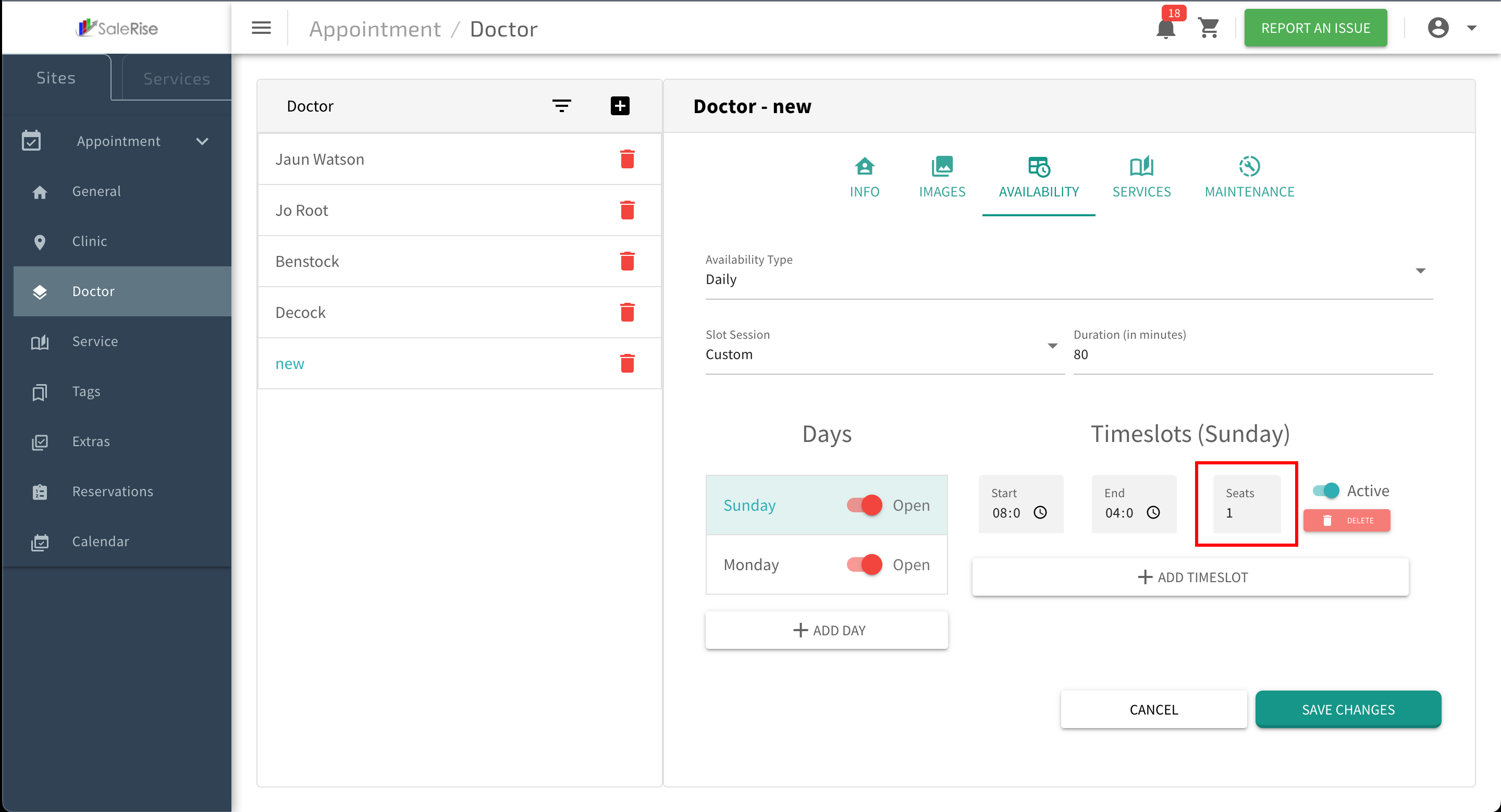
Seats: Specify the number of bookings allowed in each time slot.
Example: If working hours are from 9:00 AM to 5:00 PM, set the start and end times accordingly.
Seats: Specify the number of bookings allowed in each time slot.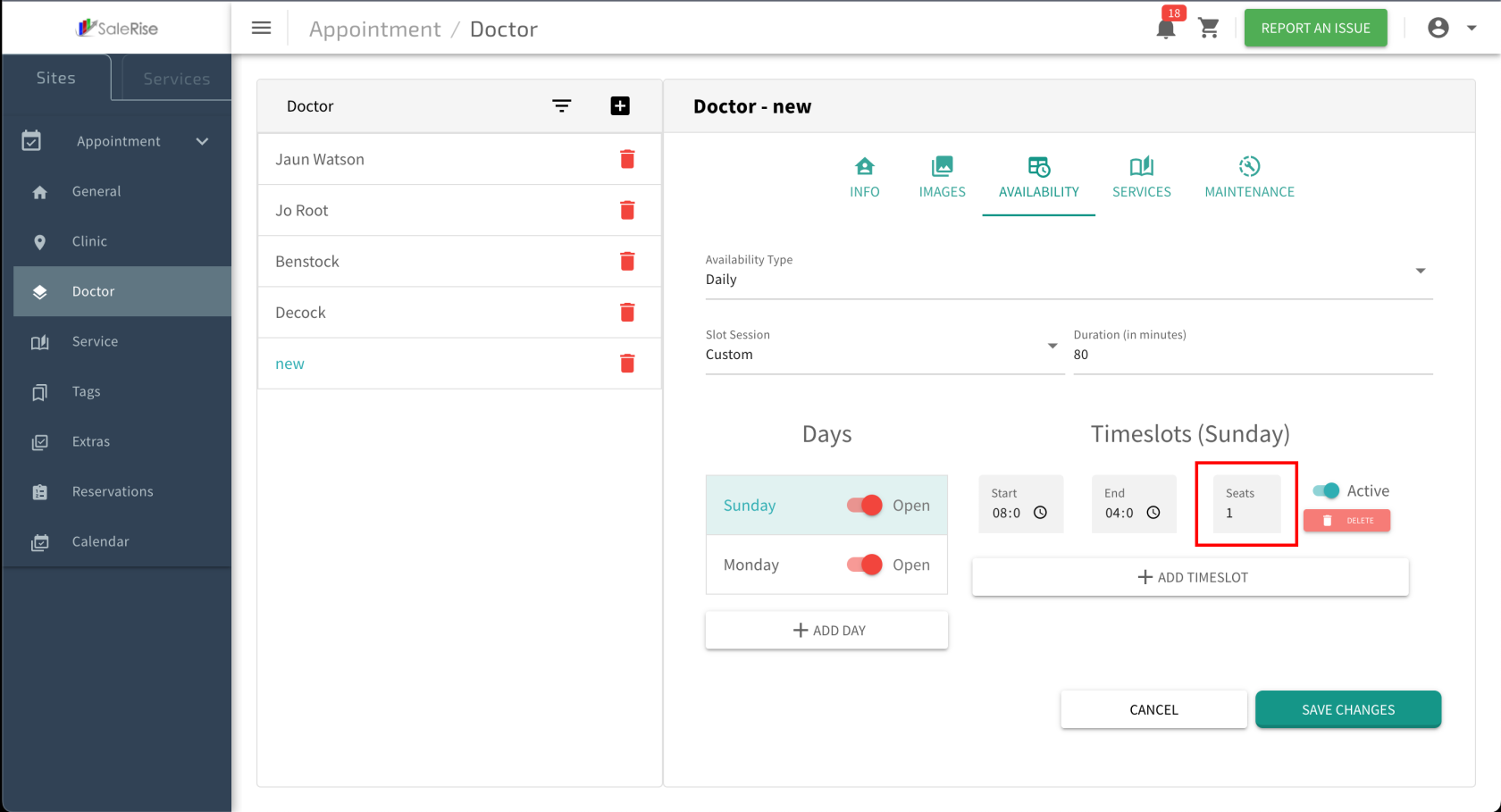 Example: If there are five seats, five patients can book appointments in that time slot.
Save Time Slots:
Click "Save" to confirm the configured time slots.
Example: After saving, the system generates slots based on the specified times for each selected day.
Services Assignment:
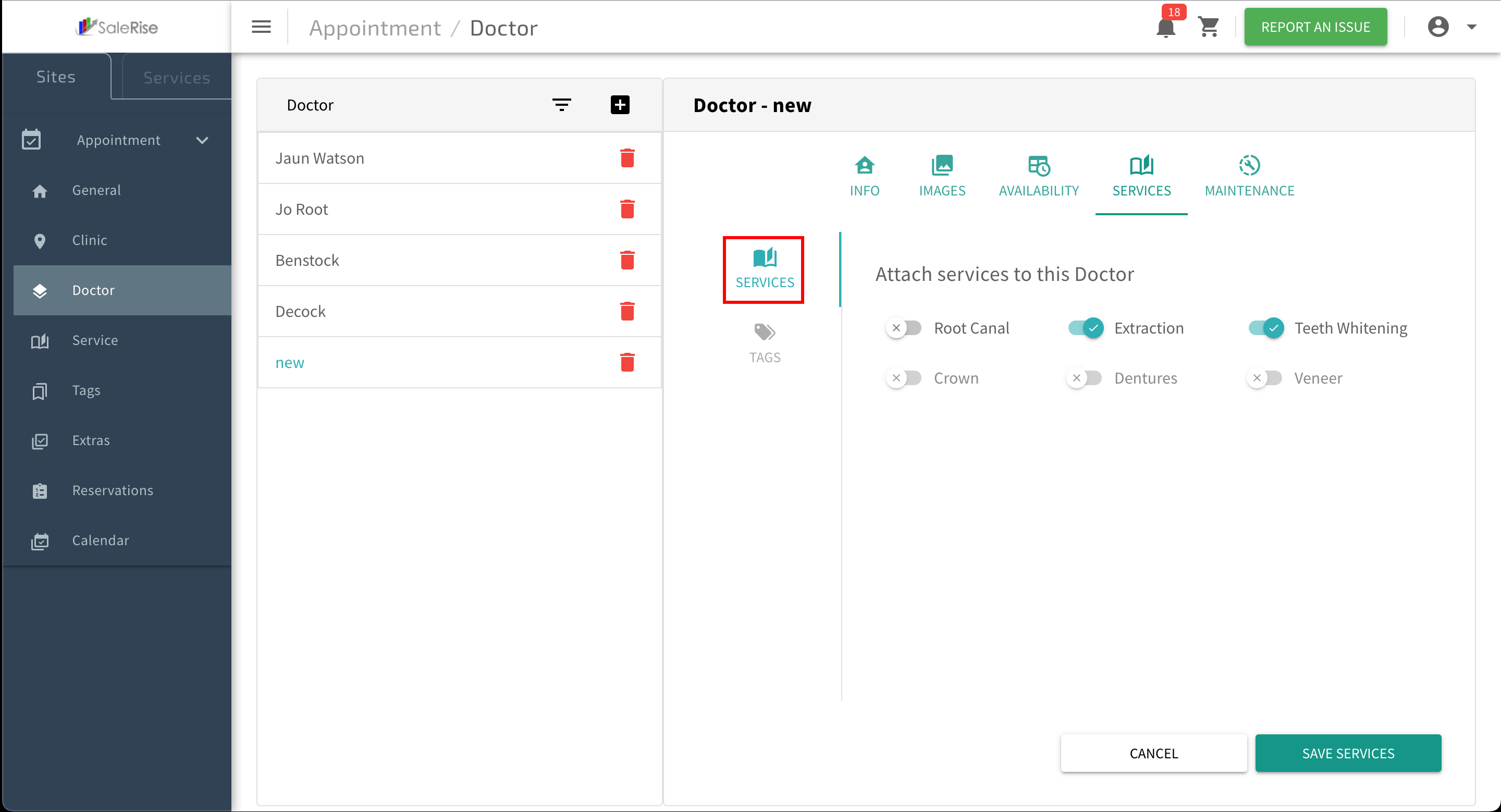
In the "Services" tab, assign services to the doctor.
Assign Multiple Services: Link various services to the doctor.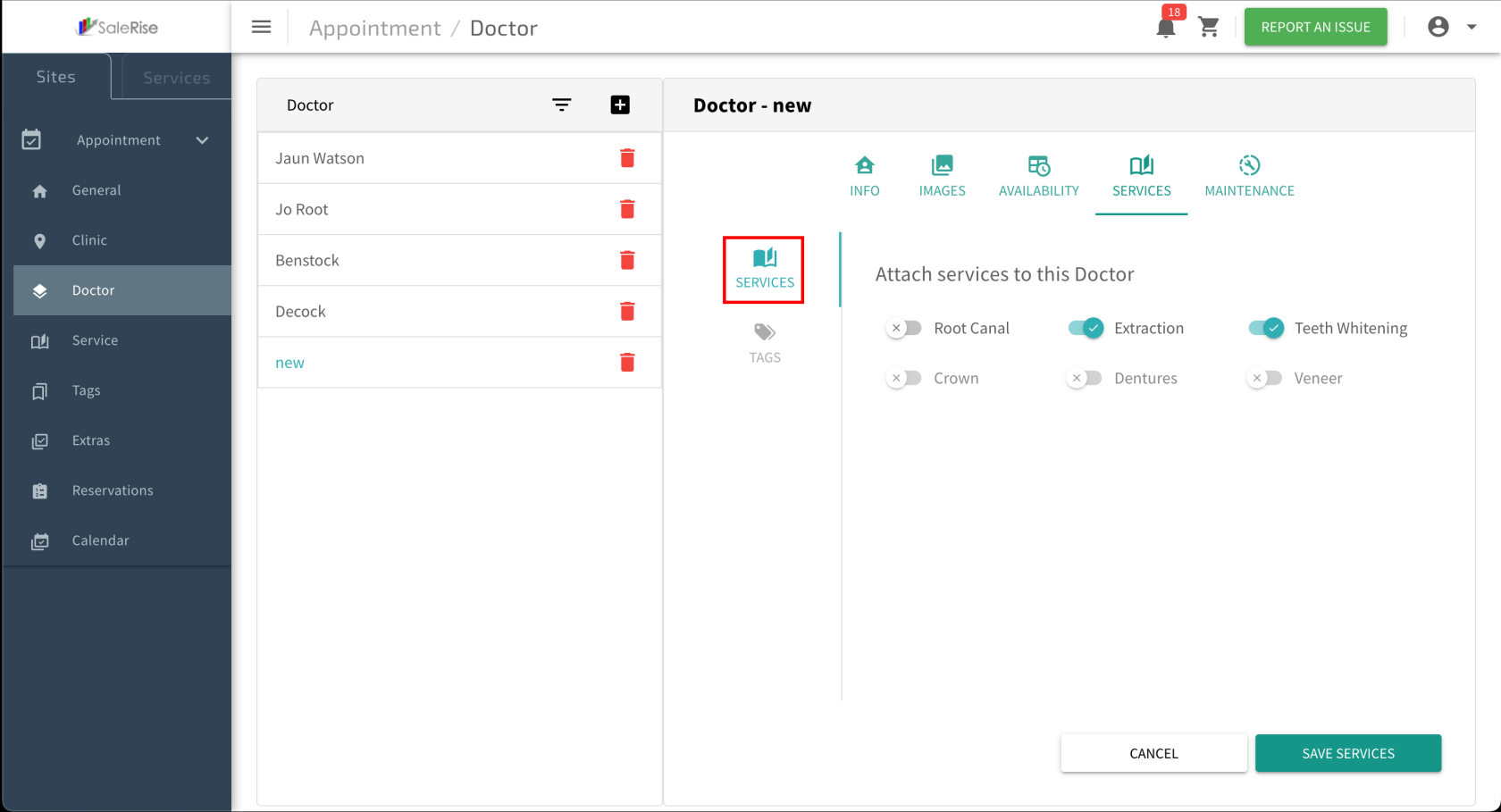 Tags: Add tags to categorize services (e.g., free, not included).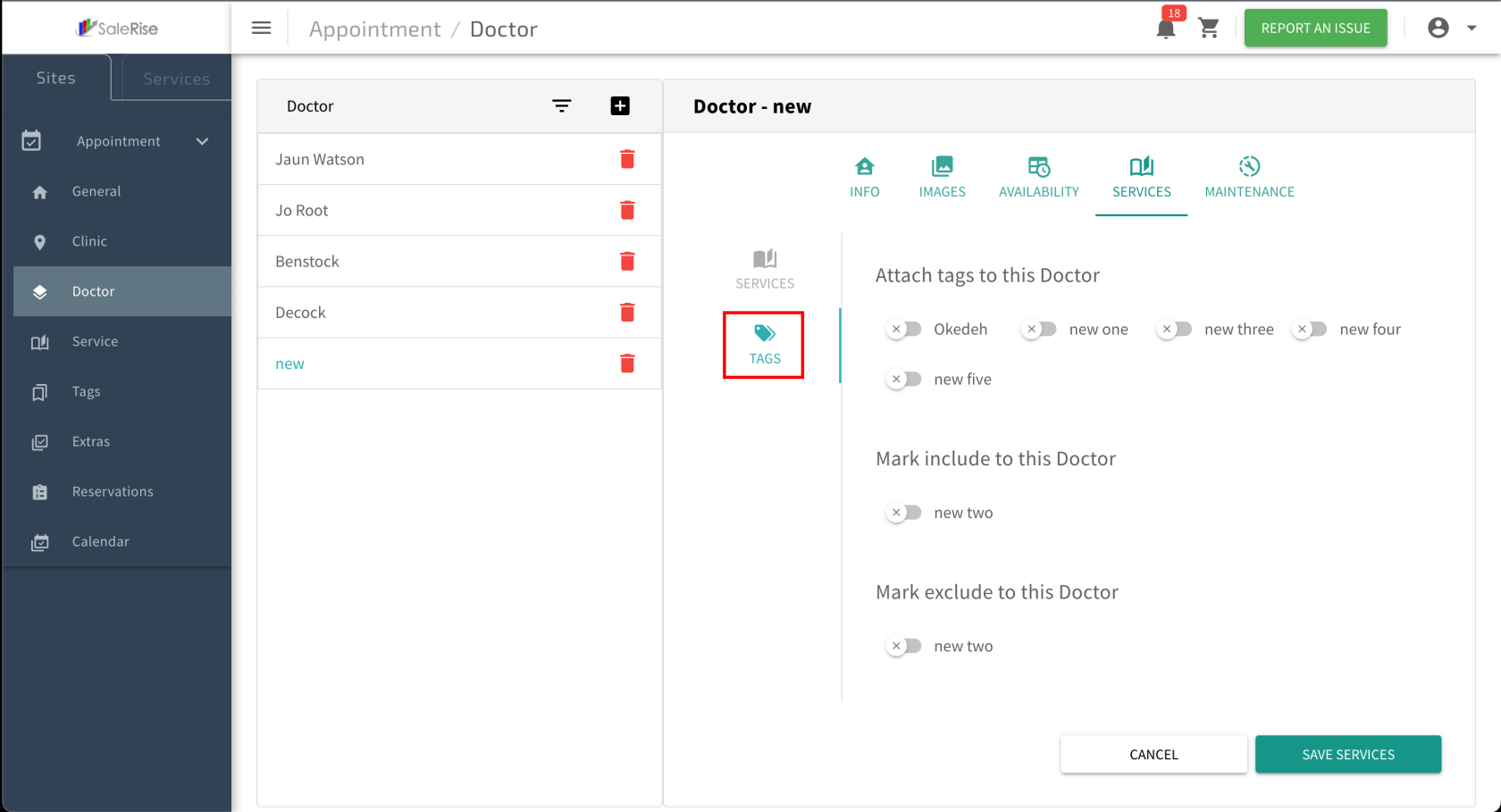
Maintenance Schedules:
Access the "Maintenance" tab to manage doctor unavailability.
Add New Maintenance: Specify start and end dates, times, and reasons.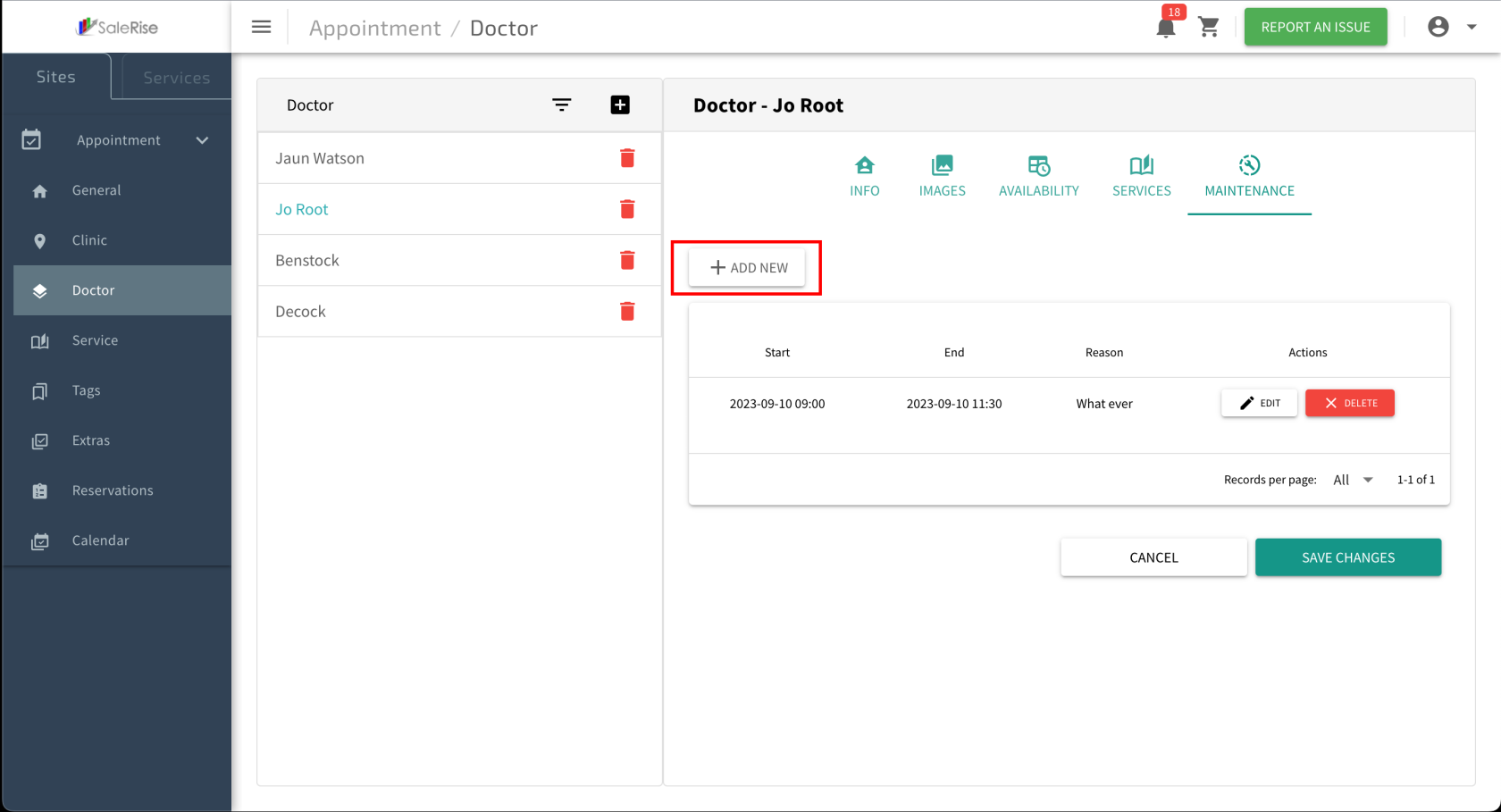
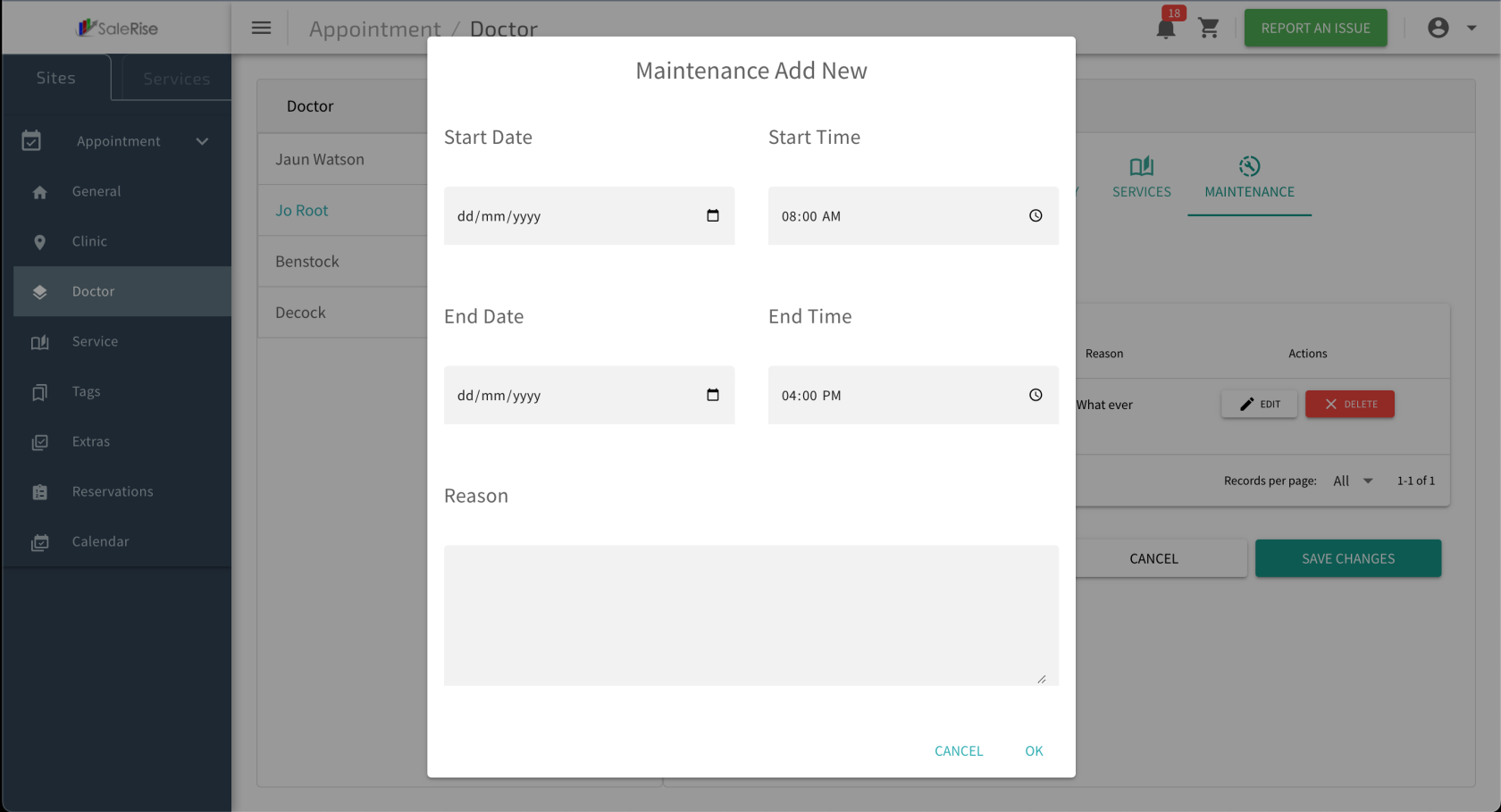 Table View: Display a table view of past and upcoming maintenance schedules.
Edit or Delete Maintenance: Allow users to modify or remove maintenance entries.
Table View: Display a table view of past and upcoming maintenance schedules.
Edit or Delete Maintenance: Allow users to modify or remove maintenance entries.
Save and Review:
Click "Save" to confirm the doctor setup.
Review the doctor's profile and make any necessary edits.
View and Manage Doctors:
Access the list of doctors with options to edit or deactivate.
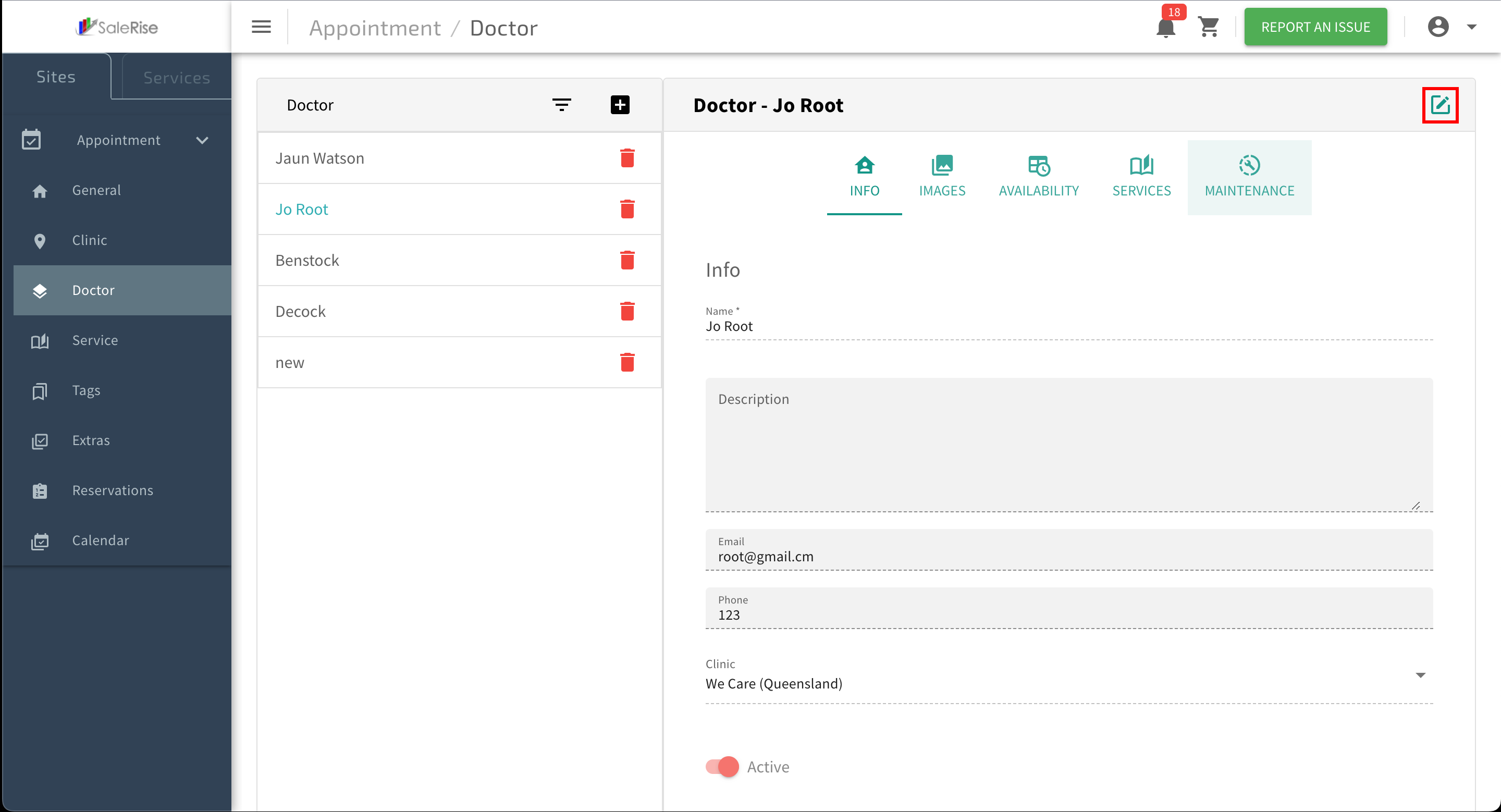
Edit Doctor Details:
Click on the edit button to modify the doctor's information.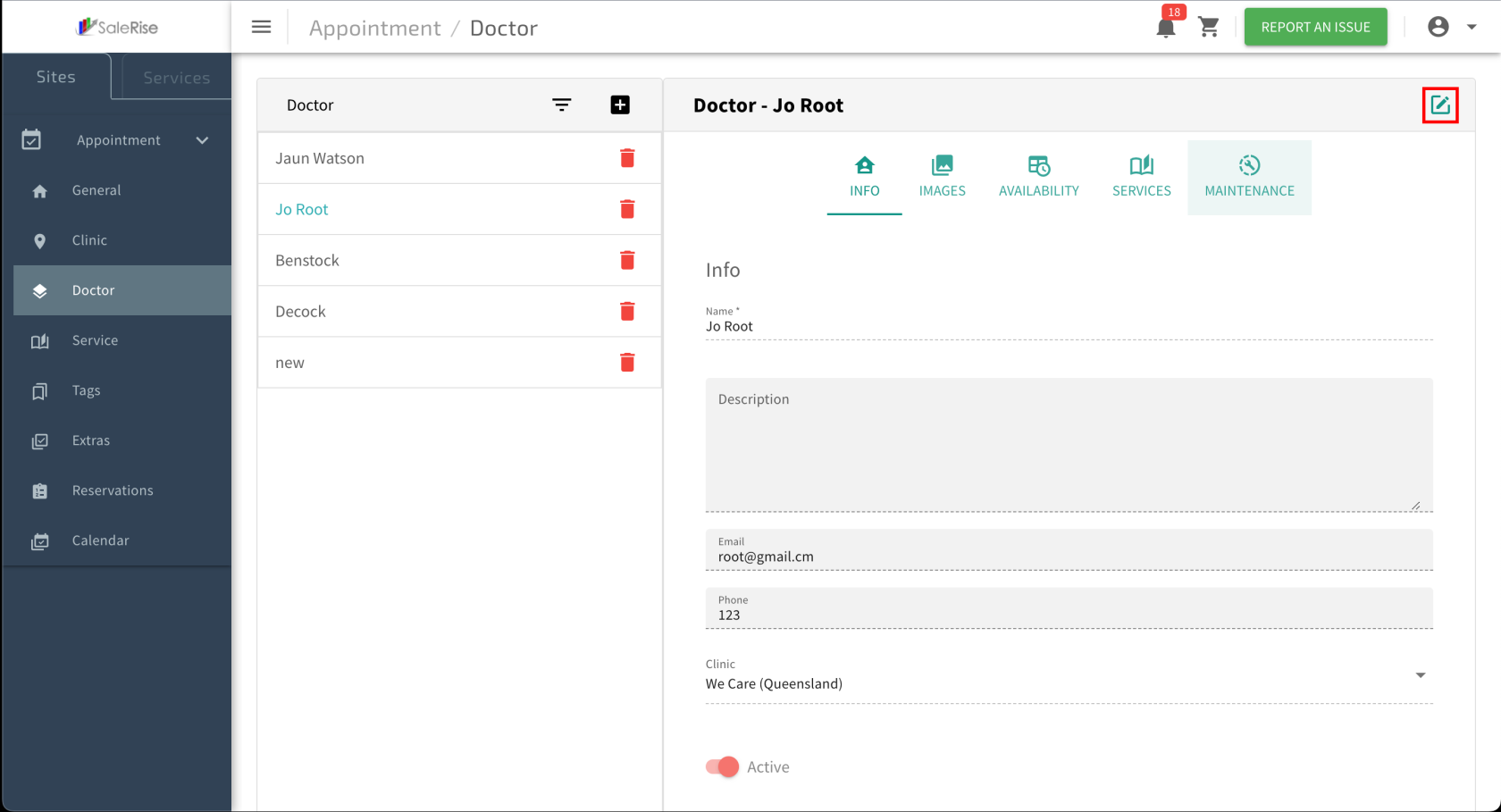

 By Services:
 Example: Select these days if a doctor is available on Mondays and Wednesdays.
 Tags: Add tags to categorize services (e.g., free, not included).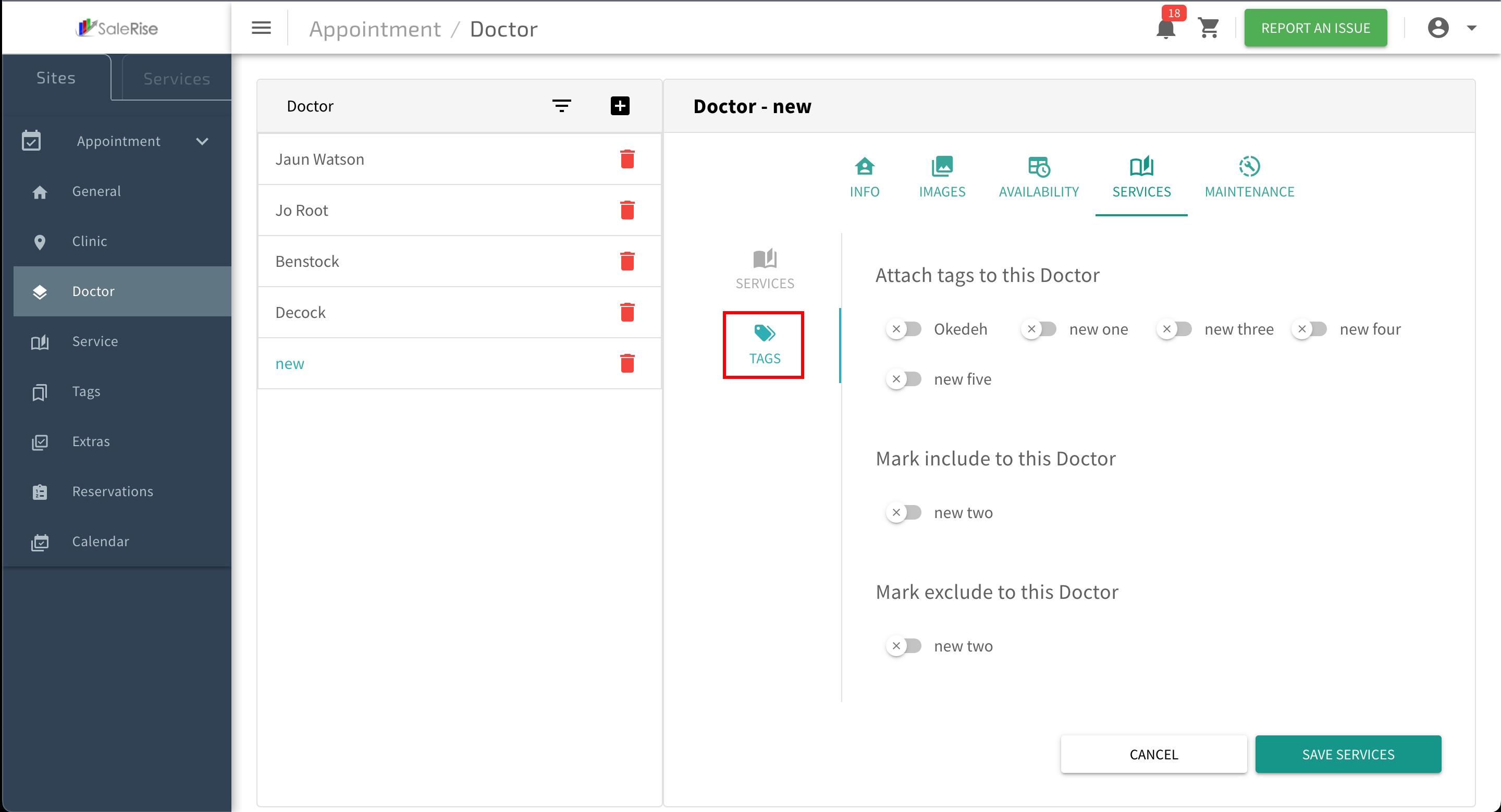
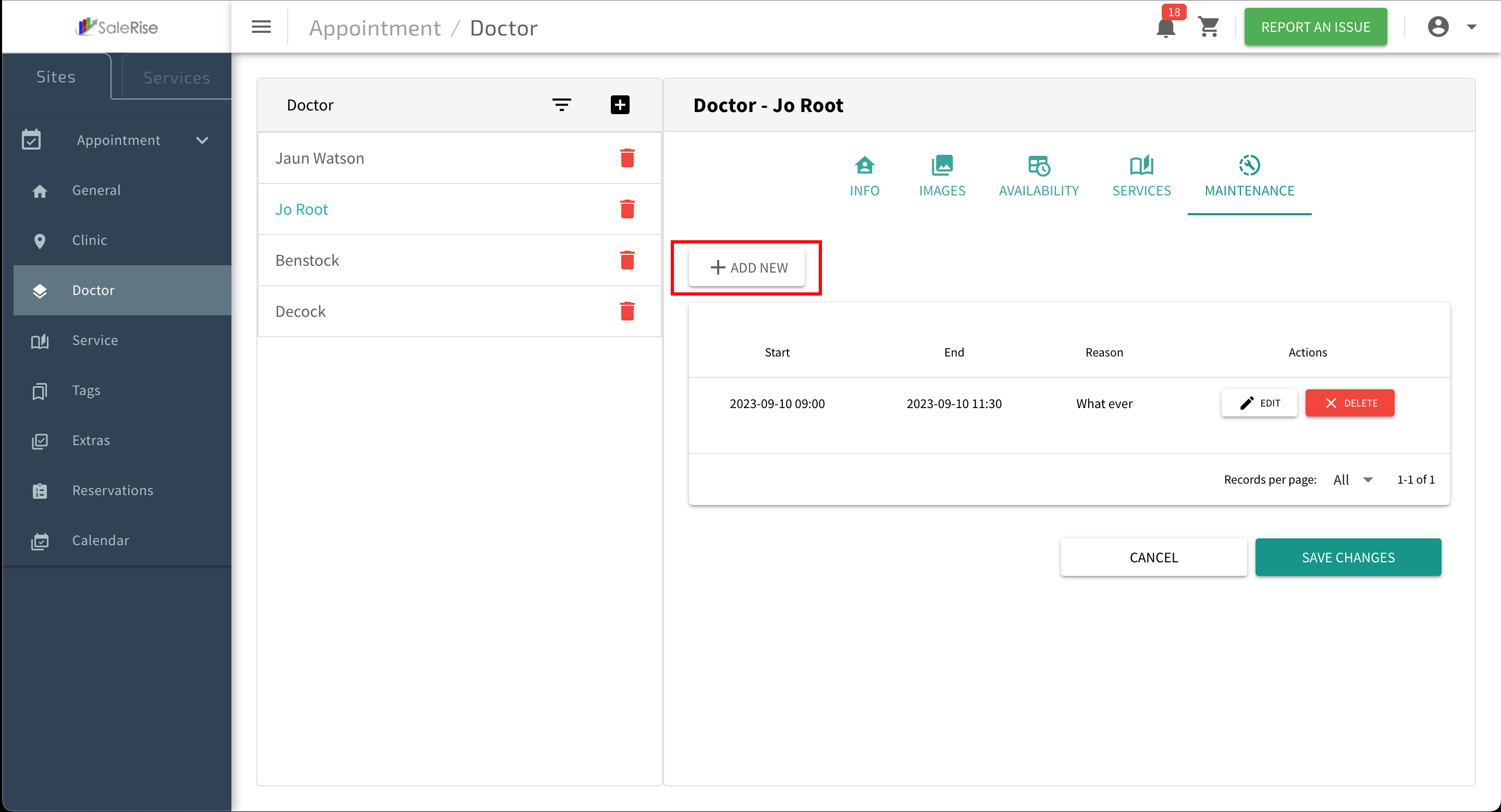
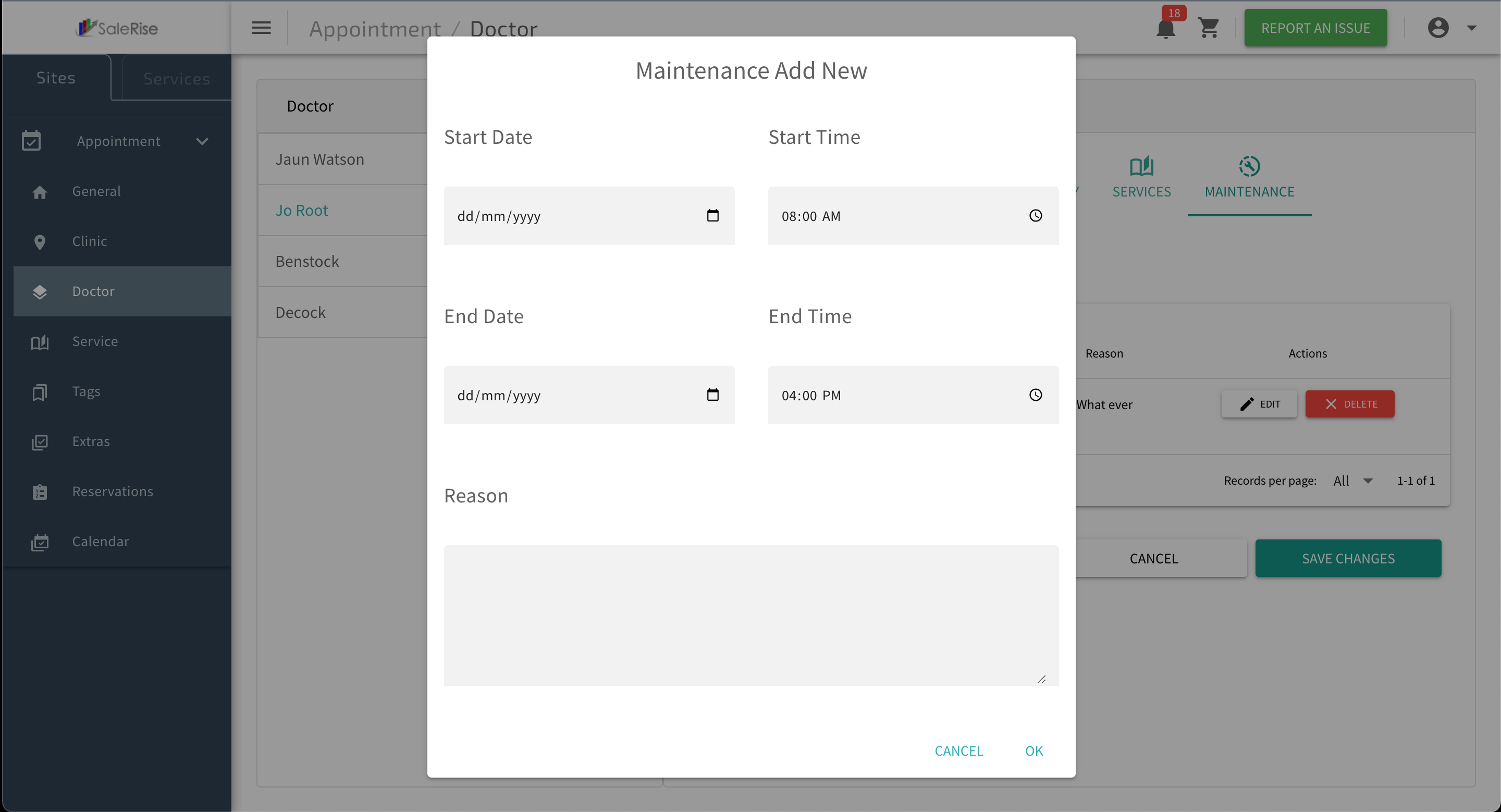 Table View: Display a table view of past and upcoming maintenance schedules.
Edit or Delete Maintenance: Allow users to modify or remove maintenance entries.
Table View: Display a table view of past and upcoming maintenance schedules.
Edit or Delete Maintenance: Allow users to modify or remove maintenance entries.