# How to Add Gallery to Your Page ?
**Through this document , you will uncover the 'Gallery' feature properties in site editor page through these key elements:[1. Adding a Gallery](https://kb.salerise.com/link/19#bkmrk-adding-heading)[2. Feature Settings Window](https://kb.salerise.com/link/19#bkmrk-feature-settings)[3. Style Settings Window](https://kb.salerise.com/link/19#bkmrk-style-settings)**
### **Adding a Gallery**
- Drag the Gallery icon from the available features
[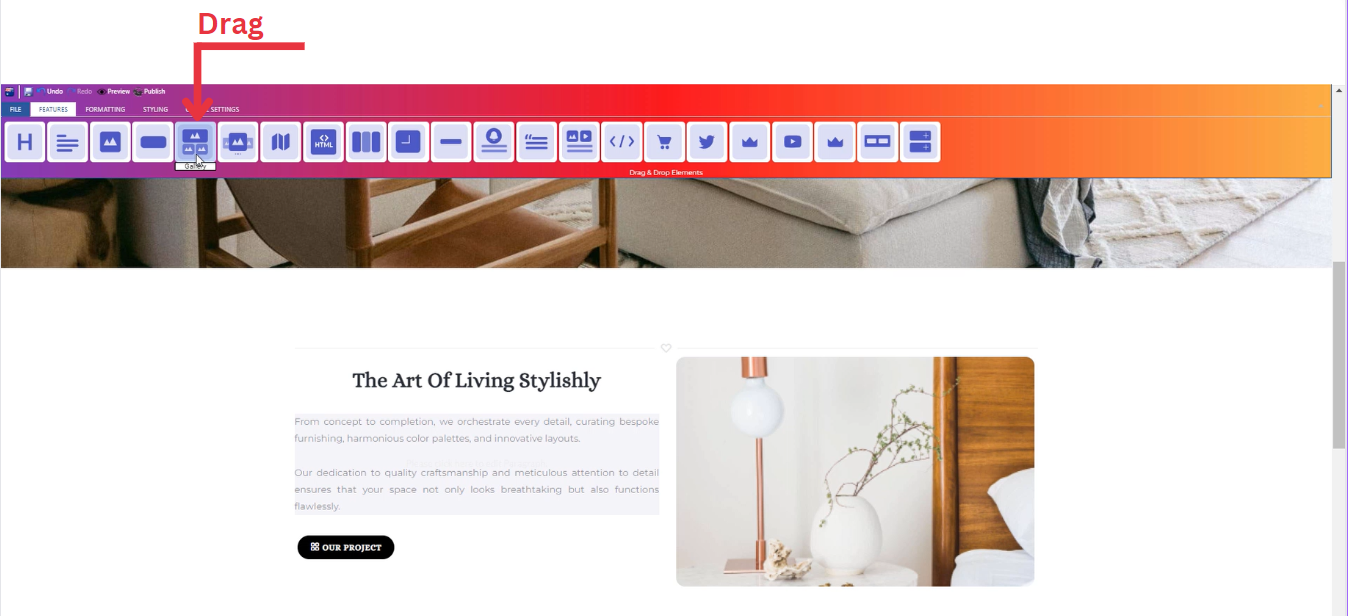](https://kb.salerise.com/uploads/images/gallery/2023-11/Lzaimage.png)
- Drop the Gallery icon into the desired location on your website page
[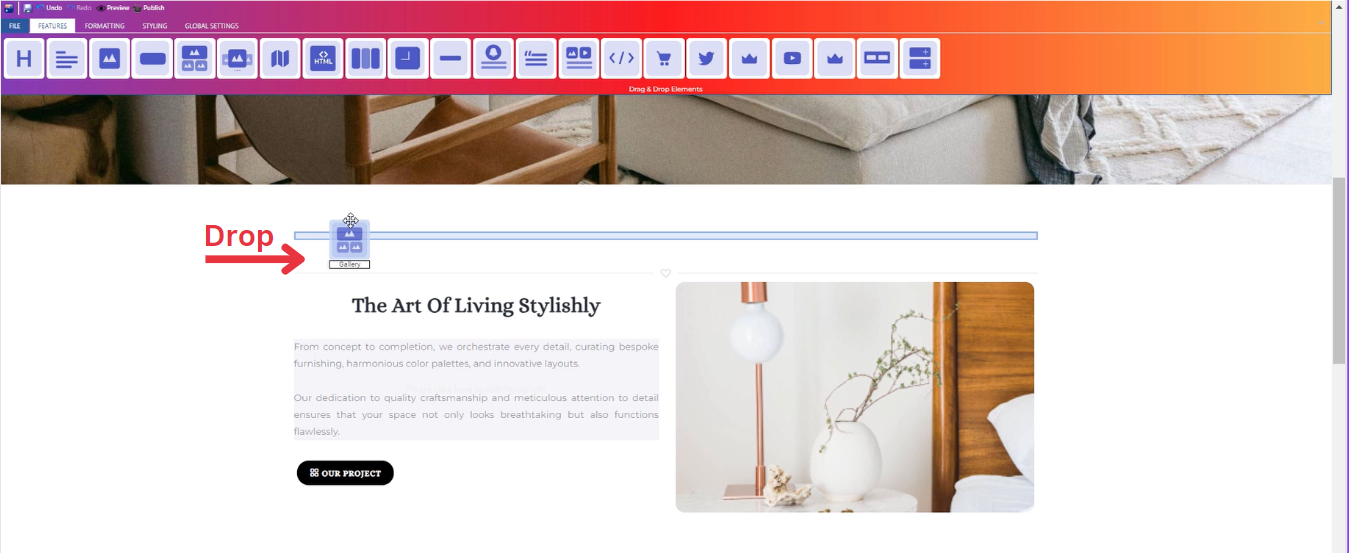](https://kb.salerise.com/uploads/images/gallery/2023-11/46bimage.png)
### **Feature Settings**
Upon dropping the gallery, a settings window will appear, offering four main features:
- **Images**
- Include images for your gallery on your website by choosing from three options: select from your uploaded images, use sample images from the website, or upload new images.
\_\_\_\_\_\_\_\_\_\_\_\_\_\_\_\_\_\_\_\_\_\_\_\_\_\_\_\_\_\_\_\_\_\_\_\_\_\_\_\_\_\_\_\_\_\_\_\_\_\_\_\_\_\_\_\_\_\_\_\_\_\_\_\_\_\_\_\_\_\_\_\_\_\_\_\_
- **Settings**
- Customize your gallery global settings through selecting the number of columns.
- Determine how your image is visible on devices (Mobile , Tablet , Desktop , Large desktop).
\_\_\_\_\_\_\_\_\_\_\_\_\_\_\_\_\_\_\_\_\_\_\_\_\_\_\_\_\_\_\_\_\_\_\_\_\_\_\_\_\_\_\_\_\_\_\_\_\_\_\_\_\_\_\_\_\_\_\_\_\_\_\_\_\_\_\_\_\_\_\_\_\_\_\_\_
- **Design**
- Customize the design of each image in your gallery in terms of :
\- Margin
\- Padding
\- Border
\- Color
\- Style
\_\_\_\_\_\_\_\_\_\_\_\_\_\_\_\_\_\_\_\_\_\_\_\_\_\_\_\_\_\_\_\_\_\_\_\_\_\_\_\_\_\_\_\_\_\_\_\_\_\_\_\_\_\_\_\_\_\_\_\_\_\_\_\_\_\_\_\_\_\_\_\_\_\_\_\_
- **Animations**
- Add animation to your gallery's title and long text from a long list of animation options.
- Enhance your animations image by incorporating timing in seconds
### **Style Settings**
**Design Features**
- Access the "Design" feature to customize your gallery appearance. Within this feature, you can determine the following properties:
- **Margin**: Set the spacing around your gallery to control its placement on the page.
- **Border**: Define a border for your gallery to add a distinct visual element.
- **Color**: Choose the color that best complements your website's theme or design.
- **Style**: Apply different styles to your gallery, enhancing its visual appeal.
- **Gradient**: Add gradient effects to your gallery for a more dynamic and modern look.
**Background Features**
- Navigate to the "Background" feature to enhance the backdrop of your gallery.
- **Upload Images**: Insert images as a background for your gallery, providing visual interest.
- **Sample Images**: Explore pre-loaded image samples for quick and easy background selection.
- **Background Styling**: Customize the gallery background further with options like:
\- Background Repeat: Control how the background image repeats.
\- Background Fill: Adjust how the background fills the space around the gallery.
\- Background Position: Define the positioning of the background image for optimal display.
**Style Customization**
- Within the "Style" section, further refine your button presentation by adding classes from a dropdown list with a plethora of options.
- Determine how your gallery is visible on devices (Mobile , Tablet , Desktop , Large desktop).