# How to Add Button to Your Page ?
**Through this document , you will uncover the 'Button' feature properties in site editor page through these key elements:
[1. Adding a Button](https://kb.salerise.com/link/18#bkmrk-adding-heading)[2. Feature Settings Window](https://kb.salerise.com/link/18#bkmrk-feature-settings)[3. Style Settings Window](https://kb.salerise.com/link/18#bkmrk-style-settings)**
### **Adding a Button**
- Drag the Button icon from the available features
[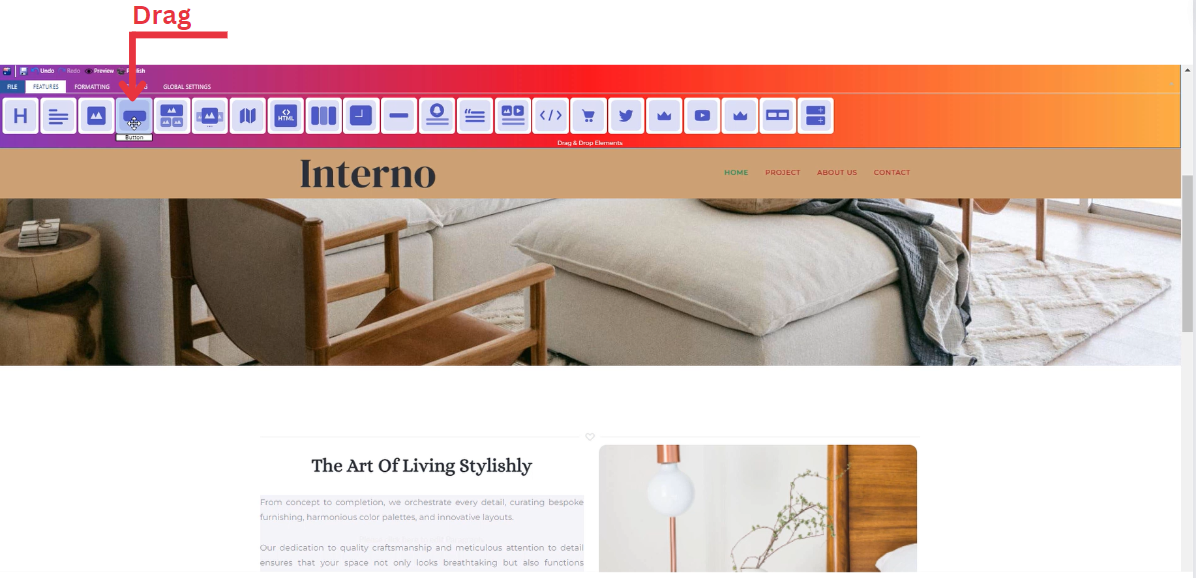](https://kb.salerise.com/uploads/images/gallery/2023-11/eGAimage.png)
- Drop the Heading icon into the desired location on your website page
[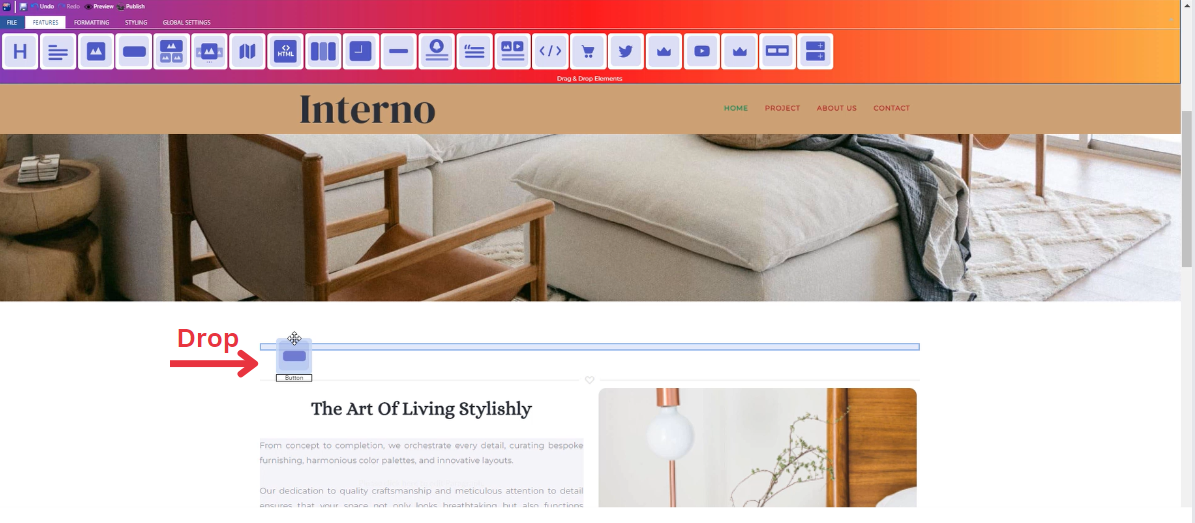](https://kb.salerise.com/uploads/images/gallery/2023-11/65Qimage.png)
### **Feature Settings**
Upon dropping the button, a settings window will appear, offering four main features:
- **Theme**
- Explore different themes for your button to align with your website's aesthetic.
\_\_\_\_\_\_\_\_\_\_\_\_\_\_\_\_\_\_\_\_\_\_\_\_\_\_\_\_\_\_\_\_\_\_\_\_\_\_\_\_\_\_\_\_\_\_\_\_\_\_\_\_\_\_\_\_\_\_\_\_\_\_\_\_\_\_\_\_\_\_\_\_\_\_\_\_
- **Settings**
- Customize and enter your own text/title and long description.
- Select the button size (Normal , Mini , Small , Large , Extra Large).
- Add several classes from a long list of options.
- Determine how your button is visible on devices (Mobile , Tablet , Desktop , Large desktop).
\_\_\_\_\_\_\_\_\_\_\_\_\_\_\_\_\_\_\_\_\_\_\_\_\_\_\_\_\_\_\_\_\_\_\_\_\_\_\_\_\_\_\_\_\_\_\_\_\_\_\_\_\_\_\_\_\_\_\_\_\_\_\_\_\_\_\_\_\_\_\_\_\_\_\_\_
- **Design**
- Customize the font type of your title and description
\_\_\_\_\_\_\_\_\_\_\_\_\_\_\_\_\_\_\_\_\_\_\_\_\_\_\_\_\_\_\_\_\_\_\_\_\_\_\_\_\_\_\_\_\_\_\_\_\_\_\_\_\_\_\_\_\_\_\_\_\_\_\_\_\_\_\_\_\_\_\_\_\_\_\_\_
### **Style Settings**
**Design Features**
- Access the "Design" feature to customize your button appearance. Within this feature, you can determine the following properties:
- **Margin**: Set the spacing around your button to control its placement on the page.
- **Border**: Define a border for your button to add a distinct visual element.
- **Color**: Choose the color that best complements your website's theme or design.
- **Style**: Apply different styles to your button, enhancing its visual appeal.
- **Gradient**: Add gradient effects to your button for a more dynamic and modern look.
**Background Features**
- Navigate to the "Background" feature to enhance the backdrop of your button.
- **Upload Images**: Insert images as a background for your button, providing visual interest.
- **Sample Images**: Explore pre-loaded image samples for quick and easy background selection.
- **Background Styling**: Customize the button background further with options like:
\- Background Repeat: Control how the background image repeats.
\- Background Fill: Adjust how the background fills the space around the button.
\- Background Position: Define the positioning of the background image for optimal display.
**Style Customization**
- Within the "Style" section, further refine your button presentation by adding classes from a dropdown list with a plethora of options.
- Determine how your button is visible on devices (Mobile , Tablet , Desktop , Large desktop).