Menu Items
In the "Menu Items" section, take full control of your restaurant's offerings. Users can add, organize, and edit categories, populate them with diverse items, and introduce multiple variations to cater to varied preferences. This dynamic feature empowers you to craft a comprehensive and customizable menu that reflects the uniqueness of your culinary offerings.
Add Categories
3.1 Add Categories Overview
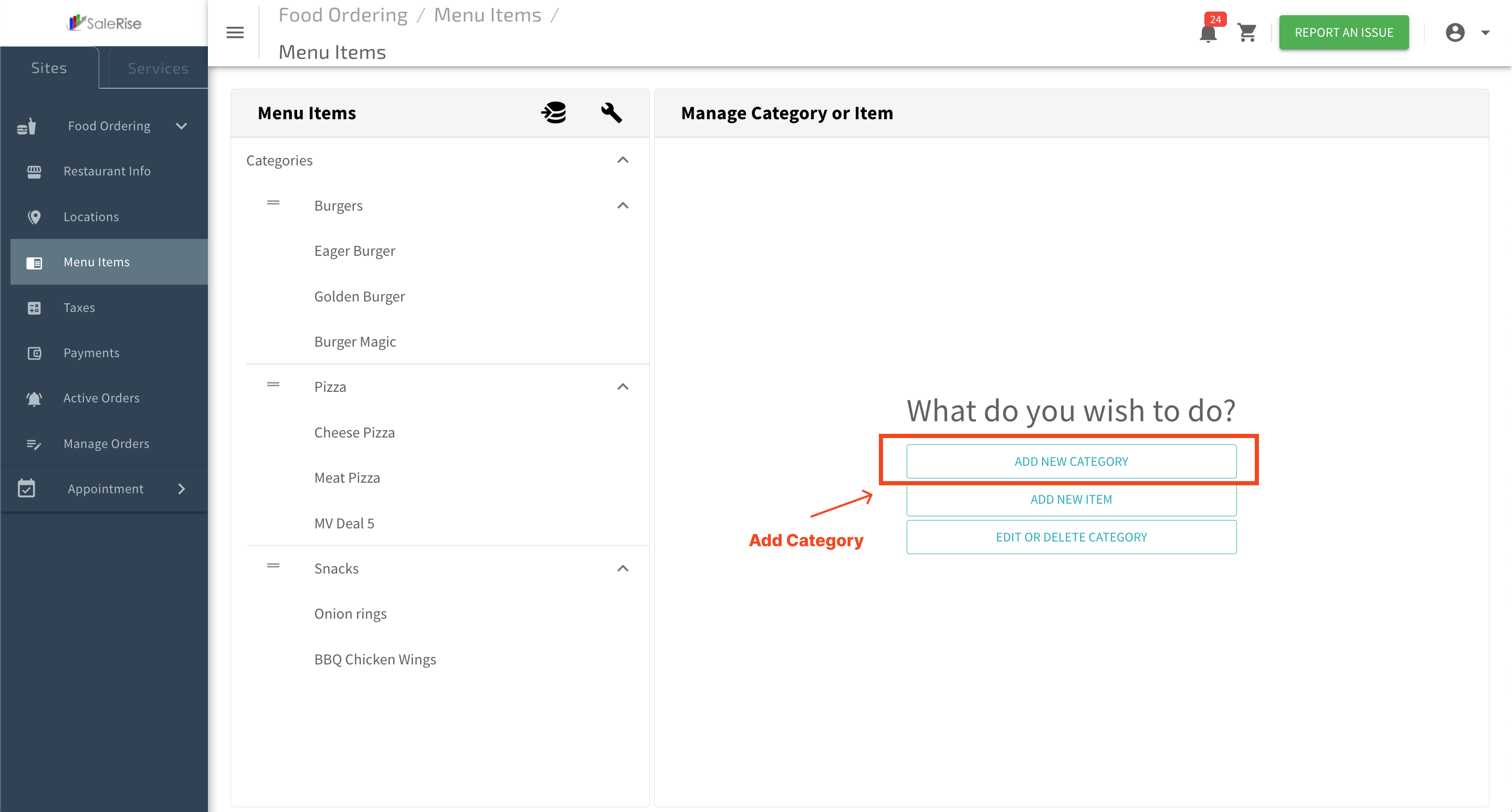
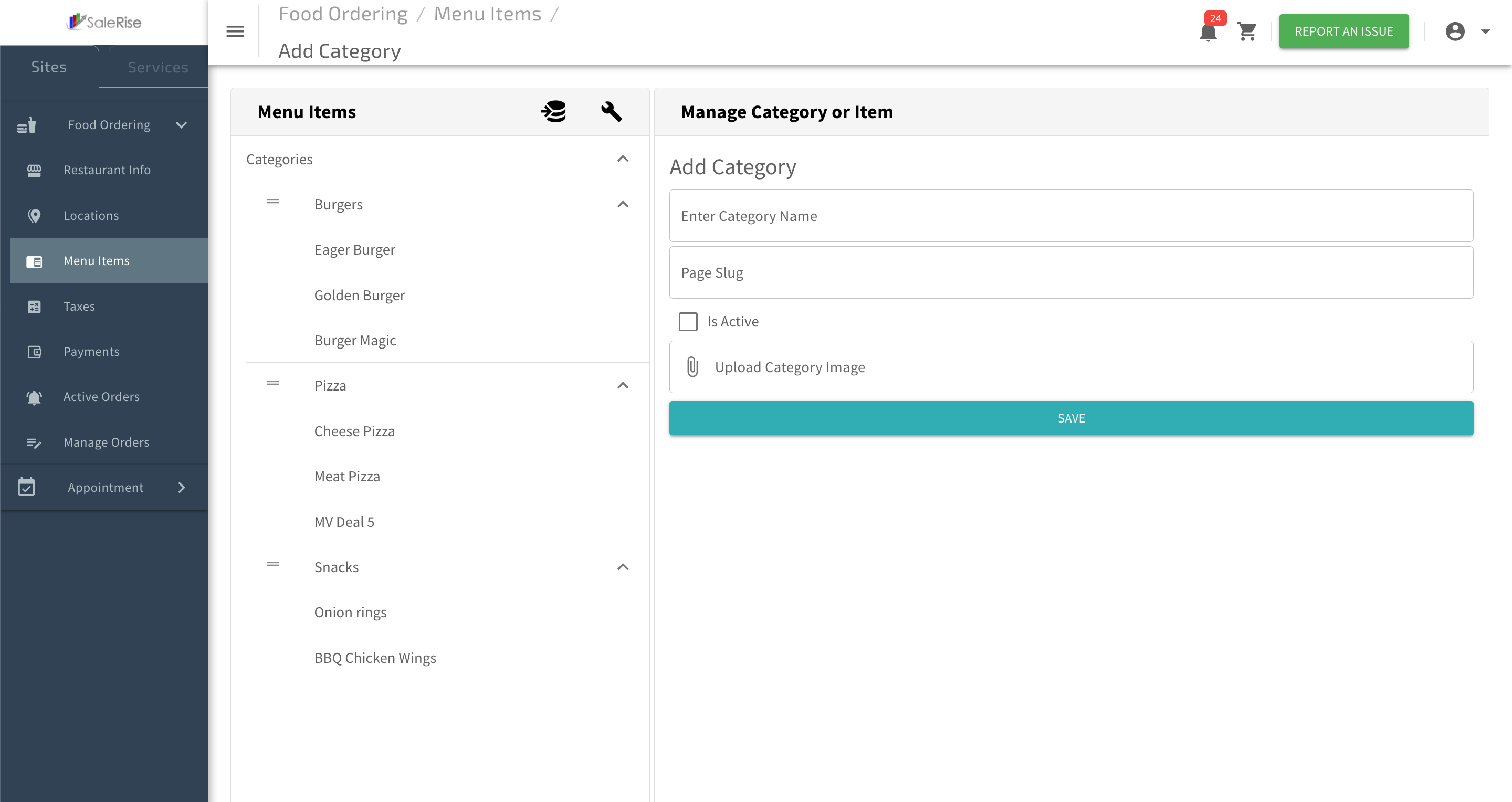
On the "Manage Category" page, efficiently organize your restaurant's menu by creating and modifying categories. Users can easily add a new category, set a page slug, upload a category image, and toggle between active and deactivated states.
1. Create New Category:
- Click on the "Create" button to add a new category.
2. Category Details:
-
- Enter the following information:
- Category Name: Provide a descriptive name for the category.
- Page Slug: Set a user-friendly URL slug for the category page.
- Image for Category: Upload a visually appealing image representing the category.
- Enter the following information:
3. Activation Status:
- Toggle between "Active" and "Deactivated" to control the visibility of the category.
4. Save Changes:
- Click "Save" to confirm and create the new category.
Edit Categories
3.2 Edit Categories Overview
In the "Edit Categories" section, seamlessly refine and organize your restaurant's menu by editing or deleting existing categories. This feature provides users with the flexibility to adapt to changing menu structures and maintain an up-to-date and well-curated selection.
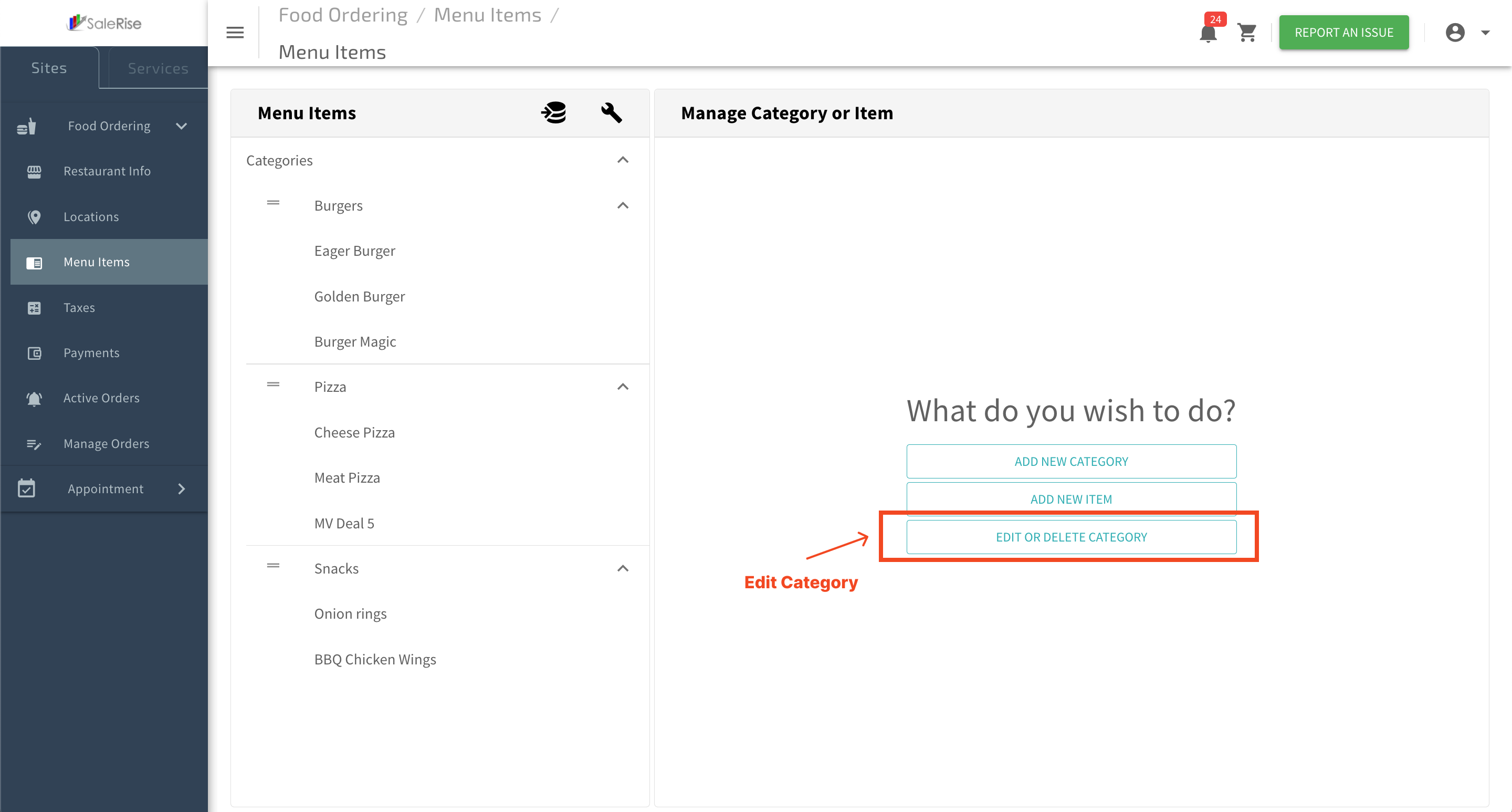
View Existing Categories:
- Access the "Categories Management" page to see a comprehensive list of all existing categories.
- Click on the edit button next to a category to modify its details.
Edit Categories:
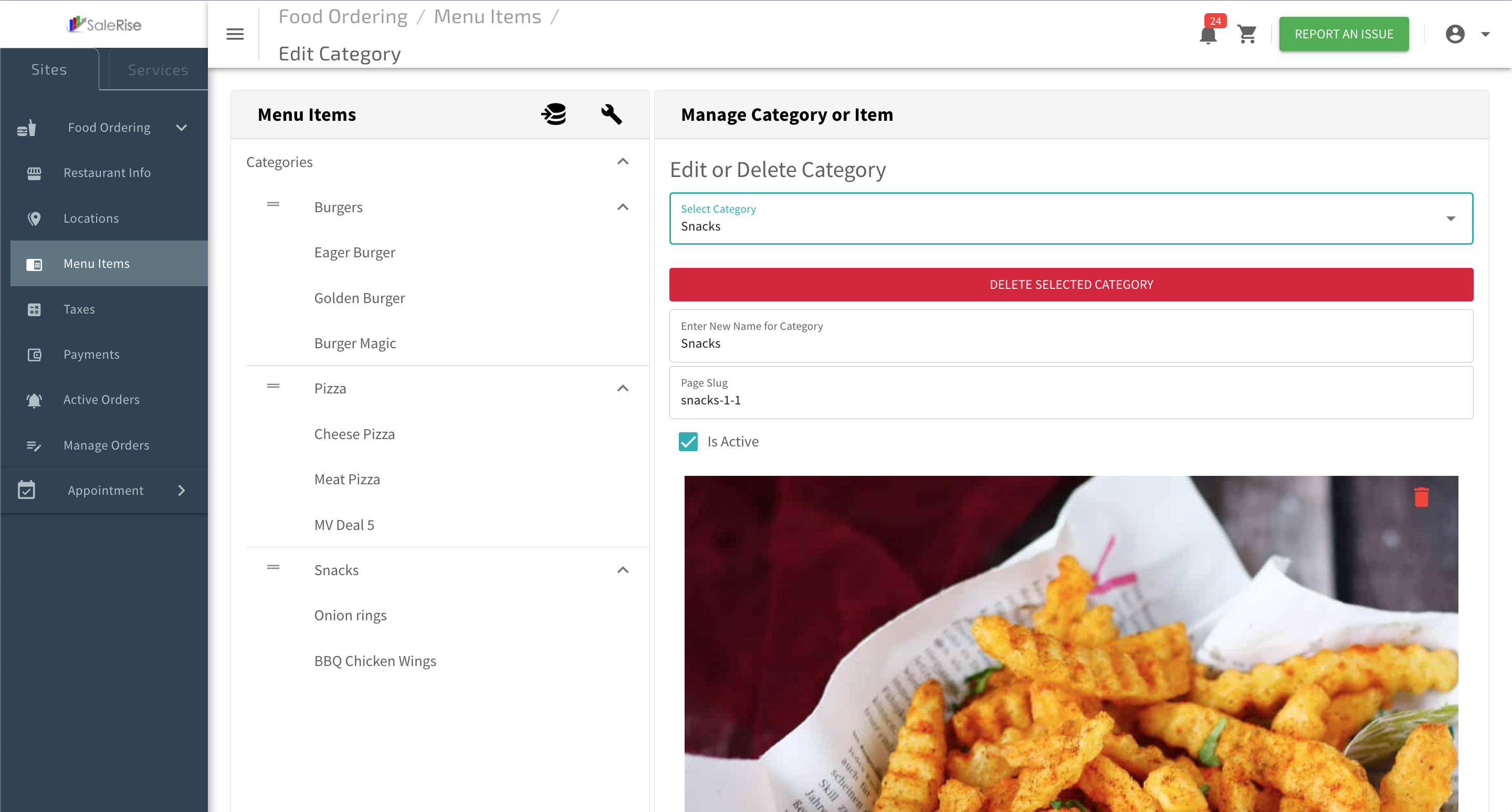
- Category Name: Update the category name for clarity.
- Page Slug: Adjust the URL slug for improved user experience.
- Image for Category: Replace or update the category image.
Delete Categories:
- Safely remove categories that are no longer relevant or needed.
Confirmation Prompt:
- Receive a confirmation prompt before finalizing the deletion of a category.
Save Changes:
- Click "Save" to confirm edits and updates to the category details.
Add Items
3.3 Add Item Overview
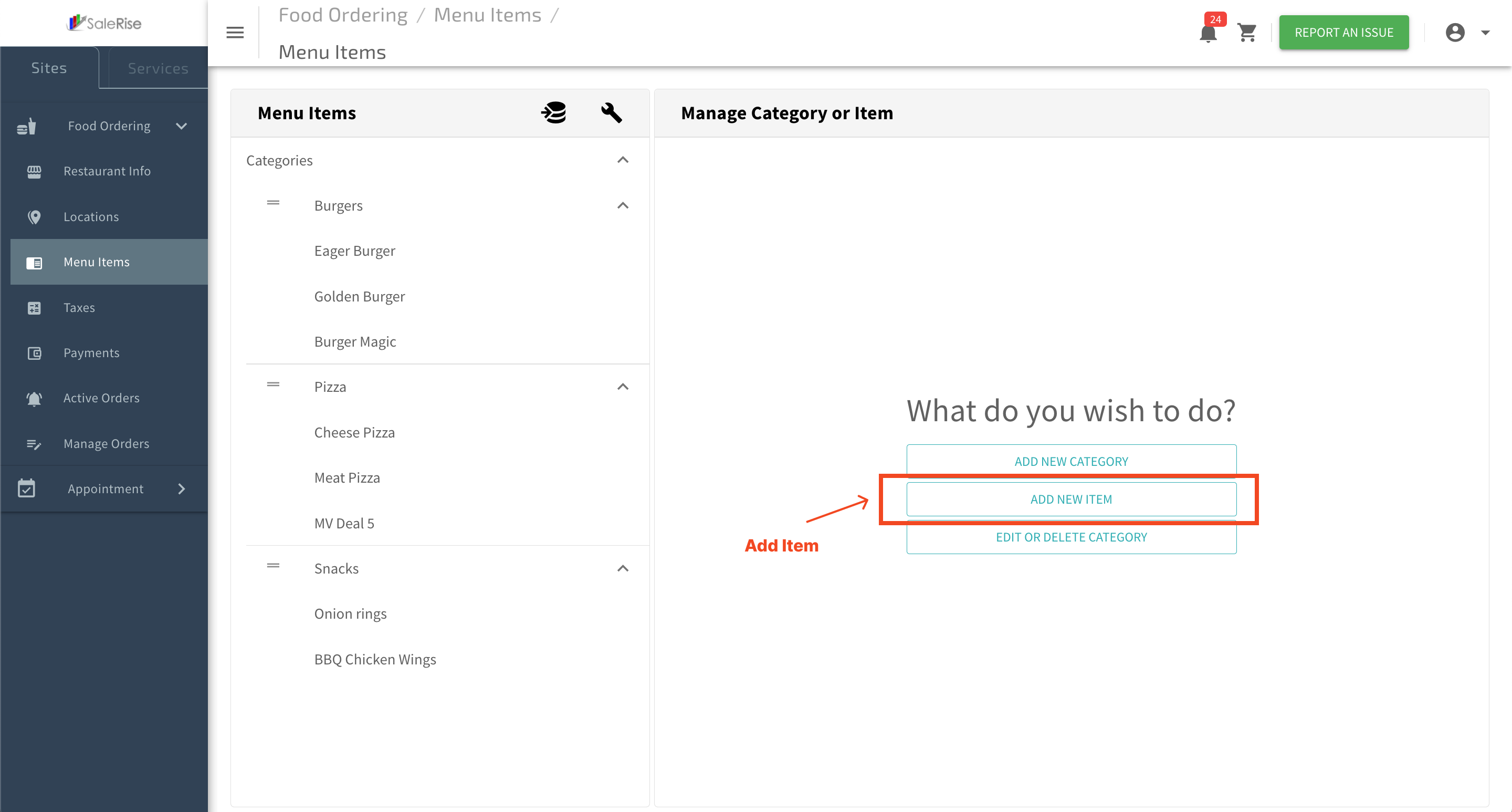
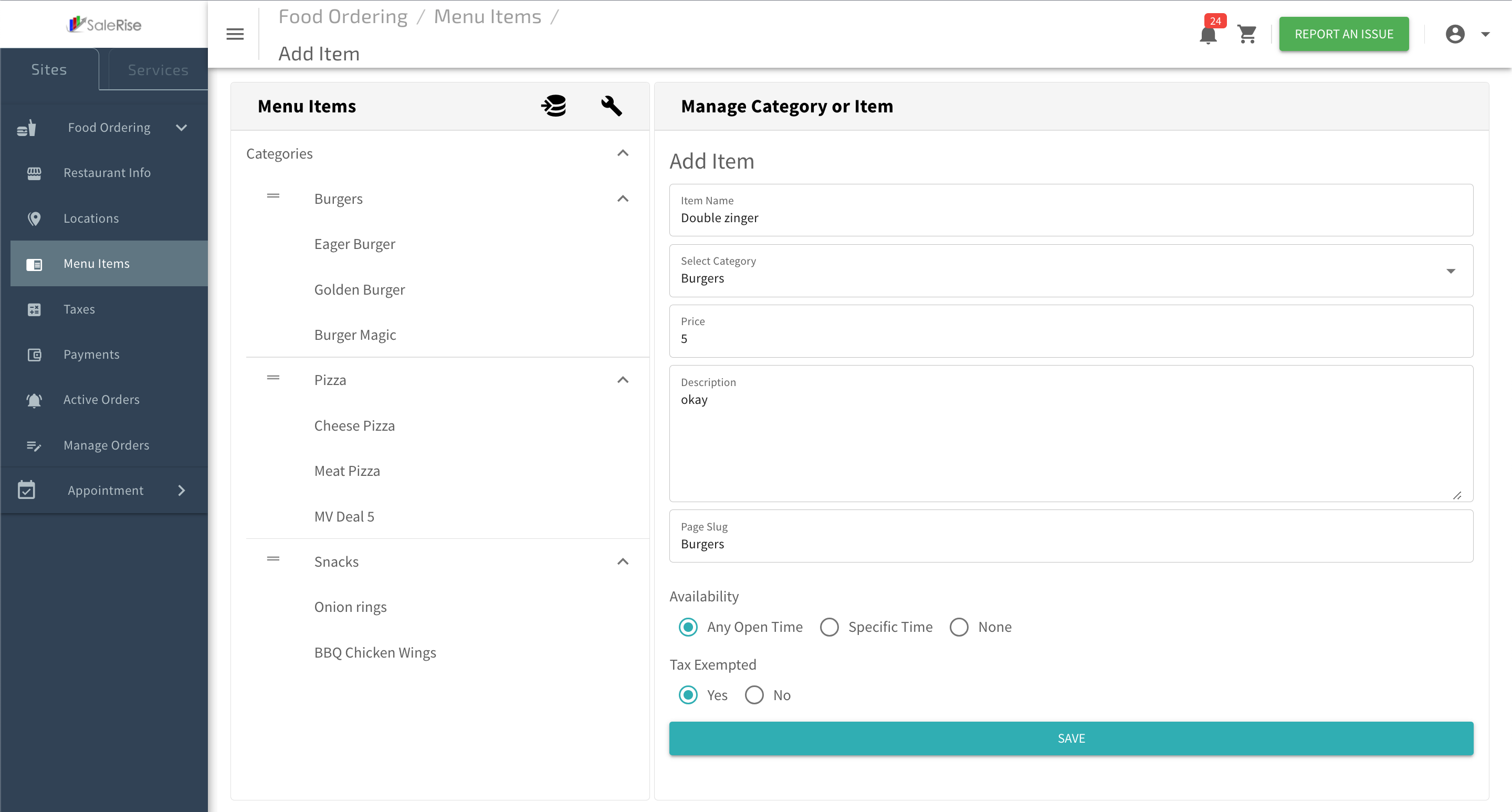
In the "Add Item" section, users can effortlessly expand their restaurant's menu. This process includes providing essential details such as item name, category selection, pricing, description, page slug, availability settings, and tax exemption preferences.
1. Add Item:
2. Basic Information:
- Enter the fundamental details for the new item.
- Item Name: Provide a descriptive name for the item.
- Select Category: Choose the appropriate category from the available options.
3. Pricing and Description:
- Set the pricing and provide a detailed description of the item.
- Price: Specify the cost of the item.
- Description: Offer an engaging description to entice customers.
4. SEO-Friendly Details:
- Enhance online visibility with SEO-friendly details.
- Page Slug: Set a user-friendly URL slug for the item.
5. Availability Settings:
- Choose the availability settings for the item.
- Availability Options: Select from "Any Open Time," "Special Time," or "None."
6. Tax Exemption:
- Indicate whether the item is tax-exempt.
- Tax Exempted: Choose between "Yes" or "No" for tax exemption.
7. Save and Confirm:
- Click "Save" to confirm the addition of the new item.
-----------------------------------------------------------------------------------------------------------------------------
3.3.1 Items - Enhance Details
After successfully adding the basic details of a new item, users can now enhance their menu item by including an image, creating option groups, adding individual options, and specifying sizes.
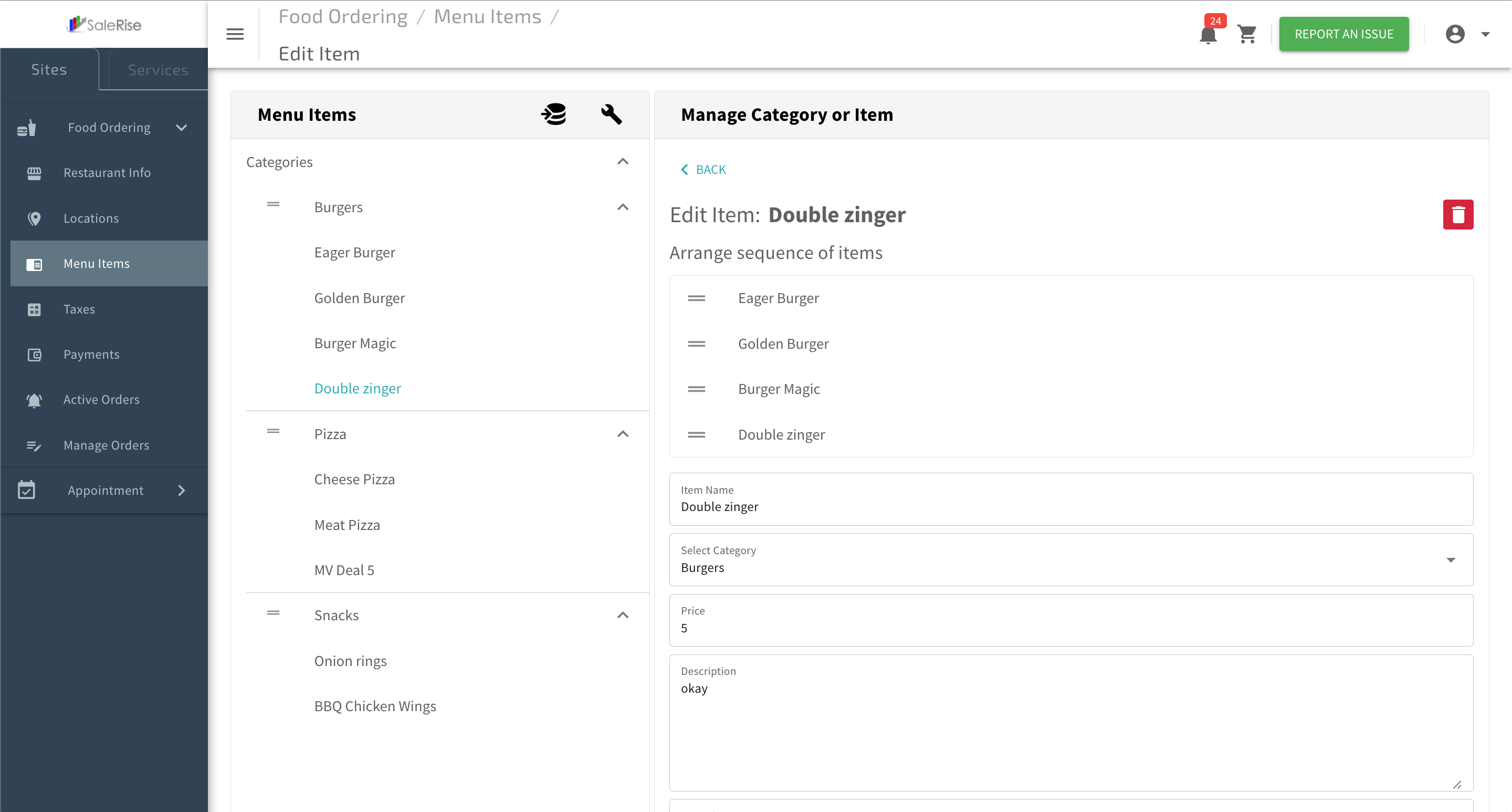
1. View Added Item:
- After saving the basic details, the user can view the added item in the menu.
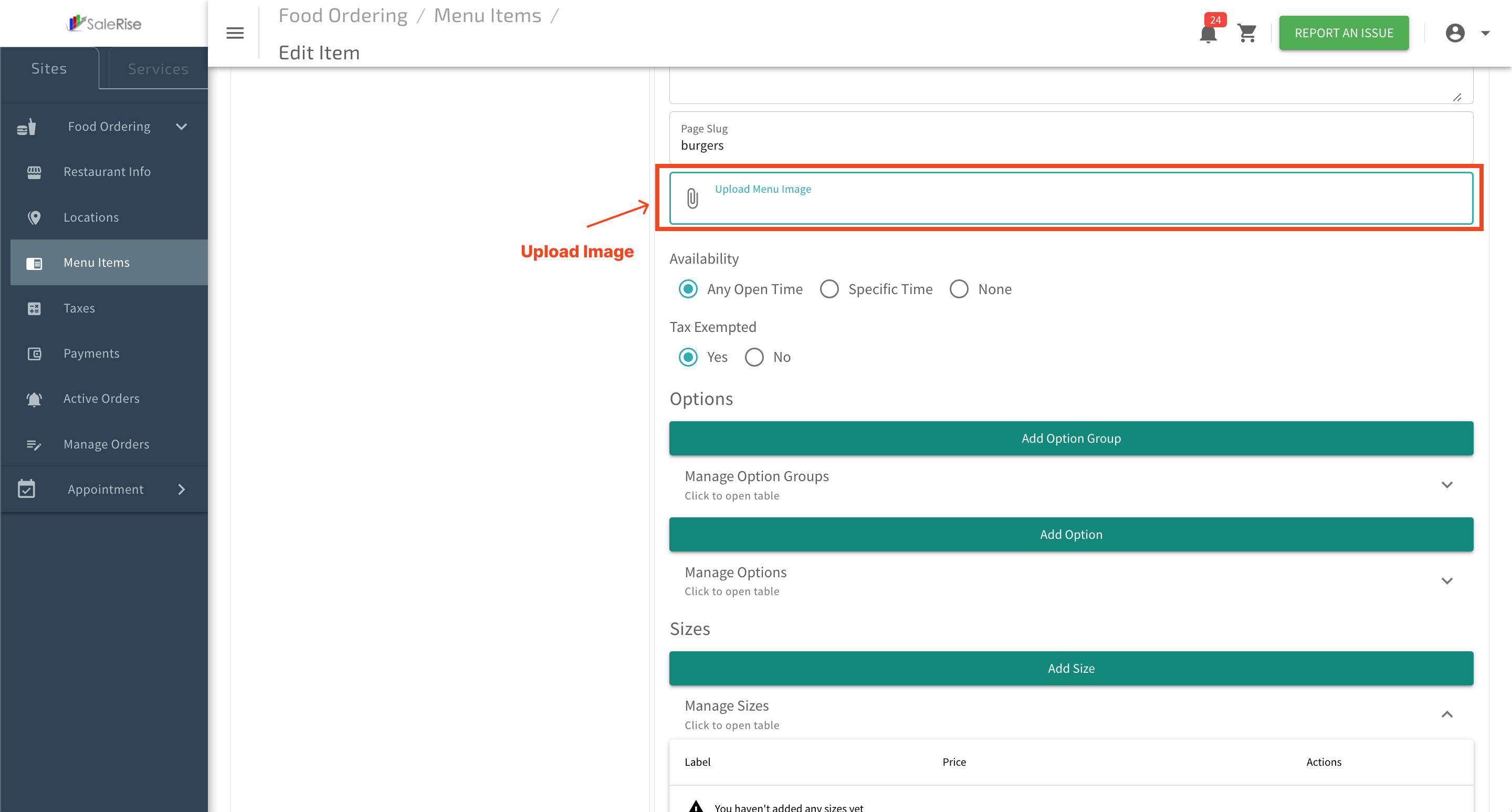
2. Add Image:
- Upload a visually appealing image to showcase the item.
- Click on "Add Image" and choose the image file.
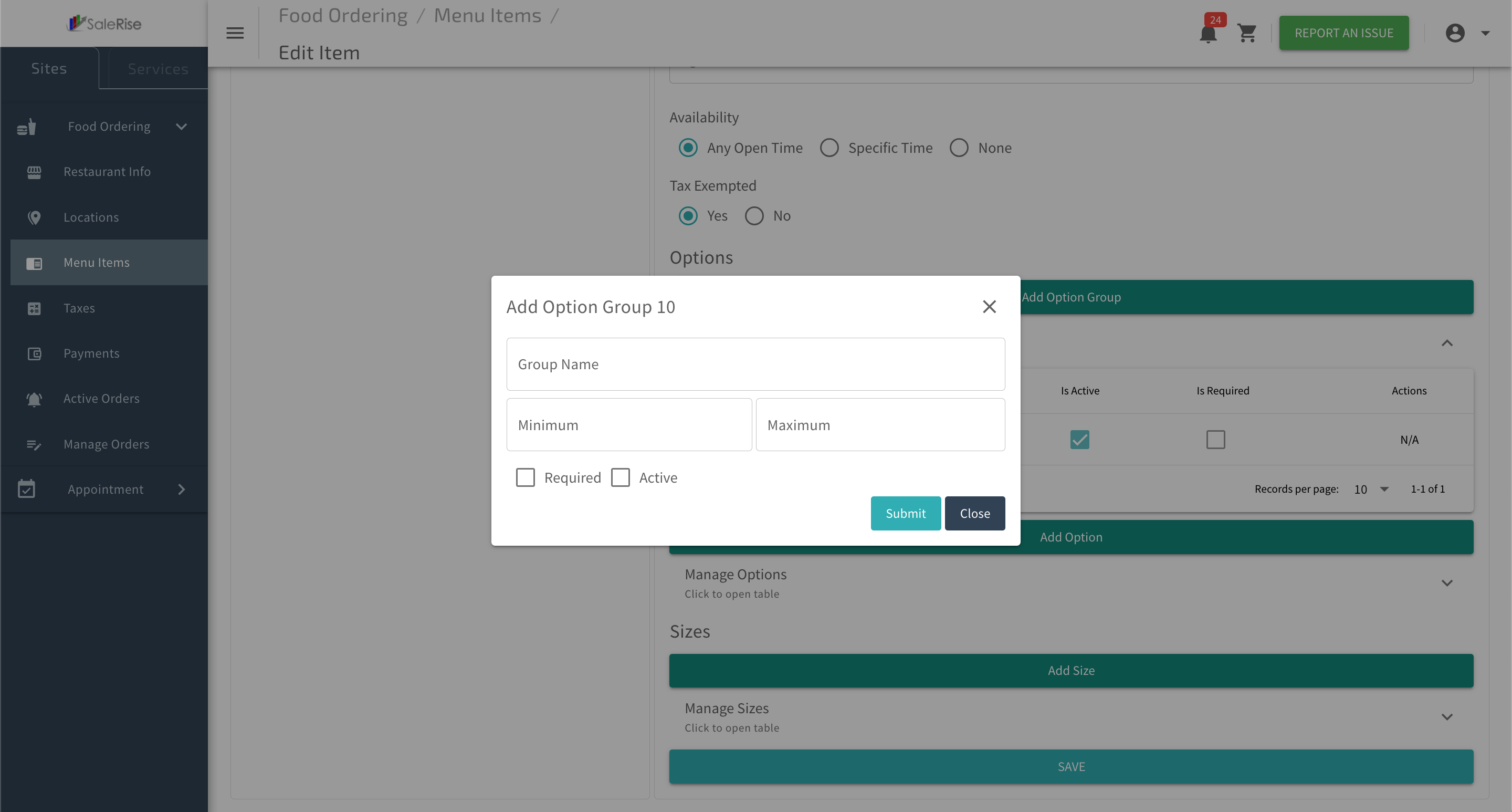
3. Option Groups:
Enhance customization by creating option groups.
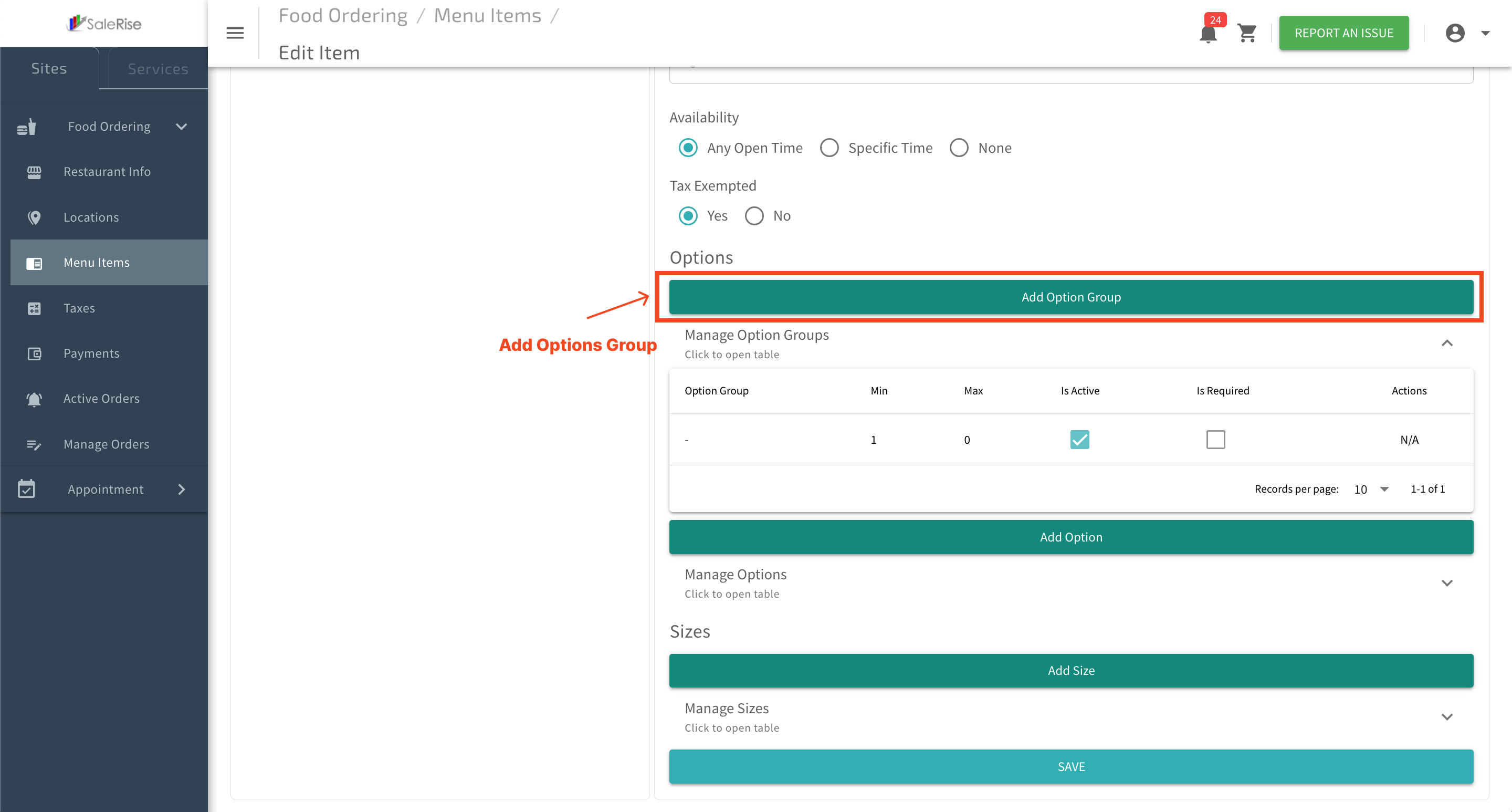
- Option Group Name: Provide a descriptive name for the group.
- Minimum and Maximum Input Fields: Specify the range of input fields allowed.
- Required Checkbox: Indicate if the option is required.
- Active Checkbox: Activate or deactivate the option group.
4. Add Options:
Associate options with the created option group.
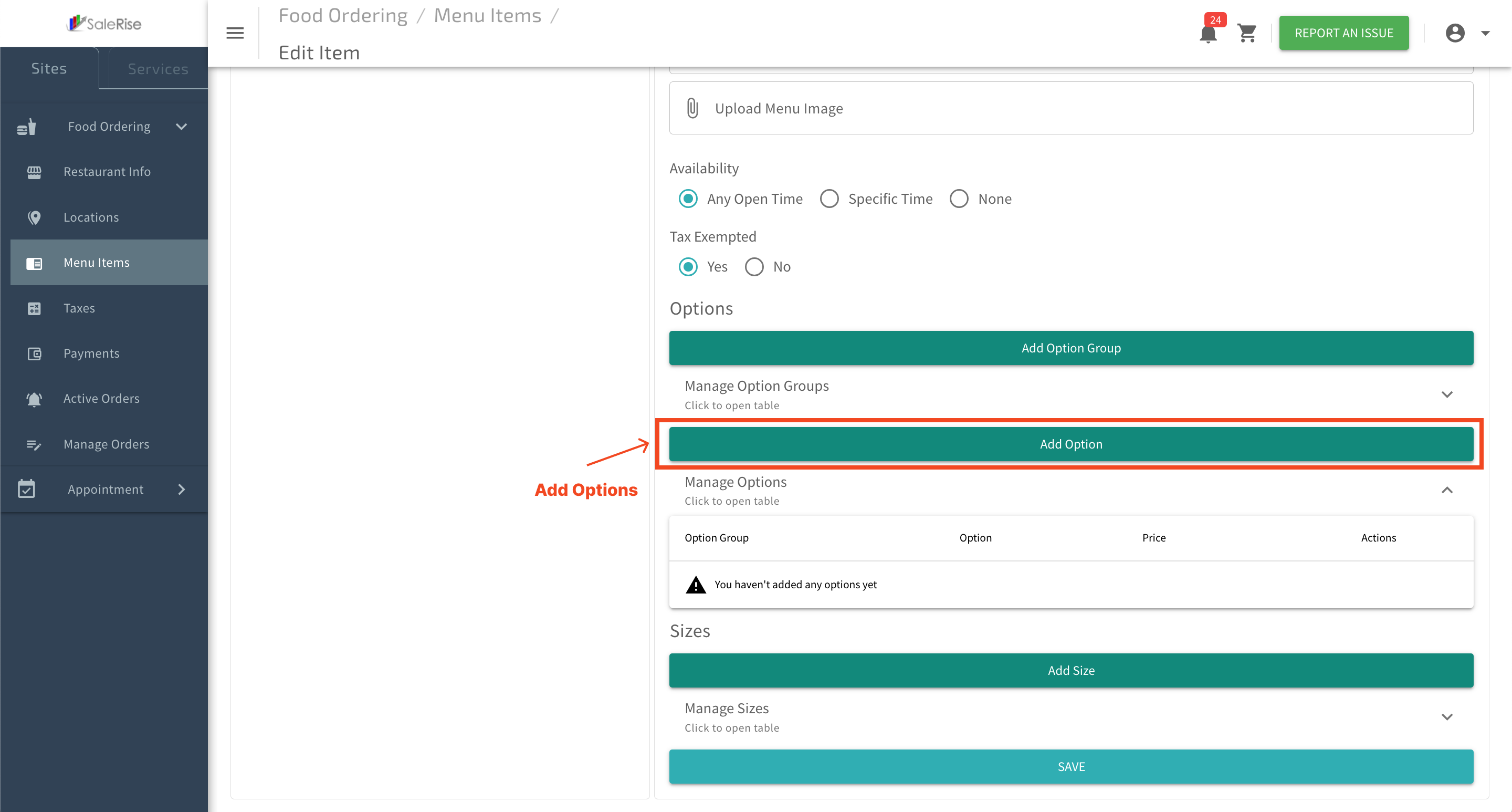
- Select Option Group: Choose the relevant group from the created option groups.
- Label: Provide a label for the option.
- Add Price: Specify an additional price if applicable.
- Active Checkbox: Activate or deactivate the option.

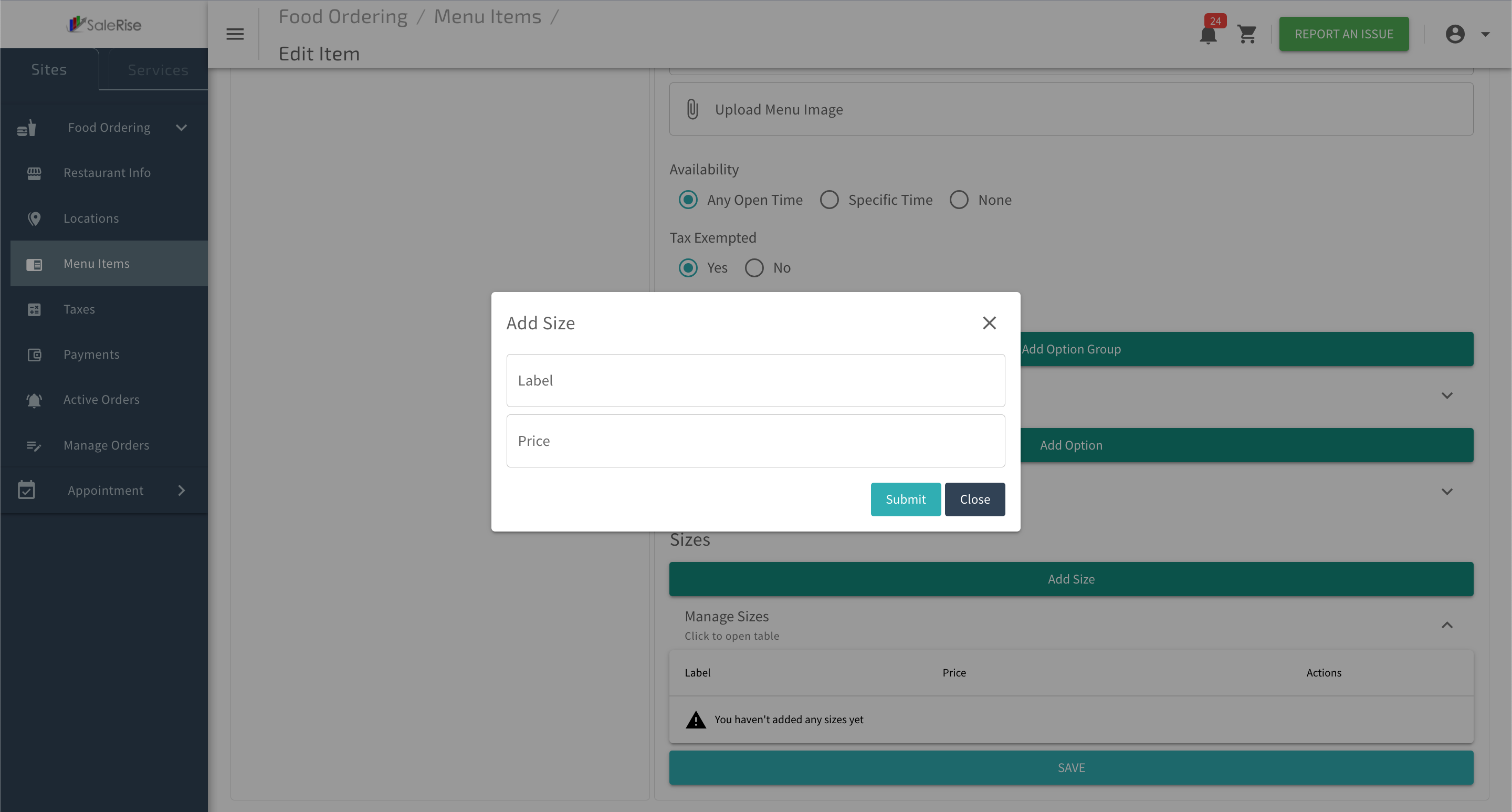
5. Sizes:
Offer size variations for the item.
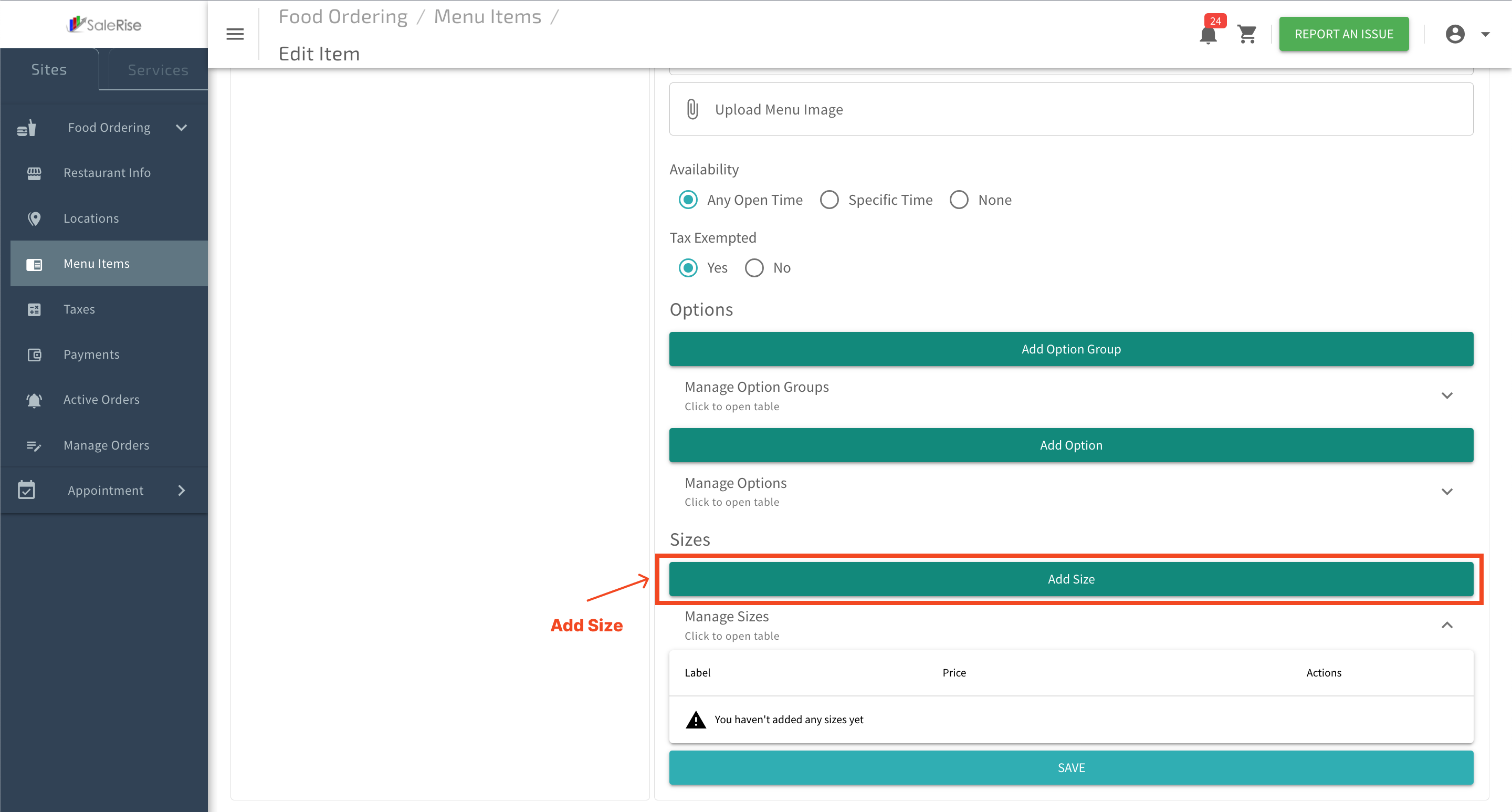
- Label: Name the size (e.g., Small, Medium, Large).
- Add Price: Specify the price difference for each size.
6. Save Changes:
- Click "Save" to confirm the additional details.