Active Orders Management
On the "Active Orders" page, users can efficiently manage incoming orders from their website or app. Each order card displays a timer, reflecting the response time set in the restaurant information. Users can accept or reject orders within this time frame, and upon cooking completion, mark the order as "Food Ready" to remove it from the active queue.
Active Orders
Active Orders Overview
On the "Active Orders" page, users can efficiently manage incoming orders from their website or app. Each order card displays a timer, reflecting the response time set in the restaurant information. Users can accept or reject orders within this time frame, and upon cooking completion, mark the order as "Food Ready" to remove it from the active queue.
1. Access "Active Orders":
2. Order Cards:
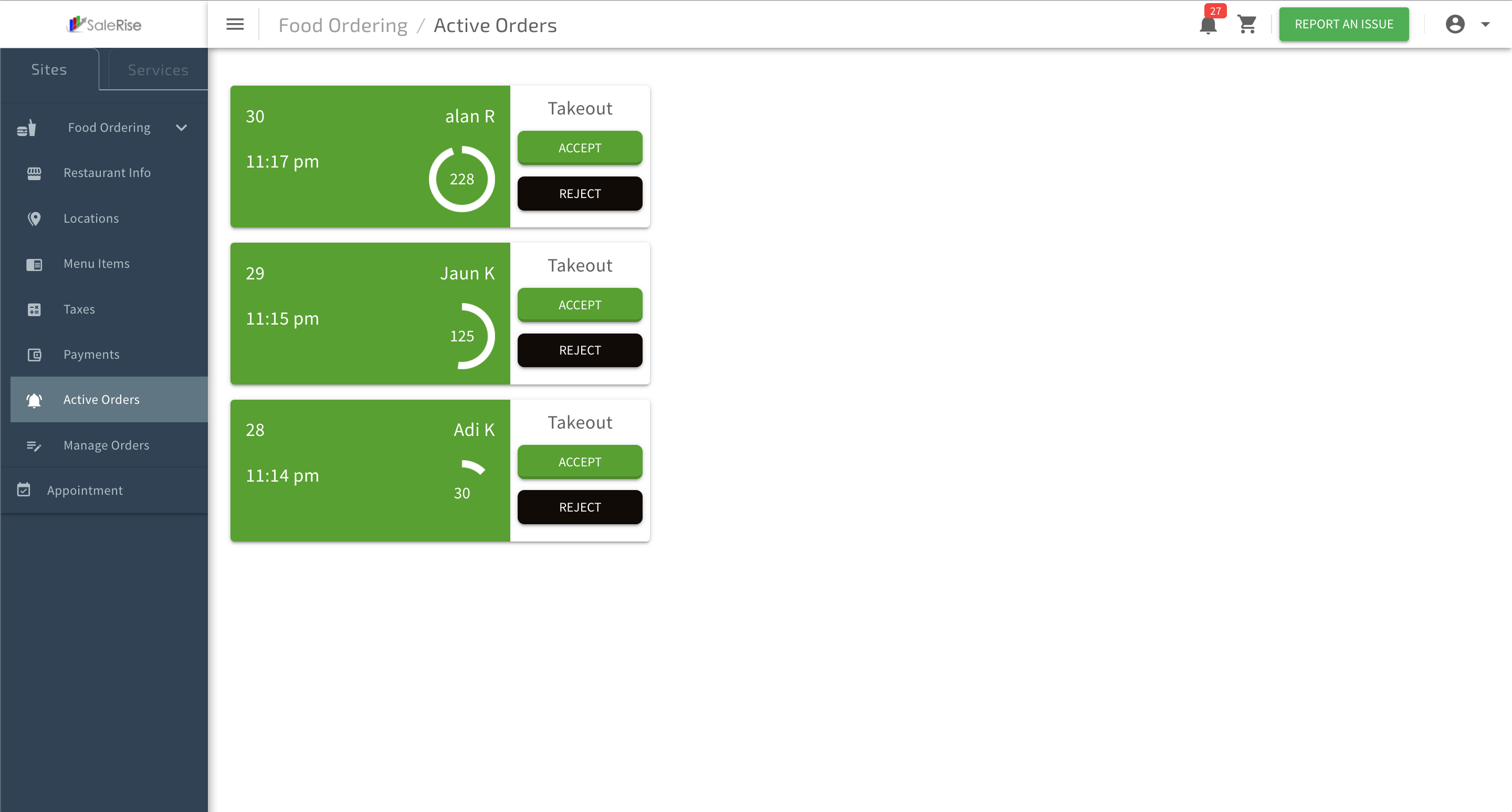
Each order is represented by a card displaying essential details.
- Timer: Reflects the response time set in the restaurant information.
- Accept & Reject Buttons: Quickly respond to incoming orders by accepting or rejecting.
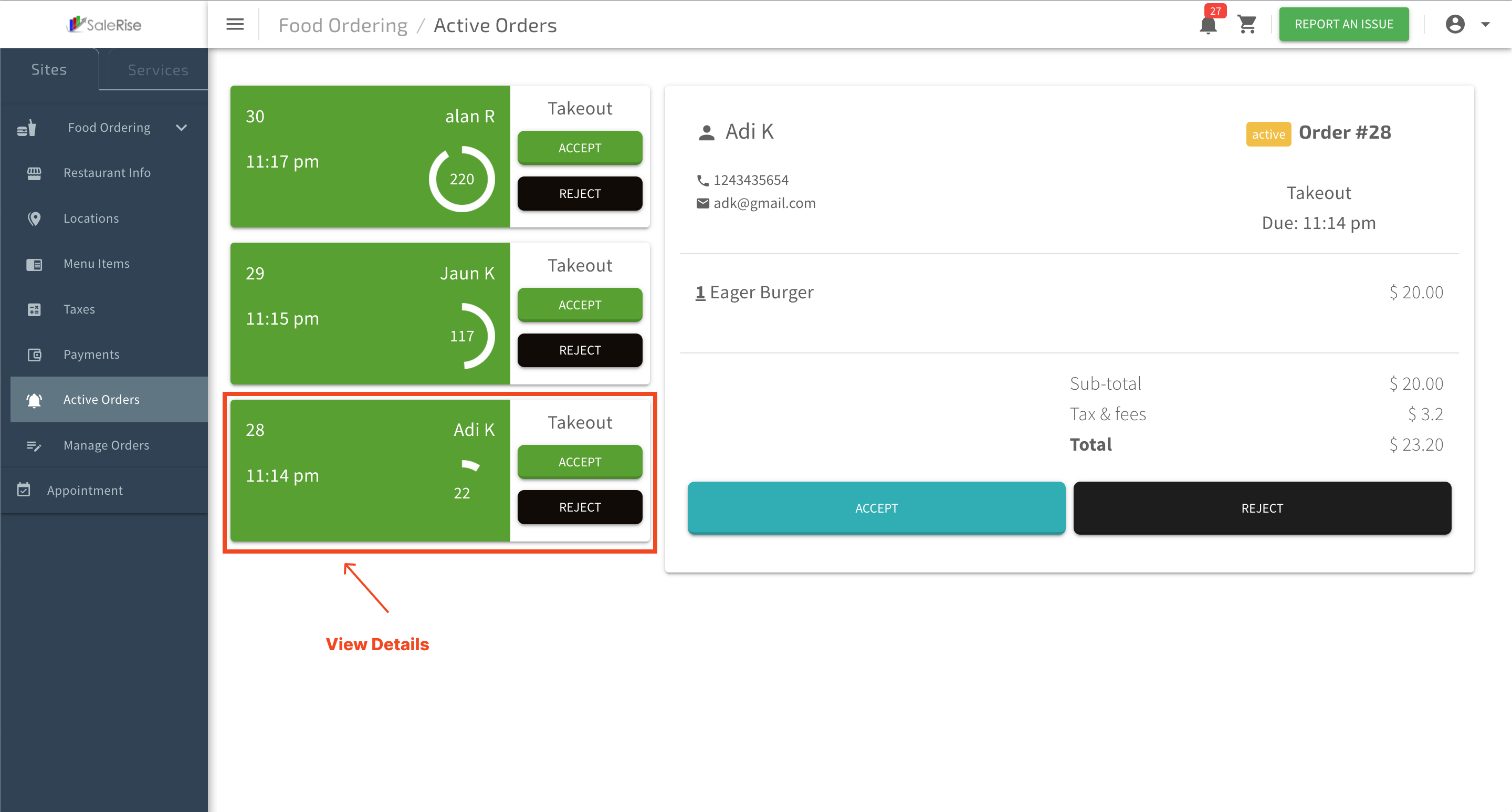
3. View Order Details:
- Click on an order card to view detailed information about the order.
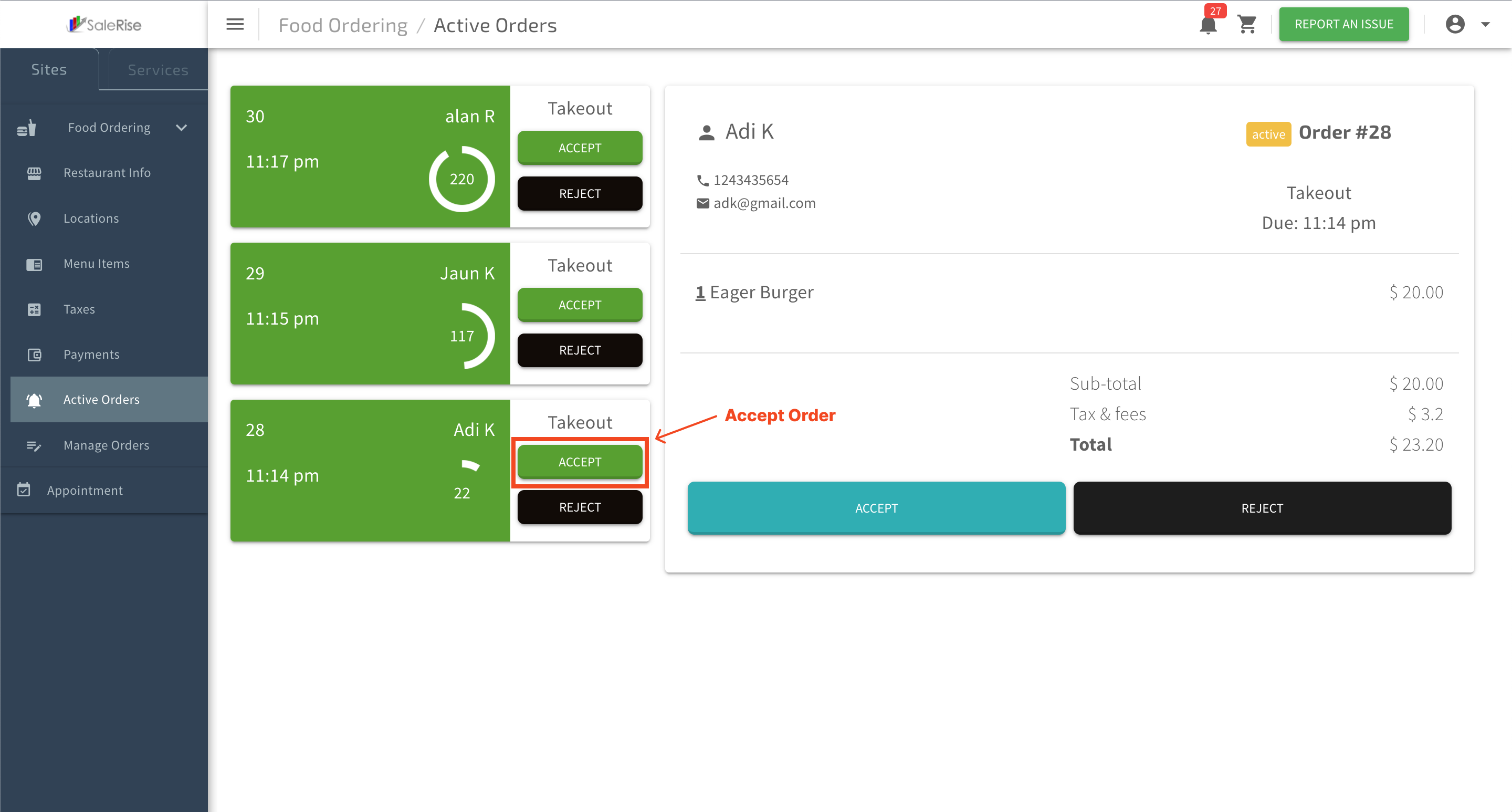
4. Accept Order:
- If ready to proceed, click "Accept" within the specified response time.
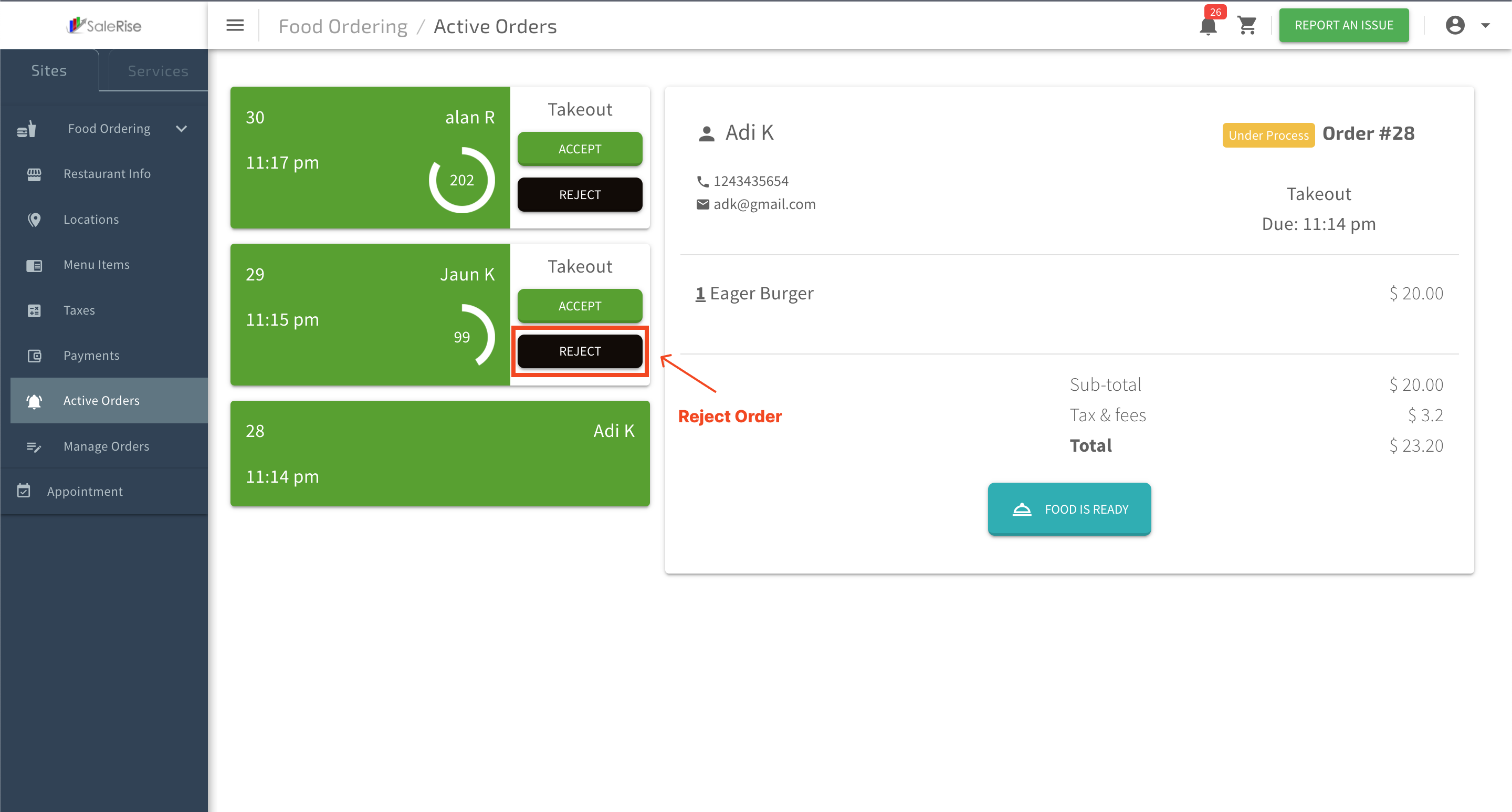
5. Reject Order:
- If unable to accept the order, click "Reject" within the response time.
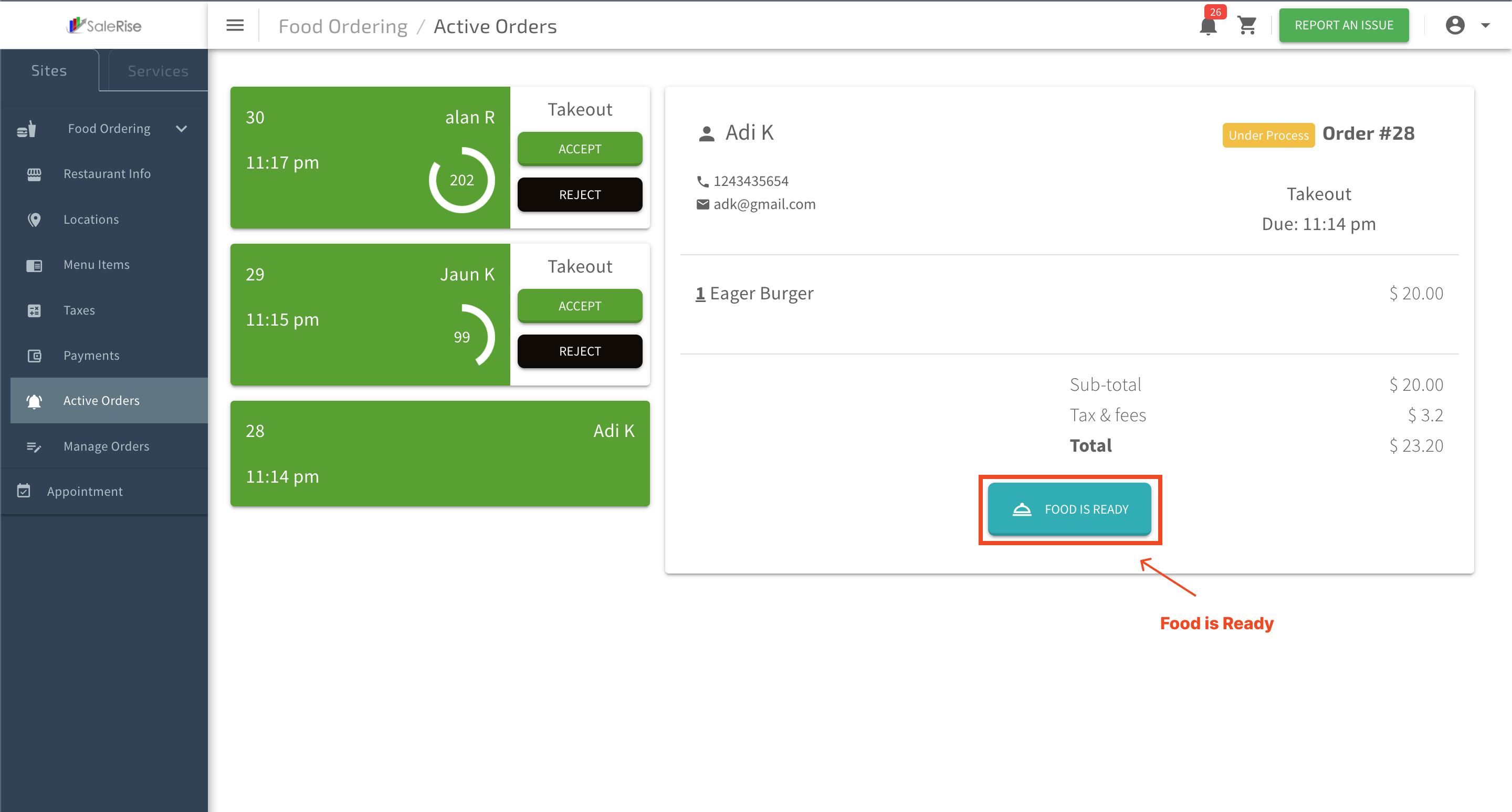
6. Food Ready:
- After cooking, click "Food Ready" to indicate that the order is prepared for pickup or delivery.
- Once marked as "Food Ready," the order disappears from the active order queue.