# Domain
# Getting started with Free Website Build and Hosting on your own Domain!
Embark on your SaleRise journey with this comprehensive guide, answering the four main questions:
[**How to Create an Account?**](https://kb.salerise.com/link/7#bkmrk-how-to-create-an-acc-1)
[**How to Create a New Site?**](https://kb.salerise.com/link/7#bkmrk-how-to-create-a-new-)
[**How to Publish Your Site?**](https://kb.salerise.com/link/7#bkmrk-how-to-publish-your-)
[**How to Find Your Published Site?**](https://kb.salerise.com/link/7#bkmrk-how-to-find-your-pub)
## How to create an account ?
- **Open the Homepage**
- Begin by navigating to the website's homepage ([https://www.salerise.com/)](https://www.salerise.com/))
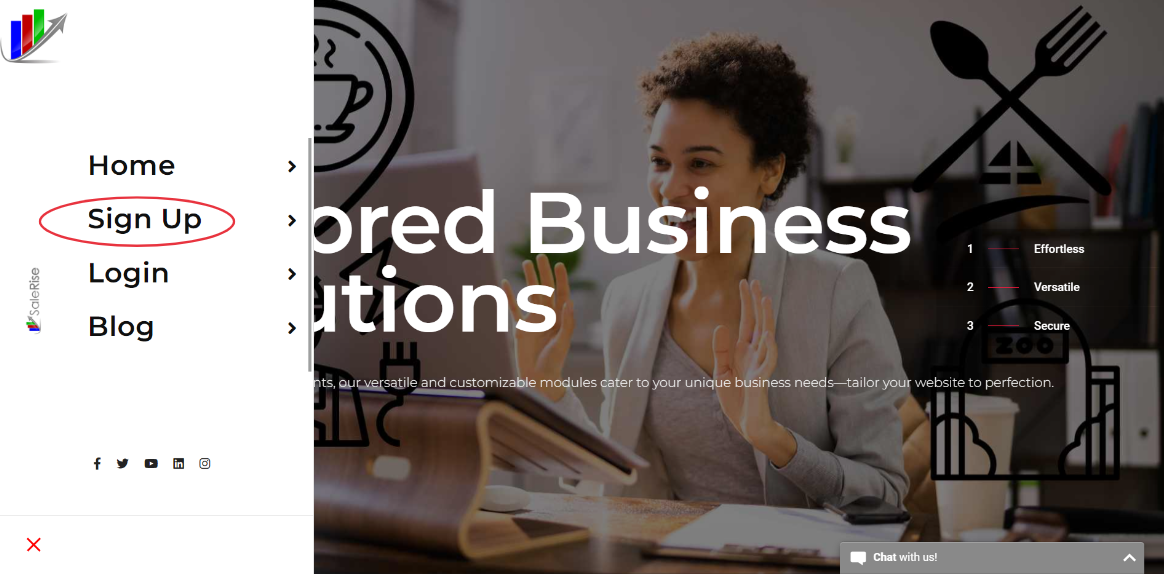
- **Initiate Sign-Up**
- Click on the "Sign Up" button to start creating your account.
[](https://kb.salerise.com/uploads/images/gallery/2023-11/JIIimage.png)
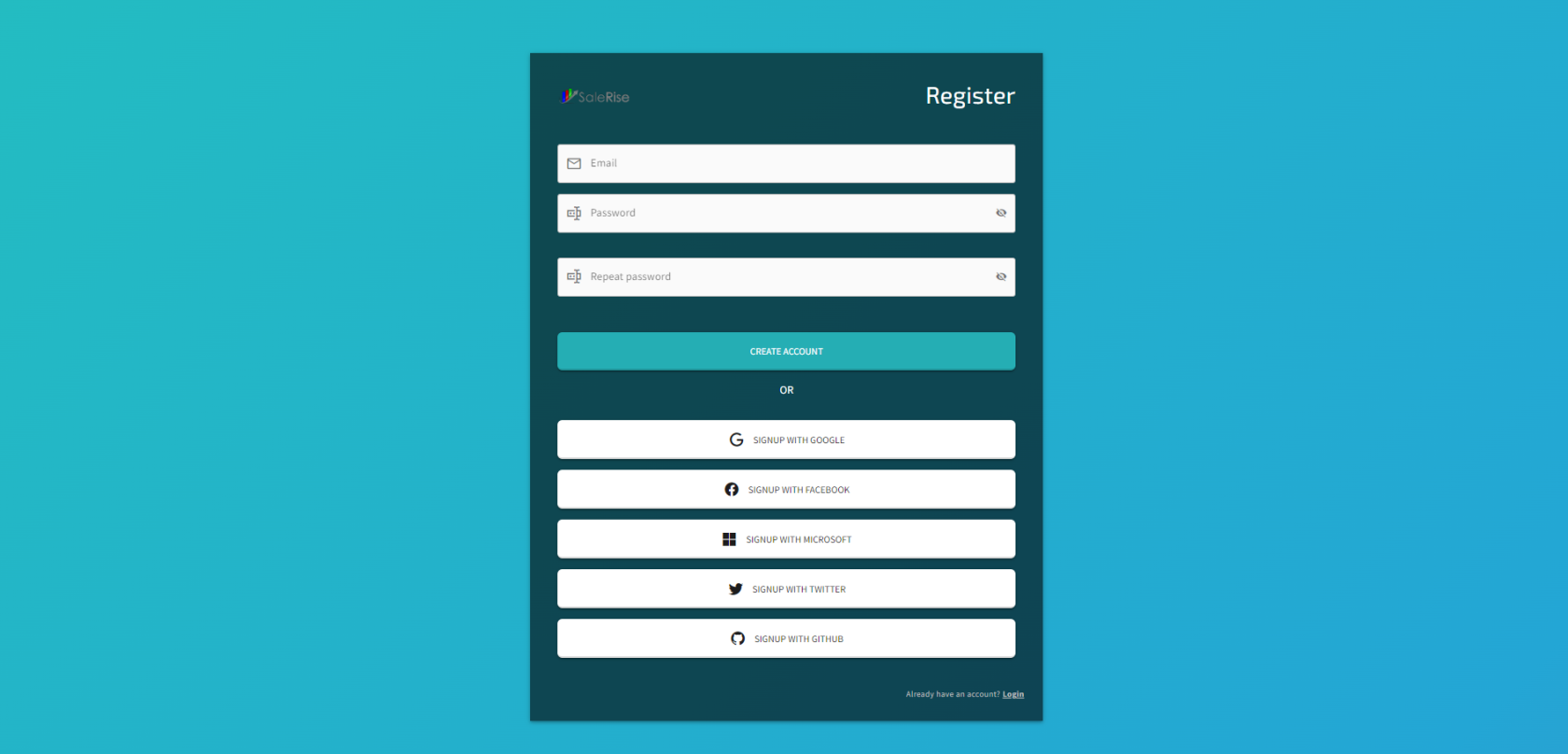
- **Registration Options**
- The registration page will appear, offering various sign-up methods. Choose from options like using your email or signing up through Google, Microsoft, Facebook, Twitter, or GitHub.
[](https://kb.salerise.com/uploads/images/gallery/2023-11/OFDimage.png)
- **Log In (For Existing Users)**
- If you already have an account, simply log in instead.
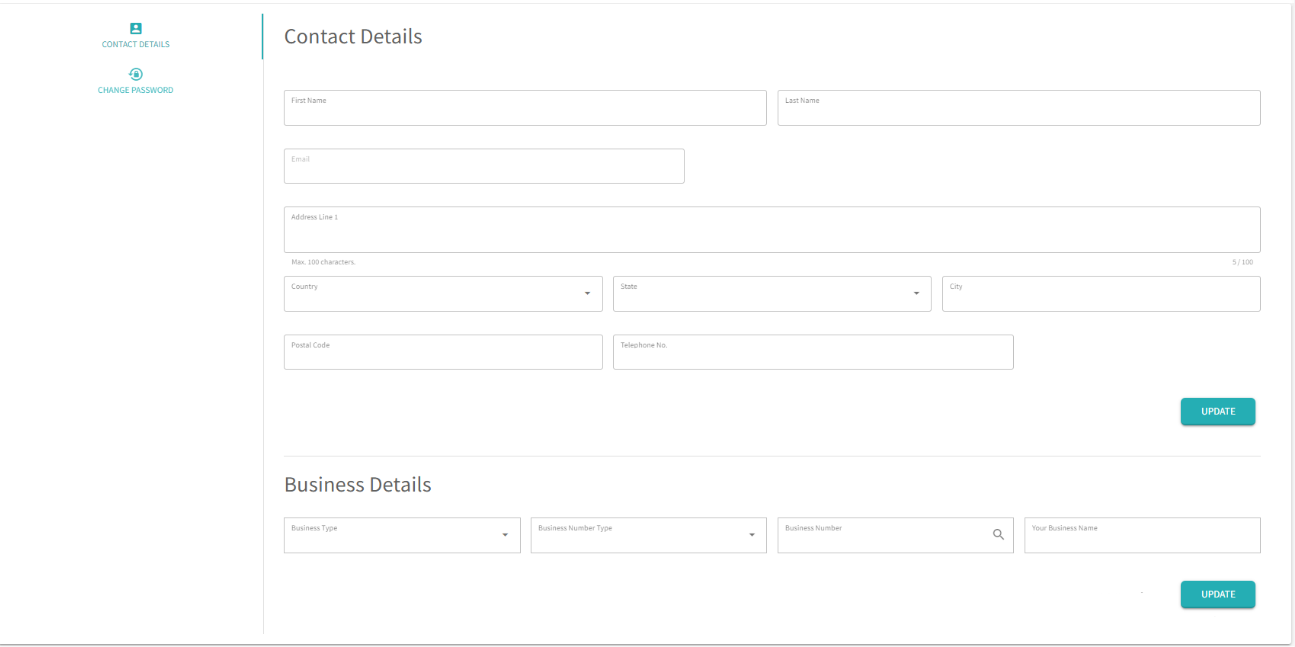
- **Complete Contact Details**
- After registering, you'll be directed to the contact details page. Fill in the required information:
- First and Last Name
- Email (Note: Your email may auto-fill if you signed up using it)
- Address Details (City, Street, Postal Code)
- Phone Number
- Business Details (Optional): Provide information about your business type, business number type, and search for your business number and name.
[](https://kb.salerise.com/uploads/images/gallery/2023-11/9PAimage.png)
## How to create a new site ?
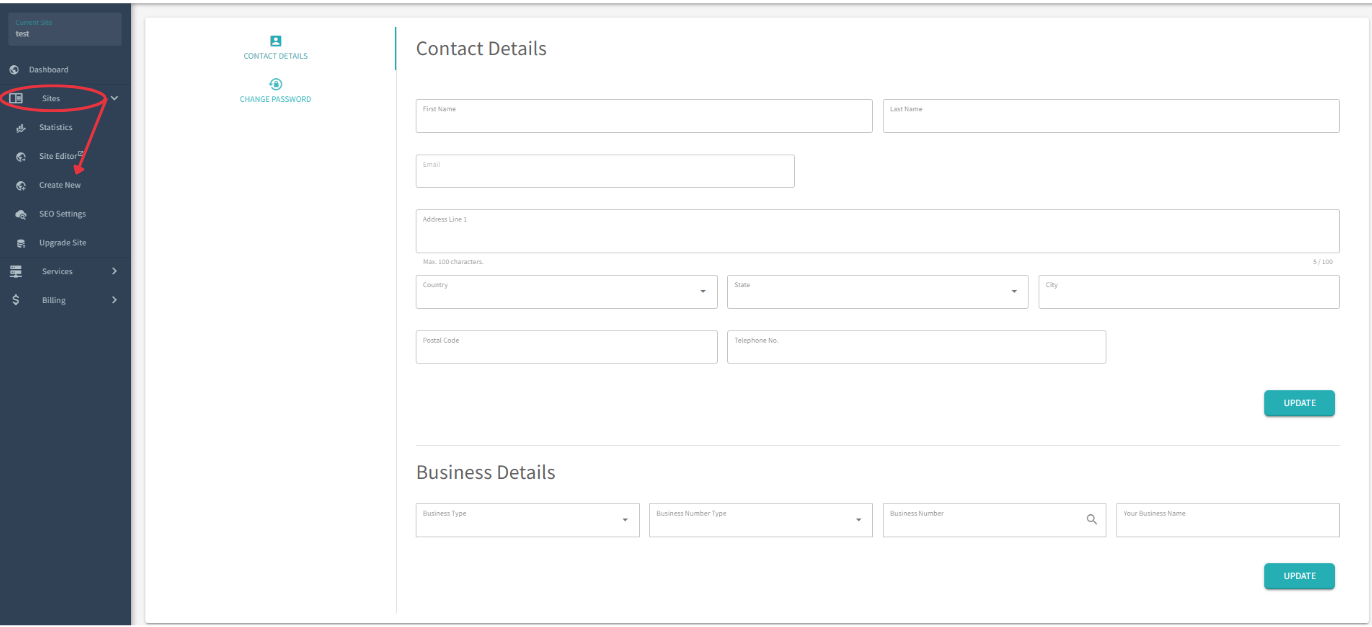
- **Navigate to Site Creation**
- On the left side of the contact details page, find and click on "Site" then select "Create New"
[](https://kb.salerise.com/uploads/images/gallery/2023-11/lAVimage.png)
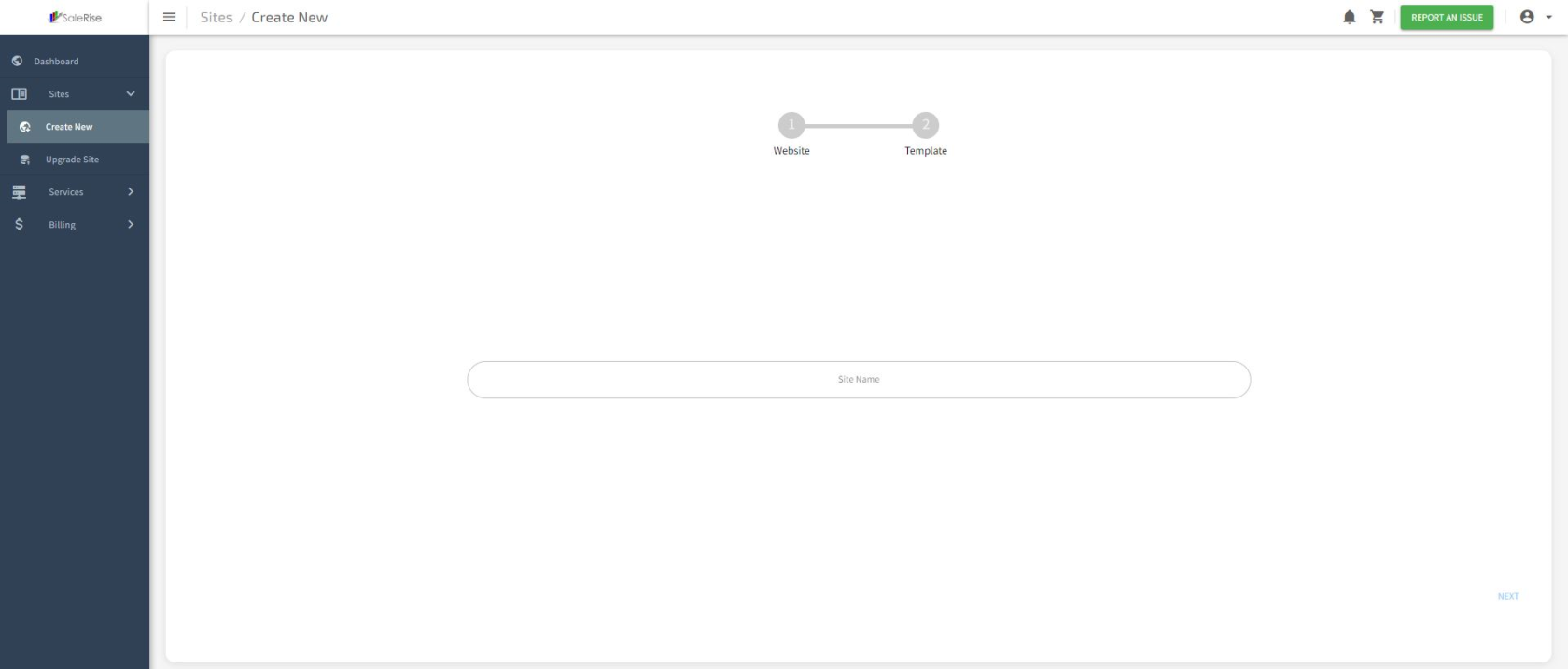
- **Choose Your Site Name**
- A page will open, allowing you to pick your site's name. Click "Next" after making your selection.
[](https://kb.salerise.com/uploads/images/gallery/2023-11/NNbimage.png)
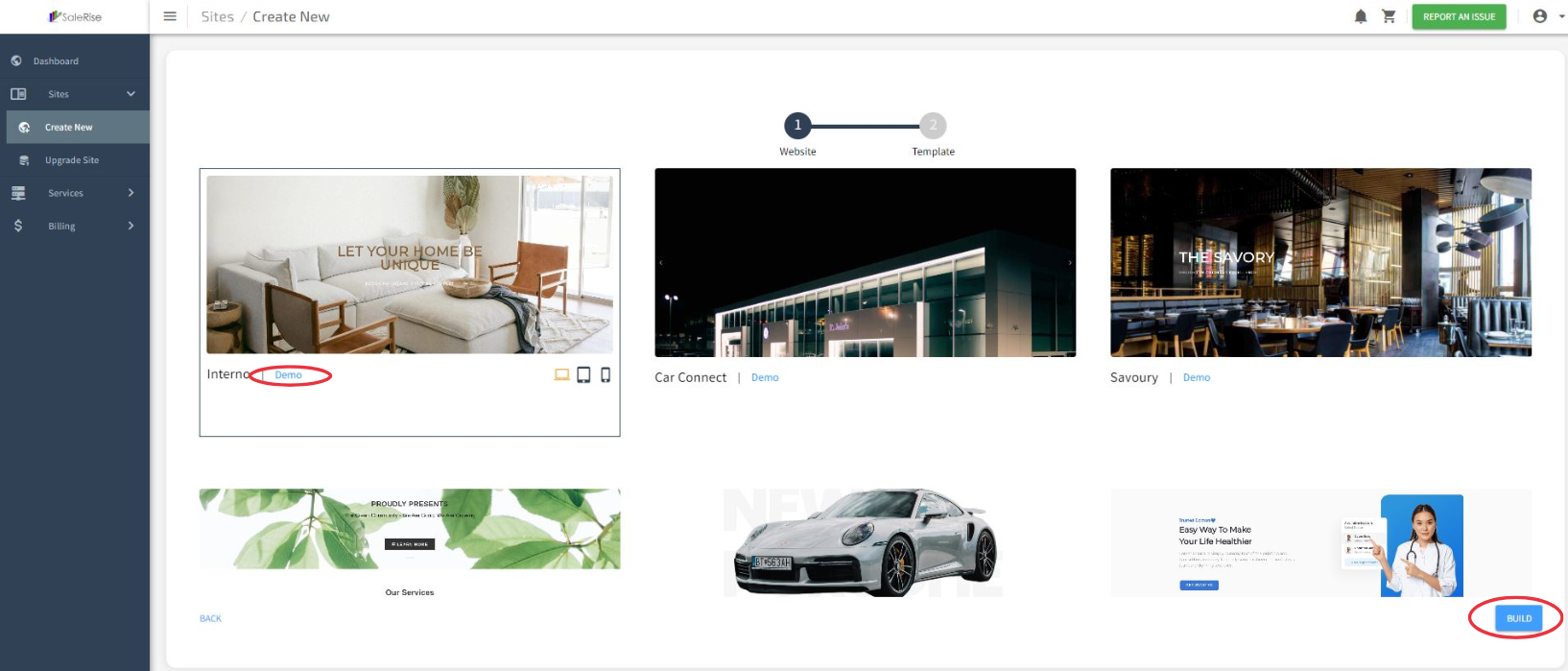
- **Select a Template**
- Browse templates and choose one that suits your niche.
- Click on a "Demo" link
- After choosing your template, click "Build" to edit your site.
[](https://kb.salerise.com/uploads/images/gallery/2023-11/FVSimage.png)
- **Pick Your Plan**
- Select your plan:
- Free site
- All-access single site
- All-access 5 sites (coming soon) [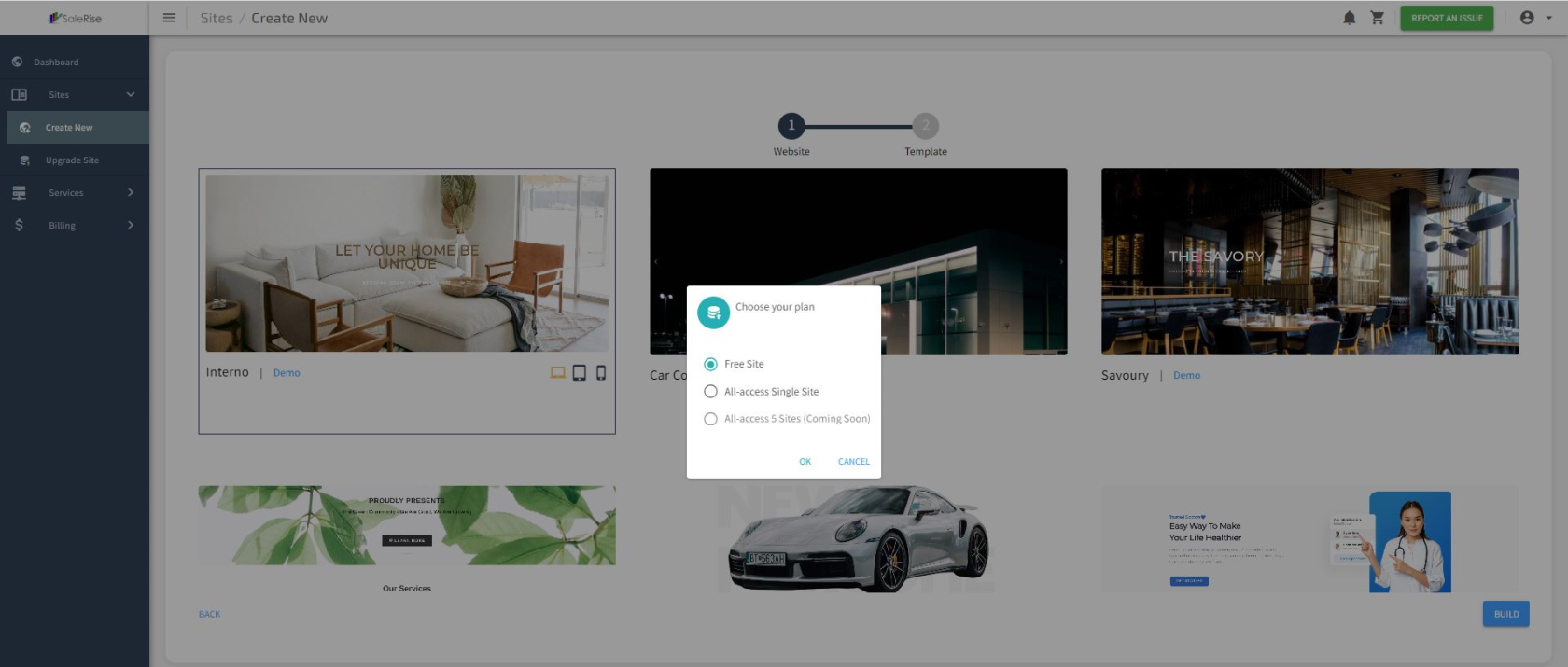](https://kb.salerise.com/uploads/images/gallery/2023-11/bulimage.png)
## How to publish your site ?
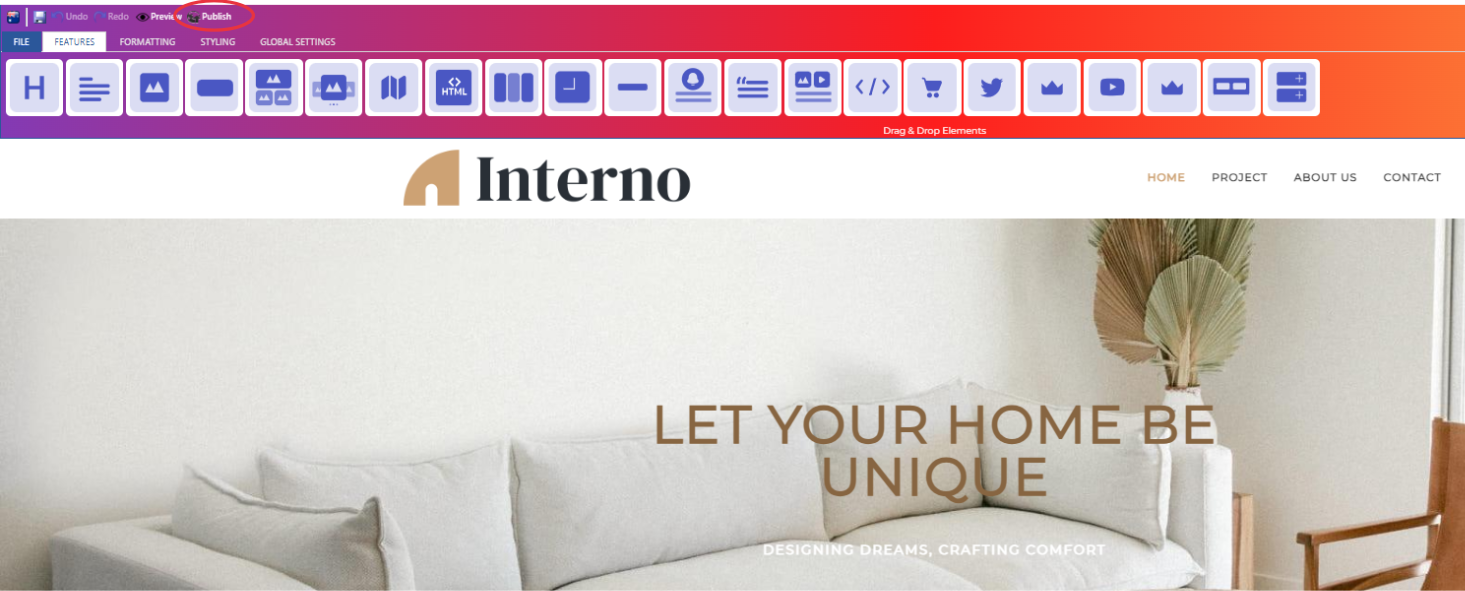
- **Enter the Editor Side**
- After choosing your plan, you'll be directed to the editor side.
- Customize your template according to your requirements.
- Click on "Publish"
[](https://kb.salerise.com/uploads/images/gallery/2023-11/kRWimage.png)
- **Publish Your Website**
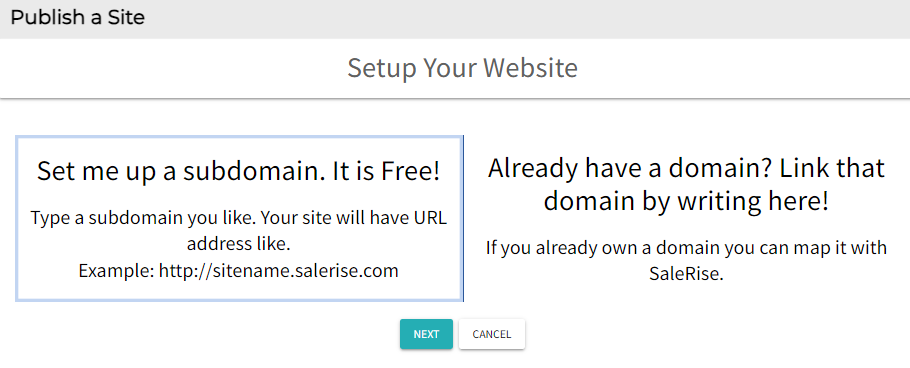
- Set up your website with two options: set a new subdomain or map an existing domain with SaleRise.
- Click "Next"
[](https://kb.salerise.com/uploads/images/gallery/2023-11/Kcyimage.png)
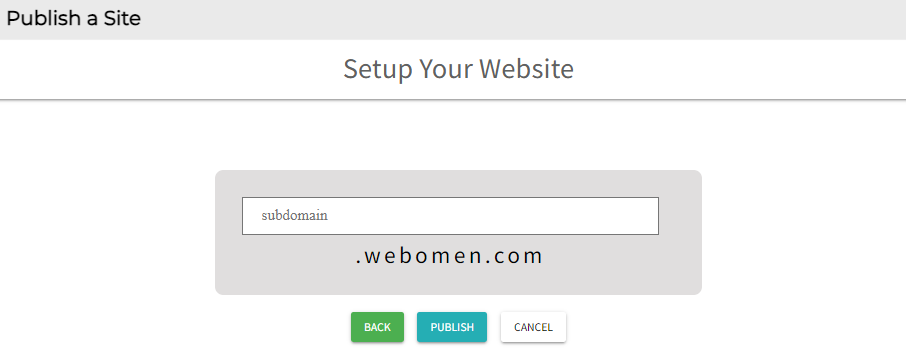
- If choosing the first option, pick your domain name (use your site name).
[](https://kb.salerise.com/uploads/images/gallery/2023-11/0ngimage.png)
- Click "Publish"
## How to find your published site?
- After clicking "Publish," a message will appear, "Your Request has been Received."
- Refresh your site.
- Click "Publish" again.
- Copy your website name.
- You can then browse to your published website.